
Message log and alerts
Use the transactional email logs to answer “did my customer get the email?”: find the message, read its delivery timeline, and resend it or export the log when you need to.
Before you begin
Section titled “Before you begin”transactional:viewto read the log and timelines.transactional:contentto open a message’s rendered content and to export the log, because both hold personal data. Every content view and export is recorded in the audit log.transactional:sendto resend a message.
Find a message
Section titled “Find a message”-
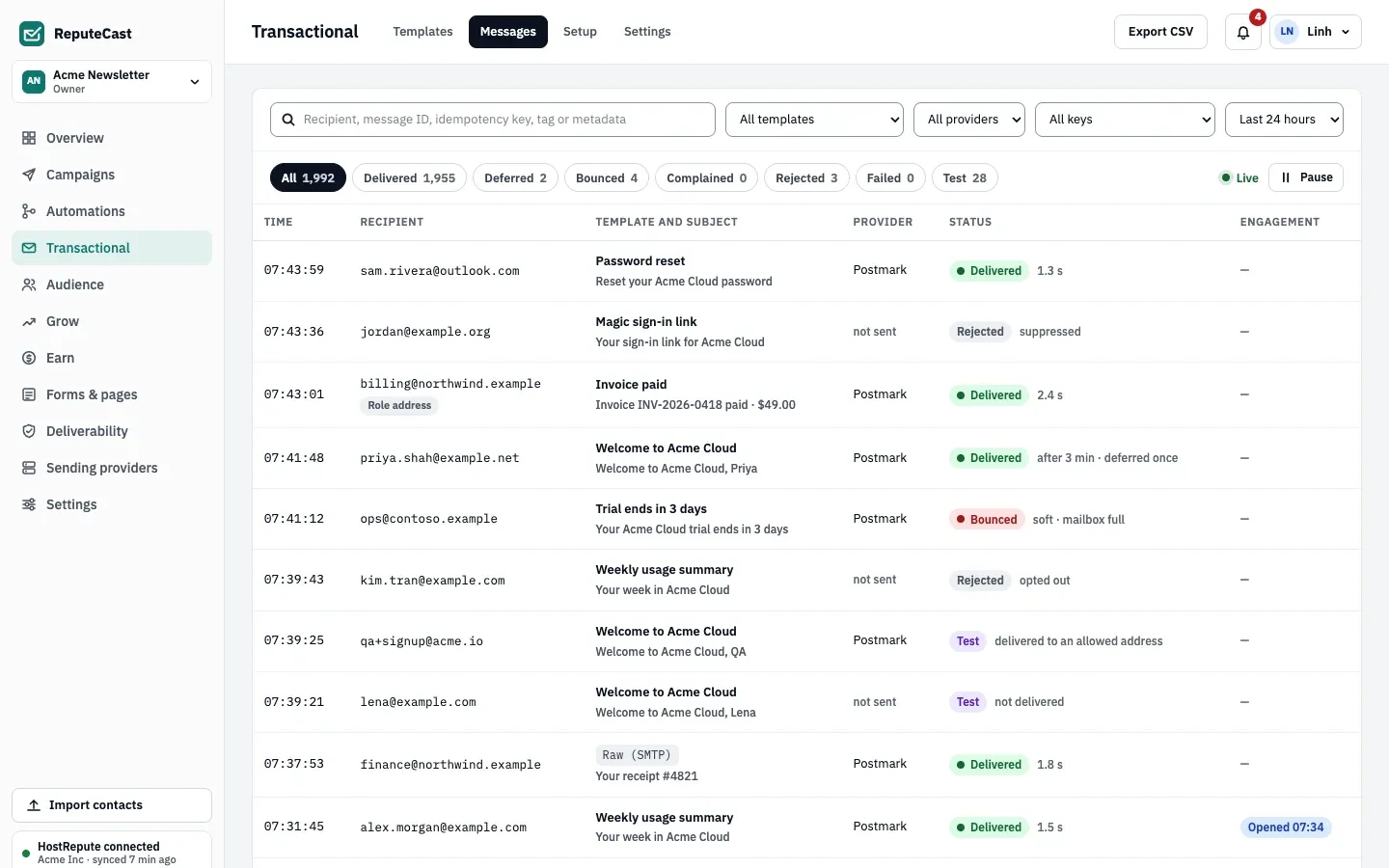
Open Transactional, then Messages. The log shows the last 24 hours and updates live; choose Pause to stop new rows from moving the list while you read.
-
Search by recipient, message ID, idempotency key, tag or metadata, or filter by template, sending provider, key and time range (last hour, 24 hours, 7 days, 30 days or custom dates).
-
Narrow by status with the chips above the table: Delivered, Deferred, Bounced, Complained, Rejected, Failed or Test, each with its count.
-
Read the status detail in each row. For example, Rejected · suppressed means the address is on the suppression list; Rejected · opted out means the recipient turned off an Optional category; Test · not delivered means a test-mode key sent to an address it isn’t allowed to deliver to. Mail that arrived through the SMTP relay shows Raw (SMTP) instead of a template.
-
Open a row to see the message’s Timeline: the call (key, IP address and answer), the render, the hand-off to the sending provider (primary or fallback), and every delivery and engagement event with its original code.
View the content
Section titled “View the content”On a message’s page, choose Show content. Content is kept for the workspace’s retention period (30 days by default); after that only metadata and events remain, for 90 days. Sensitive variables were never stored, so they show a placeholder. Change retention in transactional settings.
Resend a message
Section titled “Resend a message”Choose Resend on the message’s page. ReputeCast renders the live version of the template again with the stored data. Resend isn’t available when:
- a sensitive variable wasn’t stored (your app sends it again instead),
- the message had attachments, which aren’t kept,
- the mail arrived by SMTP,
- the template has no live version anymore,
- the message was never sent.
Export the log
Section titled “Export the log”Choose Export CSV to download the filtered log, up to 50,000 rows. Exports need
transactional:content because they hold recipient addresses.
Get alerted
Section titled “Get alerted”ReputeCast checks every minute over the last hour and alerts you when:
- a template’s bounce rate passes its limit (2% by default, after at least 20 sent),
- failed messages reach 10 or more,
- the median delivery time is slower than 30 seconds (after at least 20 delivered).
Alerts appear in the app and follow your notification preferences. Transactional mail is never paused by an alert. Set the limits under Transactional, then Settings, then Delivery alerts.
Check that it worked
Section titled “Check that it worked”The message you looked for shows Delivered with the receiving host in its timeline, or a status and reason you can act on.
Troubleshooting
Section titled “Troubleshooting”- A message is missing → widen the time range; metadata and events are kept 90 days. Check the key filter if several apps send.
- Rejected · suppressed → the address bounced, complained or was suppressed earlier. Fix the address, or remove the entry from the suppression list if it was a mistake.
- Bounced · soft → the mailbox provider deferred or refused it for now (for example, mailbox full). After 3 soft bounces within 7 days the address is suppressed.
- Show content says it isn’t visible → you need
transactional:content; the page names who can help.