
Schedule and send a campaign
To schedule an email campaign, or send it at once, you open its Review & send page, pick when it goes out and confirm what Send Readiness found. ReputeCast checks the campaign again before it starts and guards it with auto-pause while it sends.
Before you begin
Section titled “Before you begin”- Sending or scheduling needs
campaigns:send. Without it, the send button is disabled and names who can help; when the workspace’s approval policy has the “author lacks the send permission” rule on (it is on by default), you can request approval instead. - The campaign has a sender, an audience and content, and Send Readiness isn’t Blocked.
Send or schedule
Section titled “Send or schedule”-
Open the campaign and select Review & send. Send Readiness runs if its last result is out of date.
-
Fix every blocking issue. The verdict must be Ready or Ready with warnings.
-
Check the Auto-pause thresholds card. It starts with the workspace defaults; change them for this campaign only if you need to:
- Rates: Bounce rate (0.1–20%), Complaint rate (0.01–5%) and Complaints, per mailbox provider (0.01–5%, at most 5 times the complaint rate).
- Scope, under When a threshold trips: pause only the affected route or mailbox provider (the default), or pause the whole campaign.
Changes save as you leave a field, and the thresholds are fixed once the send starts. The card’s Provider errors over 3 min field doesn’t pause anything; a failing sending provider is handled as an outage. See monitor a send and auto-pause for how thresholds are applied.
-
Under Scheduling, choose when it goes out:
- Select Send now to start within a minute of confirming.
- Select Schedule to pick a date and a time in the Timezone you choose. The time zone starts as the workspace’s. The earliest time is one minute from now.
- Select Best time per recipient to send each contact the email at the hour they open email most often, within 24 hours after the time you set. See how best time works.
-
Select the send button. It names the audience size, for example “Send to 31,604 recipients” or “Schedule send to 31,604 recipients”.
-
Read the confirmation. It shows the sender, reply-to address, subject, A/B test, route, cost and duration, the auto-pause thresholds and who is excluded (suppressed, role addresses and duplicates).
-
Tick each warning to confirm it, for example “I understand 412 unengaged contacts are included.” For unengaged contacts you can choose Exclude them instead.
-
If the campaign goes to 1,000 recipients or more, type the recipient count under Type the recipient count to confirm. Large sends can’t be recalled once they leave the queue, so this step is deliberate and can’t be turned off.
-
Select Send now or Schedule send.
How best time works
Section titled “How best time works”ReputeCast looks at each contact’s human opens in the last 180 days (machine opens such as Apple Mail Privacy Protection prefetches don’t count) and takes the hour of the day, in UTC, when they opened most often.
- The send starts at the time you set. A contact whose hour is the current hour gets the email at once; everyone else gets it at the next start of their hour, always less than 24 hours after the scheduled time.
- Contacts with no human opens in 180 days get the email at the scheduled time.
- An A/B test on send time overrides best time for the contacts in the test.
After you confirm
Section titled “After you confirm”- Send now: the send starts and the live monitor opens.
- Scheduled: the banner shows the time, the audience, the route and when the checks run again (15 minutes before the send). If a check turns to Block, the send is held and you are notified. To change the time, select Unschedule: the campaign goes back to draft (or stays approved), and the checks, settings and approval stay as they are.
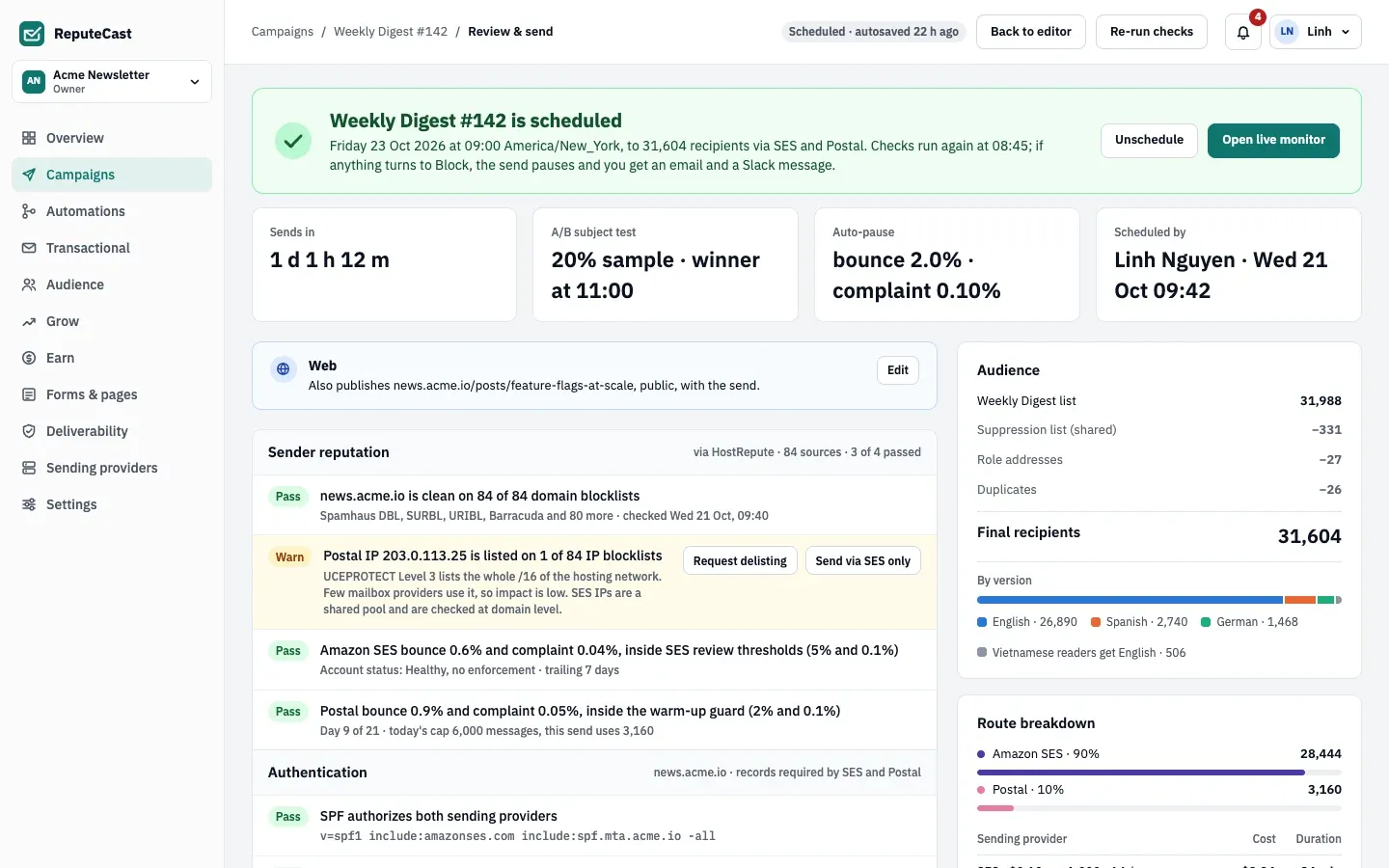
- The scheduled banner: time, time zone, audience, route and the next recheck.
- The check groups, as they were when you scheduled.
- The audience estimate, down to the final recipients.
- Unschedule to change the time, and Open live monitor.
When an approval is needed
Section titled “When an approval is needed”If a rule in the workspace’s approval policy matches, the scheduling card shows Approval required and the rules that matched. Select Request approval instead of sending. Once an approver approves, the author schedules it with Schedule as approved; that needs campaigns:edit, not campaigns:send. Changing the time of an approved campaign invalidates the approval.
Owners can use Send without approval in an emergency when the policy allows it. They give a reason and, if their account has a password, confirm it. Every approver is notified, and Send Readiness still runs.
Check that it worked
Section titled “Check that it worked”- The campaign shows Scheduled (or Sending) in the campaigns list.
- The
campaign.scheduledwebhook event fires for a scheduled send. - At the send time the live monitor shows progress. Before then, the banner on Review & send shows the next recheck.
Troubleshooting
Section titled “Troubleshooting”- The send button is disabled with “Sending needs the campaigns:send permission”. Ask one of the people it names, or request approval.
- “Pick a time in the future, or send now.” The time you chose is less than a minute away or in the past. Choose a later time.
- “The campaign is scheduled. Unschedule it to change when it goes out.” Select Unschedule first, change the time, then schedule again.
- “Type 31,604 to confirm the send.” The typed number must match the recipient count. Separators are ignored.
- “Confirm each warning before sending.” Tick every warning in the confirmation, or fix them on Review & send.
- The scheduled send didn’t start. The recheck before the send turned Blocked and held it. Review & send shows “Send-time recheck turned Blocked”; fix the block and the send starts at the next passing recheck (every 15 minutes), or select Cancel send.
Related
Section titled “Related”- Send Readiness: check before you send explains every check and fix.
- Require approval for risky sends sets up the rules and approvers.
- A/B test subject, content and send time covers the test settings in the confirmation.
- Monitor a send and auto-pause is what happens after the send starts.