
Build automations
Build an email automation workflow on the flow canvas: a trigger lets contacts in, steps send, wait and decide, and a goal ends the flow when a contact does what you wanted.
Every automation has one of three statuses. It is a Draft until its first publish, Live while contacts enter it, and Paused when someone stops it. You always edit a draft: contacts only get a version after you publish it.
Before you begin
Section titled “Before you begin”- You need
automations:editto change drafts, andautomations:publishto publish, pause and resume flows.automations:publishis a sensitive permission. The Owner, Admin and Editor roles hold both; a Viewer can open a flow and look around but cannot change it. See permissions and roles. - Flows send on the Automations route. Connect at least one sending provider and check which providers the route uses in route mail across providers.
- Have the list, form, tag or event that should start the flow ready. Triggers and steps lists what each trigger needs.
Build a flow
Section titled “Build a flow”-
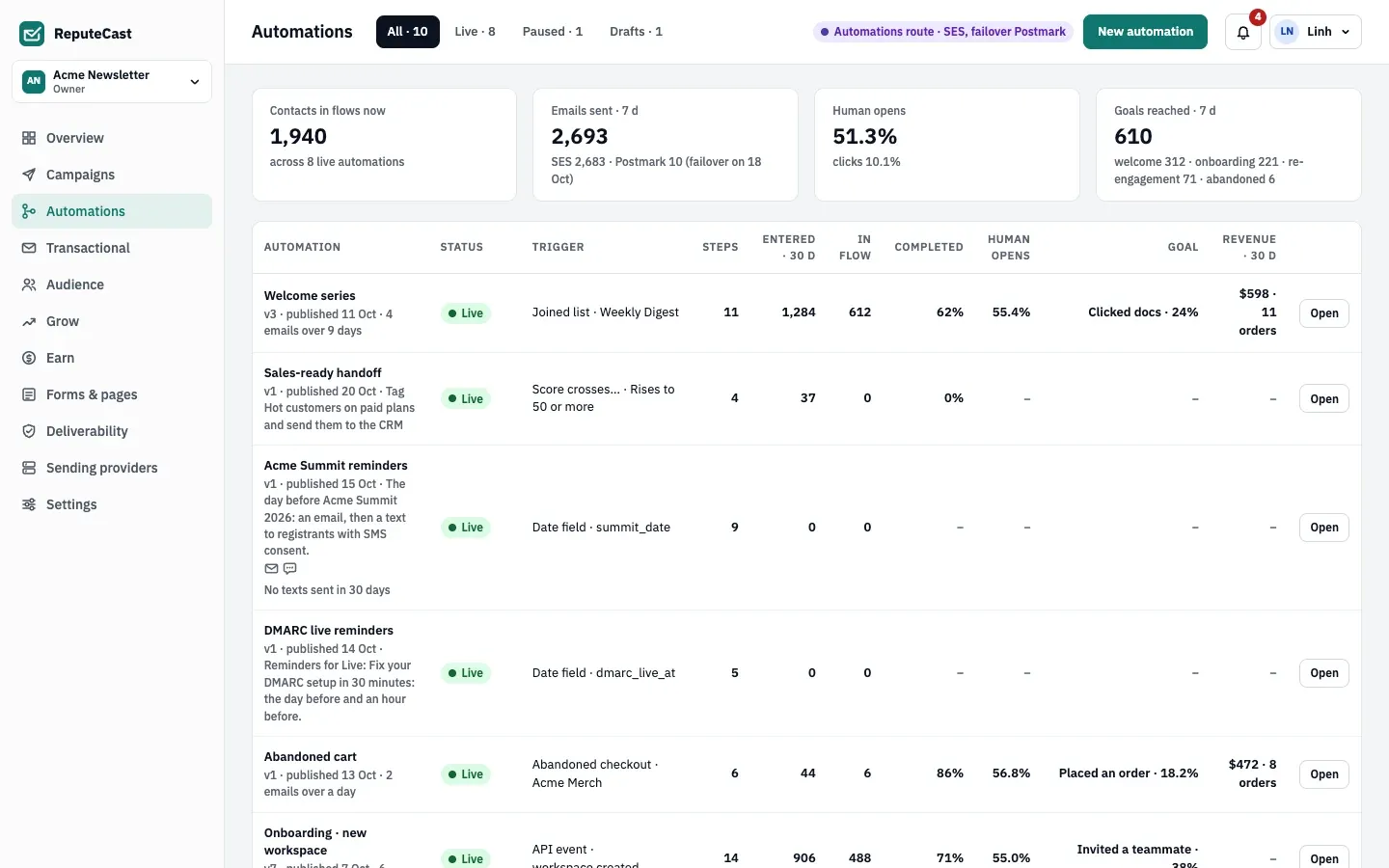
Go to Automations. The list shows every flow with its status, trigger, number of steps and its numbers for the last 30 days; the cards above it count contacts in flows now and the last 7 days. The tabs at the top filter the list by status.
-
Select New automation and pick a starter template or Blank canvas. ReputeCast creates a draft and opens it on the canvas. The Starter templates cards below the list do the same in one click; set up a welcome series walks through one of them.
-
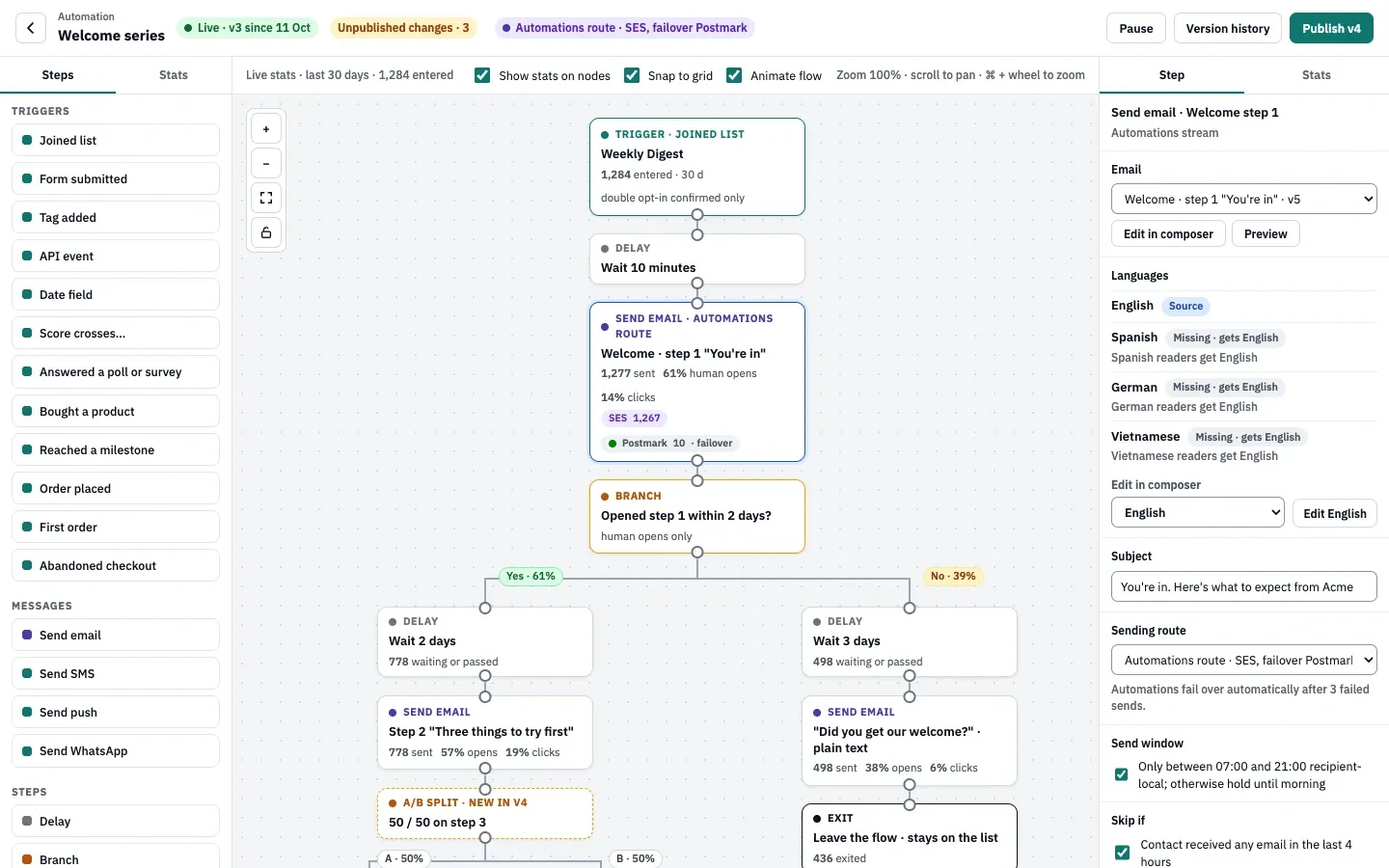
Add the trigger. In the left panel, under Triggers, drag a trigger onto the canvas, or press it to place it. A flow has one trigger. Picking another kind under Starts when replaces it, and the trigger’s other settings start fresh.
-
Add steps. Drag an item from Messages or Steps onto the canvas, or onto a connection to insert it between two steps. Pressing an item adds it after the selected step. To connect two steps yourself, drag from the handle at the bottom of one step to the top of the next.
- Only a Branch (paths Yes and No) and an A/B split (one path per variant) lead to more than one step.
- End a path with Goal / exit, or leave it open: a contact who reaches the last step of a path finishes the flow there.
- The Send SMS, Send push and Send WhatsApp steps appear in the palette once the workspace has set up that channel.
-
Set up each step. Select it to open its settings in the right panel’s Step tab; a step with a problem lists it at the top of the panel. Duplicate step and Delete step are at the bottom of the panel. Delete or Backspace also deletes the selected step, and the steps before it then lead to the step after it.
-
Move around the canvas. Scroll to pan; hold ⌘ (macOS) or Ctrl and turn the wheel to zoom between 30% and 200%. The canvas controls are Zoom in, Zoom out, Fit view (the whole flow on screen) and Lock canvas, which stops steps from moving while you read a large flow. The Minimap shows where you are in the flow. The toolbar above the canvas switches Show stats on nodes, Snap to grid and Animate flow on and off.
-
Let the draft save itself. ReputeCast saves the draft 0.7 seconds after you stop changing it; there is no save button. Press ⌘ S (Ctrl S on Windows and Linux) to save at once. Leaving the editor saves what is left. The first change to a published flow starts a new draft version: the live version keeps running, and the header counts the unpublished changes.
-
Check the flow. Select an empty part of the canvas: the right panel shows the flow’s name and description, and under Before you publish anything that still blocks publishing, such as a step that is not connected to the trigger or a branch path that leads nowhere.
-
Publish. Select Publish in the header (the button carries the draft’s version, such as v1), read the dialog and publish. Publish automation changes safely explains each part of the dialog.
Check that it worked
Section titled “Check that it worked”- The header shows the flow as live with its version and the publish date, and the list shows Live on its row.
- Contacts who match the trigger enter within seconds. The toolbar shows the flow’s live stats for the last 30 days with the number of contacts who entered, and with Show stats on nodes on, each step shows its own numbers.
- The left panel’s Stats tab lists every step with its key number. Select a step and open the right panel’s Stats tab for its 30-day numbers: how many contacts entered it, are there now, moved on and finished there. Email steps add sent, skipped by a rule, delivered, human opens, all opens, clicks and unsubscribes; webhook steps add failed calls and a delivery log.
- Stats start at the first publish and count across versions: a step keeps its numbers when you publish a new version, and a step that is new in the draft has none until it is published.
Troubleshooting
Section titled “Troubleshooting”- The canvas is read-only and says editing needs the automations:edit permission. Ask an Owner or Admin for a
role with
automations:edit. Publishing, pausing and resuming also needautomations:publish. - The editor says This draft changed somewhere else. Someone, maybe you in another tab, saved a newer version of the draft, so your last change was not saved. Select Load the latest draft and make the change again.
- The header shows Draft not saved. The last save failed, for example because the connection dropped. Select Retry next to it, or press ⌘ S or Ctrl S. ReputeCast asks before you leave the page with unsaved changes.
- A step says it isn’t connected to the trigger. No contact could reach it. Connect it to a step above it, or delete it.
- Send SMS or another channel step is missing from the palette. The channel is not set up in this workspace yet: see send SMS campaigns, send web push notifications or send WhatsApp messages.
- The list shows Paused automatically above a flow. No sending provider on the Automations route is healthy. The flow’s emails are queued and go out as soon as a provider is healthy again; delays keep counting. Fix the provider the alert names, or add another provider to the route.
- The list shows Step failing. A webhook step keeps failing. Contacts continue past it, so the flow is not blocked; fix the URL or remove the step, then publish.
Related
Section titled “Related”- Triggers and steps lists every trigger, step and condition with its options.
- Publish automation changes safely covers the publish dialog, approvals, version history and pausing.
- Set up a welcome series builds a first flow from a starter template.
- Route mail across providers sets which sending providers the Automations route uses.
- Permissions and roles lists
automations:view,automations:editandautomations:publish.