
Send your first transactional email
In about 10 minutes you send transactional email through the API: the first-send guide walks you from a sender to a delivered message, and its last step proves the whole loop with a real call from your app.
Before you begin
Section titled “Before you begin”- A sending provider connected to the workspace. The guide asks you to connect one if there is none.
- A sending domain you can add DNS records to. A subdomain of its own, such as
notify.example.com, keeps product mail’s reputation apart from your newsletters. See add sending domains and senders. - Permissions:
transactional:publishto publish the template andapikeys:manageto create the key. The Owner and Admin roles have both. curlor your app’s HTTP client to make the first call.
Send it
Section titled “Send it”-
Open Transactional and choose Start the first-send guide. The guide has five steps: Sender, Route, Template, Key and Watch it arrive. You can leave with Exit guide at any time.
-
Sender. Enter a From name and a From address on the domain that sends transactional mail. If the domain is new, the guide lists the DNS records it needs (DKIM, a return path, SPF and a DMARC policy, depending on the sending provider) and checks them live. Most DNS hosts take a few minutes. When HostRepute is connected, you can add the domain to its blocklist monitoring here.
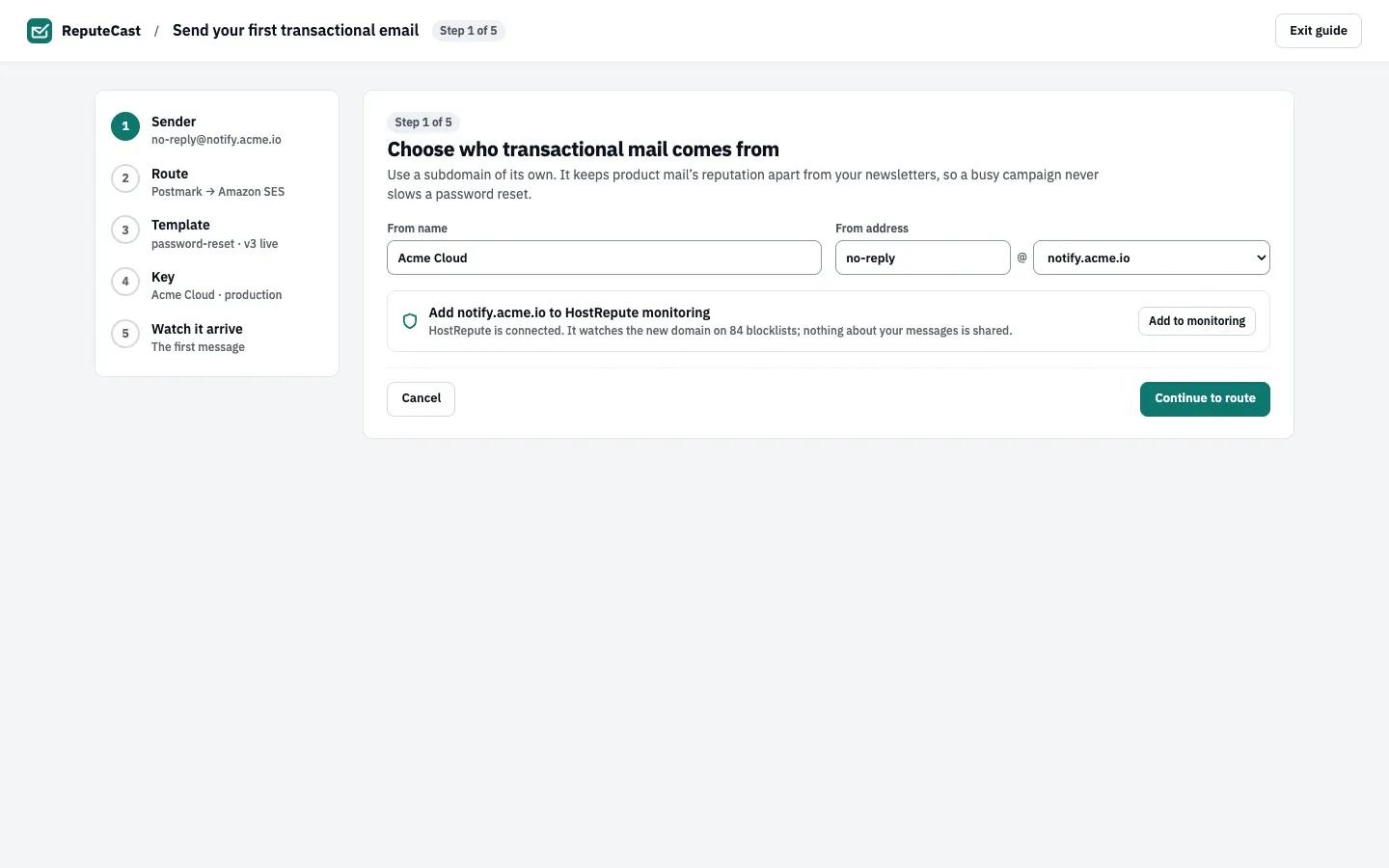
Choose Continue to route.
-
Route. Pick the Primary sending provider and, if you have a second one, a Fallback. The fallback is used at once when the primary is down. Leave First in line on shared providers on so that transactional messages go before a campaign that uses the same sending provider. Choose Continue to template.
-
Template. Start from a starter: Password reset, Sign-in link, Email verification, Welcome, Receipt or invoice, Trial ending, Team invitation or Usage alert. Each comes with its variables declared and a footer for account email. Choose Publish v1 and continue, or Edit before publishing to change it first in the template editor. If your templates are at Postmark, SendGrid, Mailgun or Notifuse, you can import them instead.
-
Key. Name the key (for example
Acme Cloud · production) and choose Create send-only key. A send-only key holdstransactional:sendand nothing else. Copy it now: it is shown once. Then choose I copied it · watch it arrive. -
Watch it arrive. The guide shows Your first call, filled with the template ID and its sample data. Run it from your laptop or your app with the key you copied. The request looks like this; take the exact body from the guide, because it carries your template’s variables:
Terminal curl -X POST "https://reputecast.example.com/api/v1/workspaces/acme-newsletter/transactional/messages" \-H "Authorization: Bearer $REPUTECAST_KEY" \-H "Content-Type: application/json" \-H "Idempotency-Key: first-send-1" \-d @first-message.jsonThe Delivery timeline follows the message: Call received, Rendered, Handed to the sending provider and Delivered, with the round trip from your call to the delivery event. If you’d rather not run the call, Send it from here instead sends it to your own address with the sample data.
-
Choose Finish once the first message is delivered.
What you built
Section titled “What you built”- A verified sender for transactional mail and a Transactional route with automatic failover.
- A published template your app calls by its ID. The ID is fixed after this first publish.
- A send-only key for your app, listed under Transactional, then Setup, where you can rotate or revoke it.
- A first message in the message log, with its full timeline.
If the call was rejected, the timeline says why. A template with a draft but no published version can’t send: publish it, then call again with the same idempotency key.