
Offers and gift subscriptions
Offers discount a paid tier, and a newsletter gift subscription lets a reader pay once for someone else’s access. Both run through your own Stripe account: offers become Stripe coupons and promotion codes, and a gift is a one-time Stripe payment.
Before you begin
Section titled “Before you begin”- Connect Stripe and create a tier.
- Offers and gift options need
earn:edit(sensitive). Changing a bought gift needsearn:manage(sensitive).
Create an offer
Section titled “Create an offer”- Open Earn, then Plans & offers and add an offer.
- Choose the kind:
- Signup: for new paid members, by code or link.
- Retention: shown only on the cancel page, to a member who is about to cancel.
- Referral reward: single-use codes that your referral program gives out.
- Set the discount (a percentage or an amount) and the tiers it applies to.
- Choose the duration: Once (the first payment, so the first year on a yearly price), For a number of months (1–36) or Forever.
- Optionally set a Redemption limit and an end date. The offer ends at its date or its limit, whichever comes first.
- Save, then share the code or the offer link to your upgrade page.
Sell gift subscriptions
Section titled “Sell gift subscriptions”-
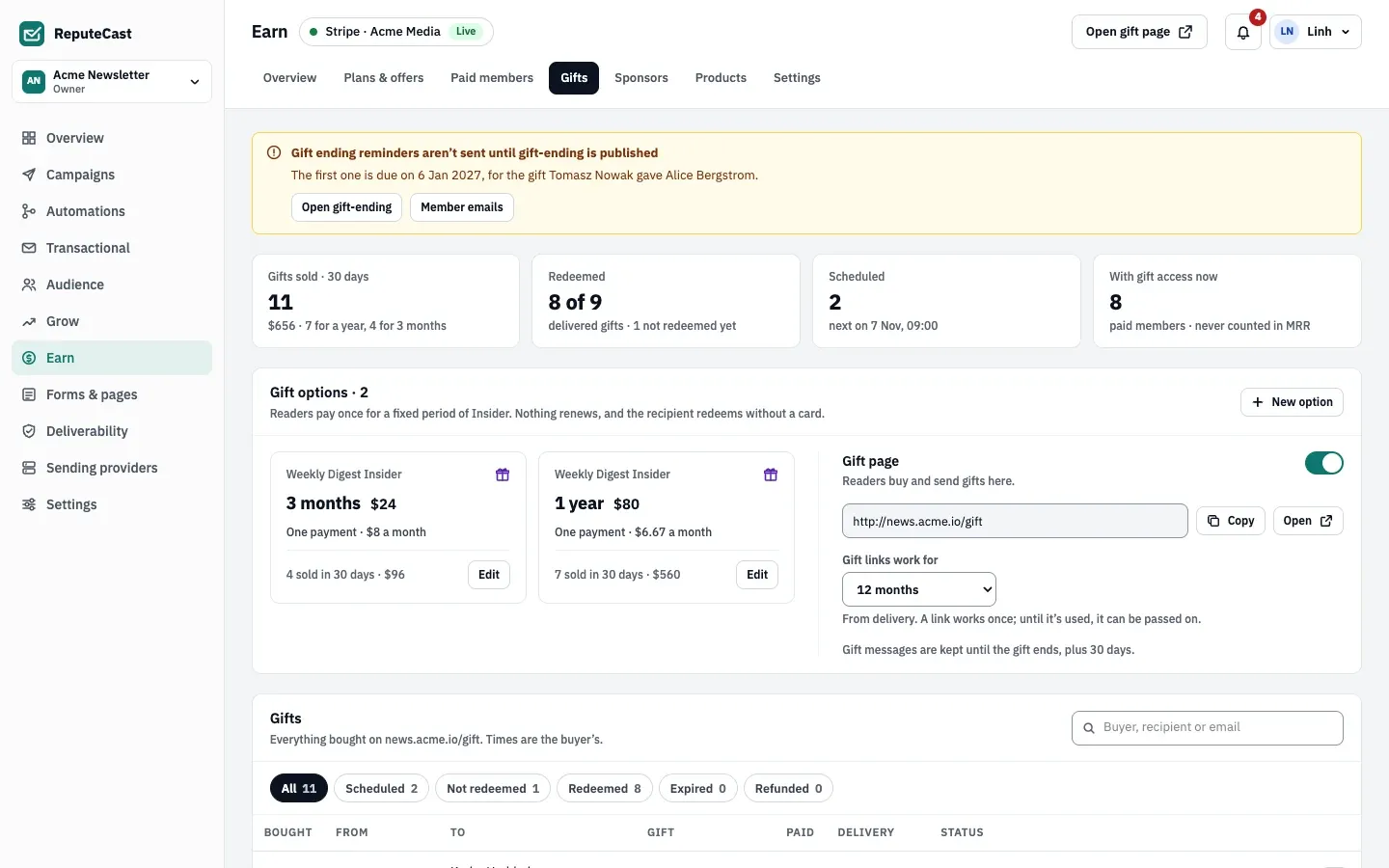
Open Earn, then Gifts and select New gift option.
-
Pick the tier and the length (1–36 months), and set the price. The buyer pays once; nothing renews.
-
Save. The option appears on your gift page.
When a reader buys a gift, they choose who gets it, an optional message (up to 300 characters) and when it is delivered: now or on a date up to a year ahead. On that date the recipient gets the Your gift email with a redeem link. Redeeming starts the gift: the recipient becomes a paid member with the Gift status until the length runs out.
The gift emails (Gift receipt, Your gift, Gift ending) are member emails: publish their templates in Earn, then Settings, then Member emails.
Defaults and limits for gifts
Section titled “Defaults and limits for gifts”| Setting | Default | How to change |
|---|---|---|
| Gift redeem link works for | 12 months after delivery | Earn › Gifts › Gift links work for; 3, 6 or 12 months |
| Gift message | Up to 300 characters | Fixed |
| Scheduled delivery | Up to 1 year ahead | Fixed |
| Gift emails | Reminder 7 days after delivery if not redeemed; ending notice 7 days before the gift ends | Earn › Settings › Member emails |
| Gift length | 1–36 months per option | Earn › Gifts › New option |
Check that it worked
Section titled “Check that it worked”- Open the offer link in a private window: the upgrade page shows the discounted price.
- Buy a gift with a Stripe test card: it appears in Earn, then Gifts and the test recipient gets the gift email on the delivery date.
Troubleshooting
Section titled “Troubleshooting”- The upgrade page says “This offer has ended” → the offer reached its redemption limit or end date, and readers see the normal prices. Raise the limit or move the date to keep it running.
- The recipient never got the gift → check the delivery date, then that the Your gift template is published.
- A redeem link no longer works → gift links work for 12 months after delivery by default. Change the period in Earn, then Gifts.