
Categories, retention and alerts
Adjust the transactional email settings of a workspace: which categories recipients can turn off, how long rendered content is kept, when delivery alerts fire, and the defaults new templates start with.
Before you begin
Section titled “Before you begin”transactional:publishto change settings and categories. Withtransactional:viewonly, the page is read-only and says which permission you need.- Know how categories and the Transactional stream work.
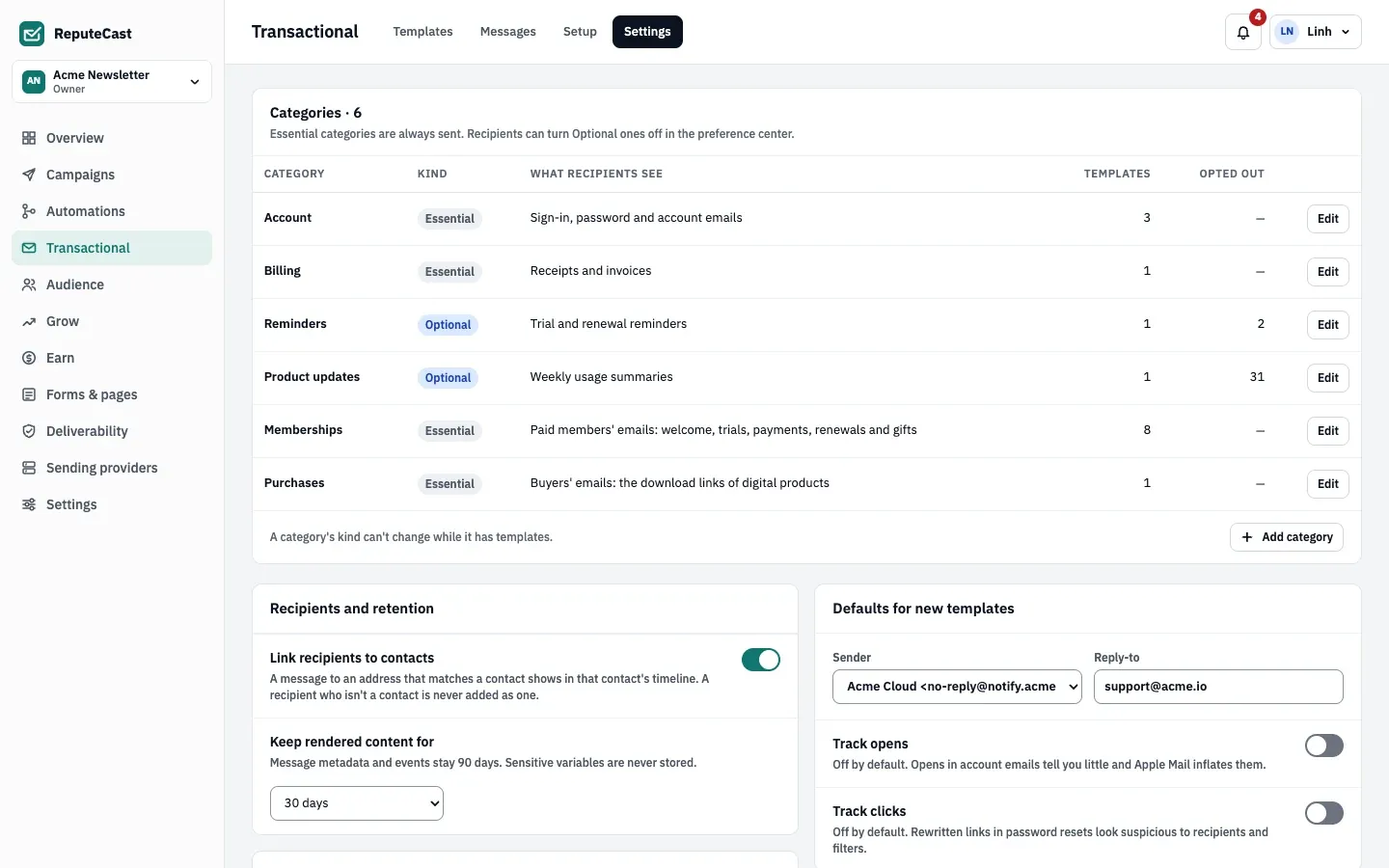
Manage categories
Section titled “Manage categories”-
Open Transactional, then Settings. The Categories table lists each category with its kind, what recipients see, its templates and how many recipients opted out.
-
Choose Add category, or Edit on a row. Give it a Name, a Kind and What recipients see, the description shown under the category in the preference center.
- Essential: always sent. Use it for sign-in, password, billing and account emails.
- Optional: recipients can turn it off in the preference center or with the unsubscribe link.
-
Choose Save category.
A category’s kind can’t change while templates use it, and a category with templates can’t be deleted: move its templates first. The What recipients see panel previews the preference center, which lists each Optional category with its description (see subscribe, preference and unsubscribe pages).
Set retention
Section titled “Set retention”Under Recipients and retention:
- Keep rendered content for: don’t keep content, or keep it 7, 30 (default), 60 or 90 days. Message metadata and events stay 90 days either way, and sensitive variables are never stored.
- Link recipients to contacts: a message to an address that matches a contact shows in that contact’s activity timeline. A recipient who isn’t a contact is never added as one.
Set delivery alerts
Section titled “Set delivery alerts”Under Delivery alerts, set the three limits. ReputeCast checks them every minute over the last hour:
| Alert | Default | Range |
|---|---|---|
| Bounce rate per template | 2% | 0.1–100% |
| Failed messages | 10 | 1–100,000 |
| Median delivery slower than | 30 seconds | 1–3,600 s |
Alerts reach people through their notification preferences; they never pause transactional mail. Read alerts in the message log.
Set defaults for new templates
Section titled “Set defaults for new templates”Under Defaults for new templates, pick the Default sender (a verified Transactional sender) and Default reply-to, and whether new templates Track opens and Track clicks. Both are off by default: opens in account emails tell you little and Apple Mail inflates them, and rewritten links in a password reset look suspicious to recipients and filters.
Choose Save settings. Each change is recorded in the audit log.
Check that it worked
Section titled “Check that it worked”- The toast says Transactional settings saved.
- An Optional category appears in the workspace’s preference center.
Troubleshooting
Section titled “Troubleshooting”- The fields are read-only → you need
transactional:publish; ask an Owner or Admin. - The kind can’t be changed → templates use the category. Move them to another category first.
- No default sender to choose → there is no verified Transactional sender yet. Add one in sending domains and senders.