
Notifications
ReputeCast tells you about approvals, auto-paused sends, sending-provider incidents, team changes and HostRepute alerts in the app and by email. This page shows where to read them and how to change your email notifications settings for each event type.
Before you begin
Section titled “Before you begin”- Notifications are personal: each one goes to the people its event concerns, for example approvers or everyone with
providers:view. Your preferences apply in every workspace you belong to. - Emails go out on the workspace’s System stream. Until a sending provider handles it, notifications stay in the app (see connect a sending provider).
Read notifications
Section titled “Read notifications”The bell at the top right shows the unread count for this workspace. Its list shows the latest six, unread first; Mark all as read clears the count, and All notifications opens the full page. Opening a notification marks it read and takes you to the screen where you can act.
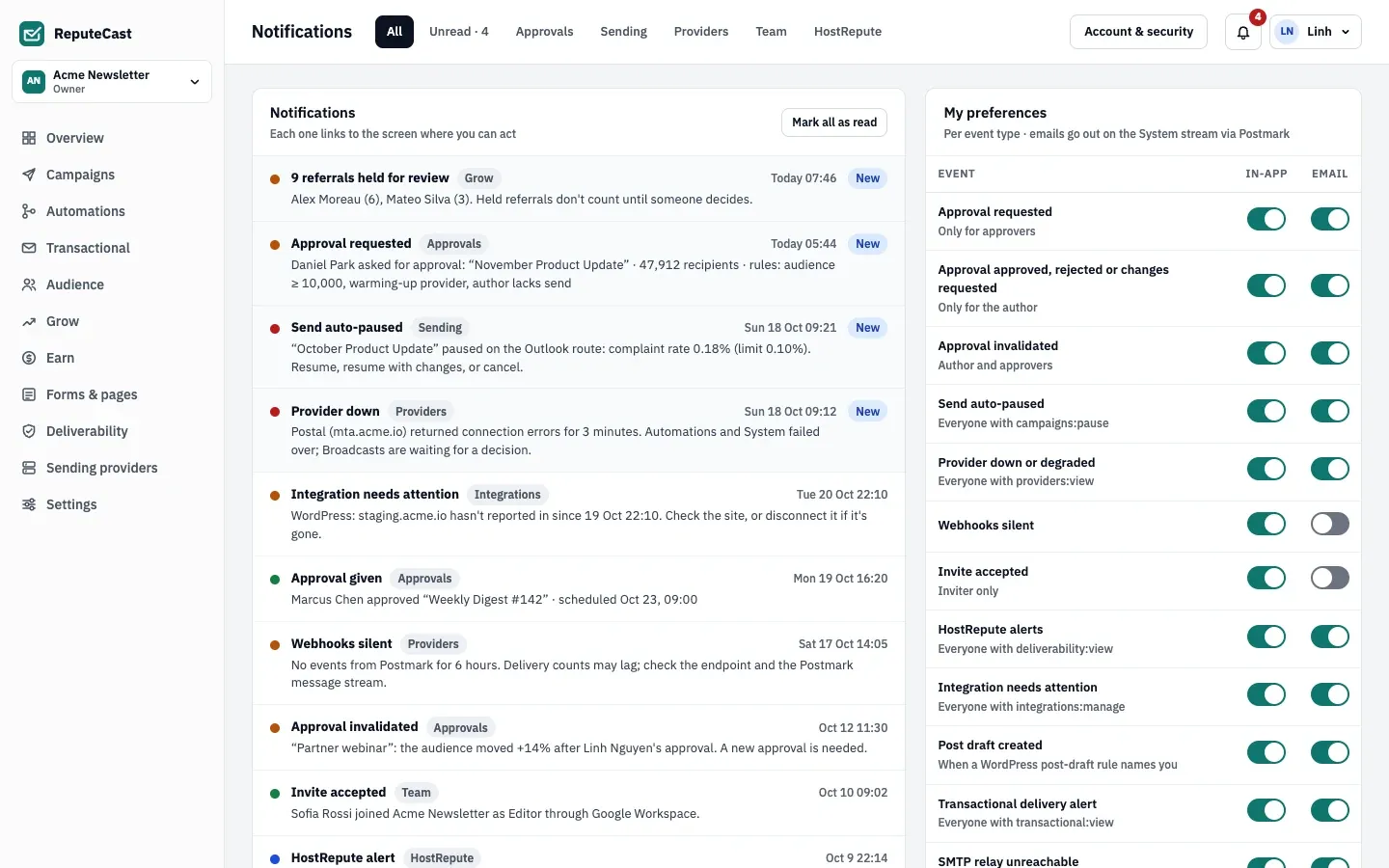
The Notifications page lists up to 100 notifications for the current workspace, with tabs to filter them:
| Tab | Shows |
|---|---|
| All | Everything, including integrations, transactional, AI, Earn, website and Grow events |
| Unread | Everything you haven’t opened yet |
| Approvals | Approval requested, decided or invalidated |
| Sending | Auto-paused, blocked and finished sends, digest issues, paused SMS campaigns |
| Providers | Sending providers down or degraded, silent webhooks, SMS, push and WhatsApp problems |
| Team | Accepted invitations and requests for a new invitation |
| HostRepute | HostRepute alerts |
Notifications are kept for 90 days, read or not.
Change your preferences
Section titled “Change your preferences”-
Open Notification preferences from the account menu, or Edit preferences on the Notification preferences card of Account & security.
-
In My preferences, turn the in-app and email switches on or off for each event. Each row says who receives it. Most events email by default; a few, such as silent webhooks, accepted invitations and HostRepute alerts, stay in the app unless you turn email on.
-
Set Quiet hours · email only to hold emails overnight, for example 22:00 to 07:00. Quiet hours use the timezone in your profile.
-
Pick an Email digest: immediately, an hourly digest, or a daily digest at 09:00.
-
Choose Save preferences.
Some notices have no preference row and always appear in the app: finished sends, imports and exports, a two-factor reset, a deleted workspace, an ownership transfer, an MCP agent’s proposal and access requests.
Check that it worked
Section titled “Check that it worked”- A notification email has the subject
[<workspace>] <title>, or[<workspace>] <N> notificationsfor a digest, and links back to your preferences. - The Notification preferences card on Account & security summarizes your in-app, email and quiet-hours choices.
Troubleshooting
Section titled “Troubleshooting”- No emails arrive. The preferences card says when no sending provider handles the System stream. Emails skipped then are not sent later.
- A teammate gets alerts you don’t. Most events go only to people with a given permission; check the audience line under the event and your role.
- Emails come late. Check your quiet hours and digest setting.