
Move to ReputeCast without losing consent
When you migrate newsletter platform data to ReputeCast, three importers do the work: one for contacts and their consent, one for paid members, and one for transactional templates. All three only read from the old platform. Nothing is written to it, and an import can never turn an unsubscribe, a bounce or a complaint back into a subscription.
What you can bring
Section titled “What you can bring”| What moves | From | Guide |
|---|---|---|
| Contacts, lists, custom fields, tags and each contact’s status on each list | Brevo, Mailchimp, MailerLite, listmonk, Keila and Notifuse (API), or a CSV or XLSX file | Mailchimp, Brevo, MailerLite, listmonk, Keila, Notifuse, CSV or XLSX file |
| Paid members, matched with their subscriptions in your Stripe account | Substack, Ghost, beehiiv and Kit exports, or any CSV | Import paid members |
| Transactional templates, converted to ReputeCast Liquid | Postmark, SendGrid, Mailgun, Notifuse, or MJML and HTML files | Import transactional templates |
Open the contact importer from Import contacts at the bottom of the sidebar, or from Audience, then Contacts, then Import. The connect wizard’s last step offers it too, when you connect a sending provider. Running it needs the subscribers:import permission, which the Owner, Admin and Editor roles have.
How a contact import carries consent
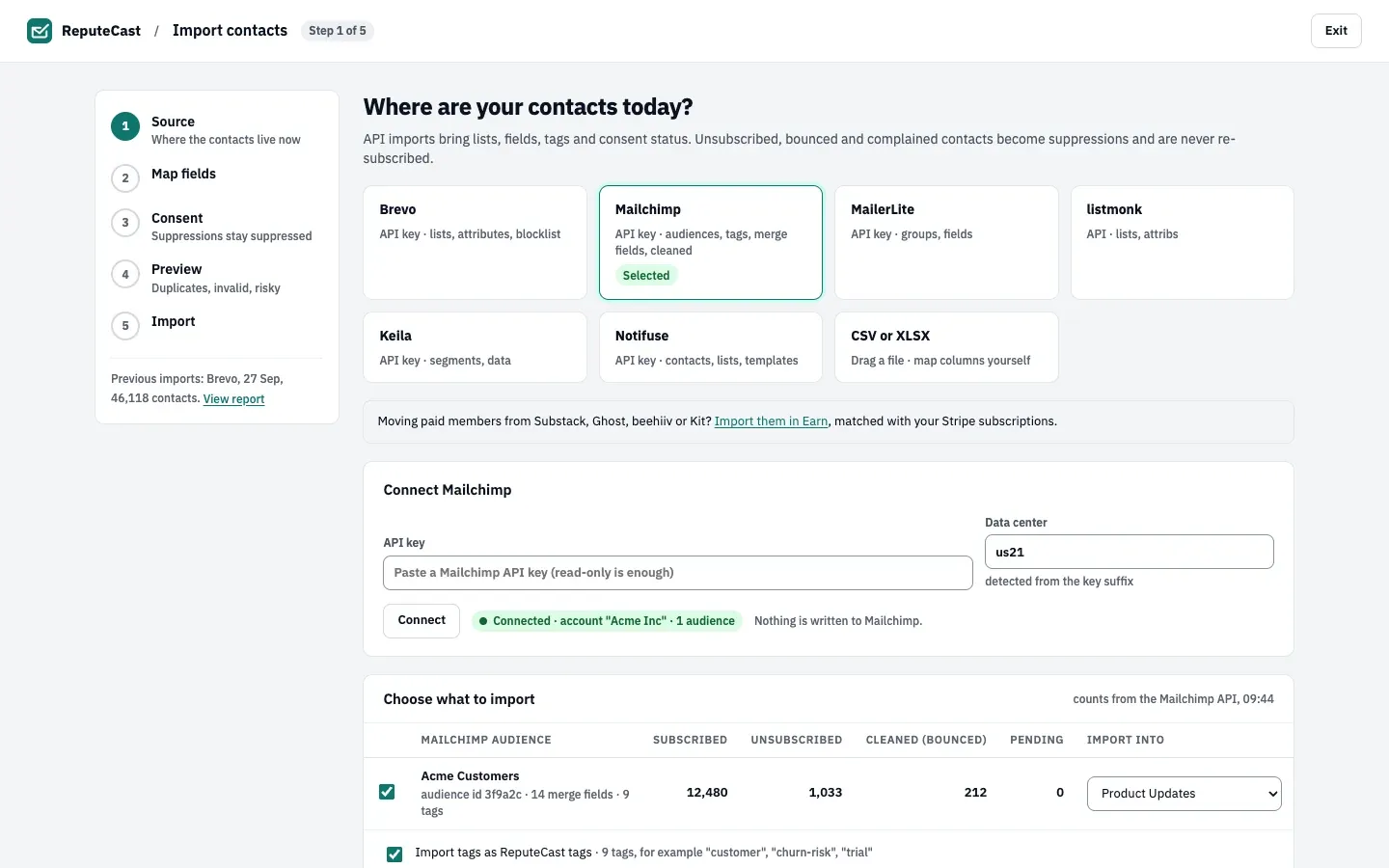
Section titled “How a contact import carries consent”The wizard has five steps: Source, Map fields, Consent, Preview and Import. A draft is saved as you go, so you can leave and come back. Along the way, this happens:
- Connect the source. You paste an API key (and, for listmonk, Keila and Notifuse, the server address). ReputeCast checks it, stores it encrypted, and never shows it again. Server addresses on a private or internal network are refused unless the instance sets
providers.allow_private_networks. - Choose what to import. Each source list goes into an existing ReputeCast list or a new one. Options: import tags, import what the source knows about engagement, and pull existing suppressions from your connected sending providers first. All three are on by default.
- ReputeCast reads every row of the chosen lists in the background, then guesses a ReputeCast field for each source field. Unmapped fields are skipped; they stay in the source.
- Map consent. Every source status becomes a ReputeCast status, as in the table below. Unsubscribed, bounced and complained contacts are locked to the suppression list: no choice in the wizard can import them as subscribed.
- Preview. A dry run checks every row against your contacts and the suppression list and sorts out duplicates, invalid addresses and risky groups (role, disposable, likely typo, trap-like). Nothing is written yet.
- Import. Rows go in by batches with a live log. When the rows are in, ReputeCast pushes the new suppressions to every connected sending provider that keeps its own suppression list, and sends re-permission emails if you chose them.
| Status in the source | Becomes in ReputeCast | Effect |
|---|---|---|
| Subscribed | Subscribed · confirmed (default), Subscribed · pending with a re-permission email, or Skip | Confirmed contacts get Broadcasts and Automations at once |
| Pending (never confirmed double opt-in) | Subscribed · pending (default) or Skip | No marketing mail until they confirm |
| Transactional only (Mailchimp) | Skip (default) or Subscribed · pending | Not imported by default |
| Unsubscribed | Suppressed · unsubscribed (locked) | Broadcasts and Automations blocked; System mail allowed |
| Hard bounced (cleaned, bounced, unreachable) | Suppressed · hard bounce (locked) | All streams blocked |
| Complained (spam report) | Suppressed · complaint (locked) | All streams blocked |
A suppression belongs to the address, not to one list: a contact who unsubscribed from one source list gets no Broadcasts or Automations on any ReputeCast list. Each source guide lists the exact source statuses behind these rows.
Consent evidence and re-permission
Section titled “Consent evidence and re-permission”By default the source’s opt-in is kept as consent evidence: the opt-in date and IP address where the source has them (Mailchimp’s OPTIN_TIME and OPTIN_IP, MailerLite’s opt-in date and IP, Notifuse’s subscription date). With Re-permission everyone first, every subscribed contact is imported as pending instead and gets one confirmation email through the System stream when the import finishes. Without a provider on the System stream, no email goes out and the contacts stay pending, so connect one before you import.
Pending contacts get no marketing mail until they confirm. ReputeCast does not suppress the ones who never answer by itself; to remove them after a while, build an automation with a delay and a step that unsubscribes them.
Each imported contact also gets an entry in its consent history, such as “Imported from Mailchimp by Linh Nguyen, 12 Oct 2026, status subscribed, evidence OPTIN_TIME 2025-03-02”.
What never moves
Section titled “What never moves”- A suppressed address stays suppressed. If an address is already on the ReputeCast suppression list, the row is skipped with the reason Already suppressed in ReputeCast, whatever the source says.
- Sending history. Past campaigns, their reports, and per-message opens, clicks and bounces stay in the old platform. Export them there if you need a record.
- Automations, segments, forms and campaign designs. Rebuild them with automations, segments, signup forms and the composer. Notifuse is the one source whose email templates come along with its contacts.
- Sending setup. Domains, senders and provider connections are set up in ReputeCast itself.
- Card details. Paid members keep paying through Stripe; ReputeCast stores no card data and changes nothing in Stripe.
A migration checklist
Section titled “A migration checklist”- Add your sending domains and senders, then set up SPF, DKIM and DMARC for them.
- Connect a sending provider. If the old platform is also your sending provider (Brevo, Mailgun, SendGrid and others), you can keep it connected while you move.
- Import contacts with suppressions pulled from your providers, so every provider already knows who must not be mailed.
- Warm up any new provider or dedicated IP address.
- Move traffic step by step with a weighted split, for example 90% on the provider you know and 10% on the new one.
- Send the first campaign to the Active engagement tier and watch Send Readiness and the live monitor.
- Stop the old platform from sending (and, for paid members, from charging) once everything runs in ReputeCast.
Defaults and limits
Section titled “Defaults and limits”| Setting | Default | How to change |
|---|---|---|
| Largest CSV or XLSX file | 100 MB and 500,000 rows (XLSX reads the first sheet) | Fixed |
| Source API rate limit (429) | Up to 5 retries, each after the source's Retry-After (2 s when absent, at most 60 s); then the import pauses and resumes by itself after 1 minute | Resume now, or Slow down to 3 req/s on the paused import |
| Source server or network errors | Up to 5 retries, after 1, 2, 4, 8 and 16 s | Fixed |
The paid-member importer and the template importer have their own file limits, listed on import paid members and import transactional templates. Every value is also on limits and defaults.
When to change them
Section titled “When to change them”- Re-permission instead of trusting the source when the list is old, used single opt-in, or you can’t tell how people joined.
- Slow down to 3 requests a second when the source keeps answering 429 Too Many Requests: the paused import offers Slow down to 3 req/s.
- Overwrite instead of fill when the source is more current than ReputeCast for contacts you already have. The preview’s default, Fill empty fields only (recommended), never replaces a value you have.
- Allow private networks (
providers.allow_private_networks, see the configuration reference) when listmonk, Keila or Notifuse runs on your own network.