
Connect Shopify or WooCommerce
With ReputeCast you run Shopify email marketing self-hosted, and WooCommerce too: connect your store and customers who agreed to marketing join a list, orders are credited to the email that brought them, abandoned checkouts can start an automation, and product blocks fill emails from your catalog. ReputeCast never stores addresses, phone numbers, payment details or order notes.
Before you begin
Section titled “Before you begin”- You need
integrations:manage(Owner or Admin) to connect, configure, sync and disconnect a store. Everyone withintegrations:viewcan see the store page. Read Connect other tools. - Shopify: you need to create a custom app in Shopify’s Dev Dashboard.
- WooCommerce: you need to create a REST API key with Read/Write access, and the ReputeCast WordPress plugin for consent and abandoned checkouts (see Connect WordPress).
| Provider | Kind | Event webhooks | Notes |
|---|---|---|---|
| Shopify | Custom app | — | Paste the client ID and client secret from the app's API credentials in Shopify. |
| WooCommerce | REST API key and plugin | Registered with a secret; signatures are checked | Without the ReputeCast plugin, ReputeCast syncs products and orders only, no customer joins a list, and abandoned checkouts aren't reported. |
Connect a store
Section titled “Connect a store”Open Settings, then Integrations, find the Commerce group and choose Connect on the Shopify or WooCommerce card.
-
Store address. Enter your shop’s address, such as
acme-merch.myshopify.comor a custom domain that points to Shopify. -
Create the app. Choose Open the Dev Dashboard and create a custom app. Paste the App URL and the Allowed redirection URL the dialog shows. Under “Protected customer data”, request name and email; when Shopify asks why, “Email marketing to customers who agreed to it” is accurate. ReputeCast asks for the
read_customers,read_ordersandread_productsscopes, andwrite_customersif you want unsubscribes passed back to Shopify. -
Paste its keys. Copy the app’s Client ID and Client secret (it starts with
shpss_). The secret is write-only. -
Install. Choose the install button: Shopify opens its own approval page. Approve within 30 minutes.
-
Choose what syncs. Products; customers who accepted marketing, and the list they join; orders from the last 3, 6 or 12 months (12 by default; you can’t change it later); abandoned checkouts; and whether to tell Shopify when someone unsubscribes in ReputeCast. Choose Start sync.
-
Store address. Enter the address of the WordPress site WooCommerce runs on.
-
REST API key. In WordPress, open WooCommerce › Settings › Advanced › REST API, add a key with Read/Write access and paste the consumer key (
ck_…) and consumer secret (cs_…). A read-only key is refused, because ReputeCast registers webhooks with it. -
Webhooks. ReputeCast registers webhooks for orders and products, each with its own secret.
-
ReputeCast plugin. Install and connect the ReputeCast WordPress plugin on the same site, then choose Check again and Finish. Connect without the plugin is possible, but then only products and orders sync: no customer joins a list, abandoned checkouts aren’t reported and the store shows “Needs attention”.
With WooCommerce active, the plugin adds an unchecked checkbox under the checkout’s email with exactly “Email me about new products and offers from the store. Unsubscribe any time.” The order keeps the answer, the text and the time, and that is the consent ReputeCast records. The first import has no separate customers step: consent comes with each order.
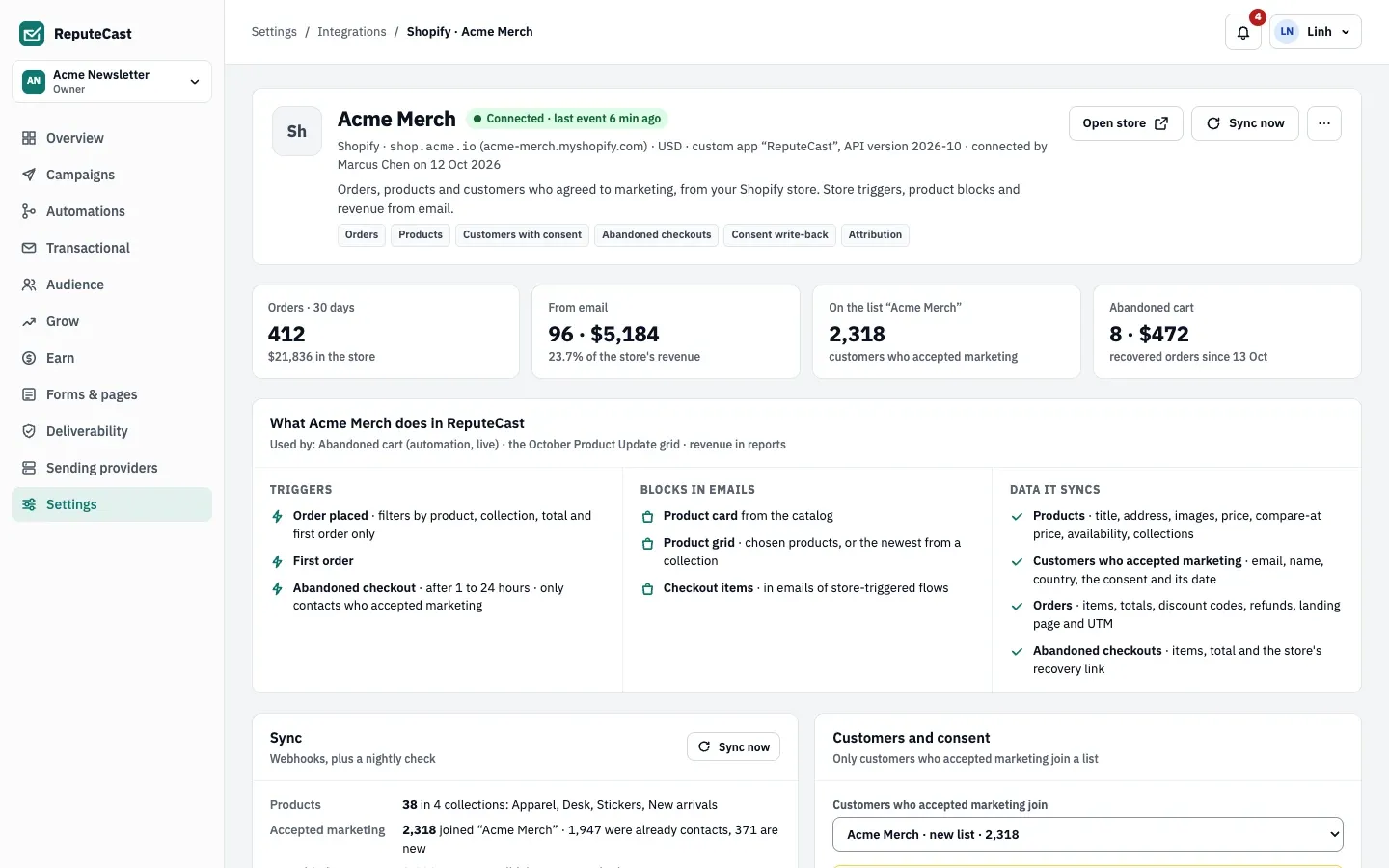
Customers and consent
Section titled “Customers and consent”- Only customers who accepted marketing in the store join a list: by default a new list named after the store, or a list you pick. The consent record says where it came from (“Shopify: accepted marketing at checkout”, or the WooCommerce checkbox text) with the date and opt-in level. Read Lists, consent and double opt-in.
- Suppressed addresses are never added. A contact who left the list rejoins only if their store consent is newer than their leaving.
- Customers who didn’t accept marketing are kept only as a link to an existing contact, with no email or name; anyone else counts in the store’s totals without their email.
- An unsubscribe in the store removes the customer from the list. With
write_customersgranted, an unsubscribe in ReputeCast is passed to Shopify.
ReputeCast stores email, name and country; consent with its date and opt-in level; orders, items and totals; and the landing page and UTM tags. It never stores addresses, phone numbers, payment details or order notes.
Attribution
Section titled “Attribution”An order is credited to the email whose link the buyer clicked last within the attribution window (5 days by default, 1–30 under Attribution on the store page). The click token on the order’s landing page decides first; otherwise the order’s email is matched to a contact who clicked within the window. Each order is credited to one campaign or automation step. Links to the store get UTM parameters and the click token unless you turn off Tag links.
For WooCommerce, the plugin keeps the click token from an email link (?rc=…) in a first-party cookie for 30 days and
saves it on the order. Read Revenue metrics explained for how store revenue appears in reports.
Automations and email blocks
Section titled “Automations and email blocks”Store triggers start only after the first import:
- Order placed, with filters for product, collection, a minimum total and “the contact’s first order in the store only”.
- First order.
- Abandoned checkout, after 1–24 hours (1 by default), only for contacts who accepted marketing in the store, and skipping contacts who got an abandoned-cart email in the last 7 days. WooCommerce needs the plugin for this trigger.
- The goal Placed an order ends a flow when the contact buys.
Starter emails (“You left something behind” and “Still deciding?”) come with the abandoned-checkout starter. Read Triggers and steps.
In the composer, Product card (fill it from the store), Product grid (chosen products or the newest from a collection; 2, 3, 4 or 6) and, in emails started by a store trigger, Checkout items show your products. Prices and availability are read again when the email is sent.
Sync and the store page
Section titled “Sync and the store page”Webhooks keep the store up to date. When a webhook is missing, ReputeCast polls every 15 minutes and shows a banner, and it reconciles everything nightly at 03:00 in the workspace time zone. Sync now runs a sync at once. The store page also lists the webhooks (Register all again) and the store’s activity.
| Setting | Default | How to change |
|---|---|---|
| Orders imported when you connect a store | The last 12 months | Connect dialog; 3, 6 or 12 months |
| Order attribution window | 5 days | Settings › Integrations › store › Attribution, 1–30 days |
| Abandoned checkout trigger waits | 1 hour; skips contacts who got an abandoned-cart email in the last 7 days | Automations › Abandoned checkout trigger, 1–24 hours |
| Polling while a store webhook is missing | Every 15 minutes | Fixed |
| Reconciliation with the store | Nightly at 03:00 in the workspace time zone | Sync now on the store page |
| Store events and activity kept | 30 days | Fixed |
Disconnect
Section titled “Disconnect”Disconnect removes ReputeCast’s webhooks, pauses live automations that use the store’s triggers (with the reason “… is disconnected. Reconnect it to resume.”) and keeps products and orders. To delete the store’s data too, choose Delete store data and type the store’s name. Contacts the store added stay, with their consent.
Reconnect fetches the orders placed since, registers the webhooks again and resumes the flows it paused. If you
uninstall the app in Shopify or Shopify refuses the token, the store disconnects on its own, and members with
integrations:manage are notified.
Troubleshooting
Section titled “Troubleshooting”- “Webhook … is missing”: choose Register all again on the store page. Until then, ReputeCast polls every 15 minutes.
- WooCommerce needs attention: the ReputeCast plugin isn’t installed or connected on the store’s site.
- “This key is read-only”: create a WooCommerce key with Read/Write access.
- No customers joined the list: only customers who accepted marketing join. For WooCommerce, check that the plugin’s checkout checkbox is showing.