
Connect other tools
ReputeCast’s newsletter integrations connect the tools you already use: automation platforms (Zapier, Make, n8n), WordPress, online stores (Shopify, WooCommerce), AI models, address verification services, Stripe and HostRepute. Every integration is free and uses your own accounts. Each one gets its own key with only the permissions it needs, a call log and a status that tells you when something needs attention.
Before you begin
Section titled “Before you begin”- Connecting, changing, rotating, taking over and disconnecting an integration needs
integrations:manage. It’s a sensitive permission that only people can hold: Owner and Admin have it, and API keys and MCP agents never connect integrations. Everyone withintegrations:view(all built-in roles) can see the catalog, the integration pages and their call logs. - You can only give an integration permissions you hold yourself. Items that need a permission you lack are locked.
- Turning on triggers (events sent to the other tool) also needs
webhooks:manage. - Zapier and Make call your instance from their own servers, so ReputeCast’s public URL must be reachable from the internet over HTTPS. Read Reverse proxy and TLS.
The catalog
Section titled “The catalog”Open Settings, then Integrations. Filter with All and Connected, or by group:
| Group | Integrations | Guide |
|---|---|---|
| Automation platforms | Zapier, Make, n8n | Zapier, Make, n8n |
| Websites | WordPress | Connect WordPress |
| Deliverability | HostRepute | Connect HostRepute |
| Developer | REST API, Webhooks, MCP server | Build on ReputeCast |
| AI models | Anthropic, OpenAI, Google Gemini, Azure OpenAI, OpenAI-compatible | AI assistant |
| Verification | ZeroBounce, NeverBounce, Kickbox, Bouncer, Emailable | Verify email addresses |
| Payments | Stripe | Connect Stripe |
| Commerce | Shopify, WooCommerce | Shopify or WooCommerce |
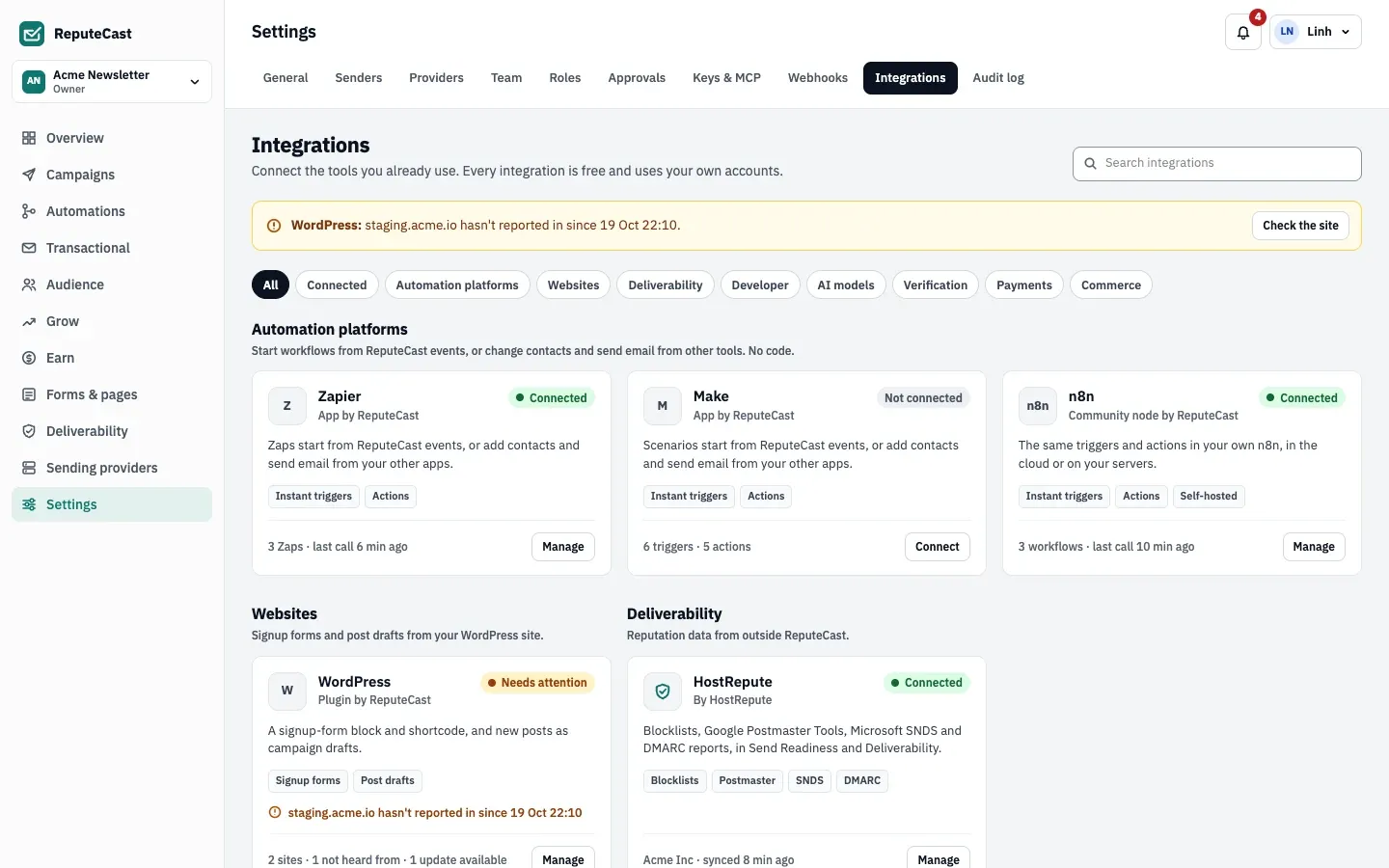
Statuses
Section titled “Statuses”Each card shows one status:
- Not connected: nothing is set up, or a person disconnected it.
- Waiting for first call: the key exists but the tool hasn’t called yet (for WordPress: no site has reported in yet).
- Connected: calls from the tool are arriving.
- Needs attention: one of the reasons below applies. Members with
integrations:manageget a notification for each new reason, and the catalog shows a banner with the fix.
An integration needs attention when its key was revoked, expired or will expire within 7 days, when the person who owns the key has left, when a webhook the tool manages keeps failing, when most calls fail, or when a WordPress site stops reporting. WordPress sites also show Update available when a newer plugin version is out.
Connect an automation platform or a site
Section titled “Connect an automation platform or a site”The connect dialog is the same for Zapier, Make, n8n and WordPress sites.
-
On the integration’s card, choose Connect.
-
Choose what the tool can do. Switch triggers and actions on or off; the list of permissions the key gets updates as you go. Name the key, limit it to one list if you want, and set an expiry (none, 30 days, 90 days, a year or a date). Actions that need a sensitive permission, such as sending transactional email (
transactional:send), start off. Choose Create key. -
Paste into the tool. Copy the instance URL and the key (
rc_live_…) into the other tool. The key is shown once. For Zapier and Make, the dialog first checks that your instance is reachable from the internet (DNS, TLS and reachability). -
Wait for the first call. The dialog shows the call when it arrives, for example “Zapier called at 14:31 · Test connection · 200”. If nothing arrives within 10 minutes, it says so; you can keep waiting or close the dialog and check the tool’s settings.
The key is an ordinary API key owned by you and listed under
Settings, then Keys & MCP among the keys managed by integrations. It can only call the operations
of the items you turned on, even if its permissions would allow more; anything else is refused with
integration_operation_denied. A workspace has one connection per platform; WordPress has one key per site.
Manage a connected integration
Section titled “Manage a connected integration”Each integration has its own page with calls and errors over 7 days, the workflows (Zaps, scenarios, workflows) that used it in the last 30 days, what it can do and the webhooks it manages.
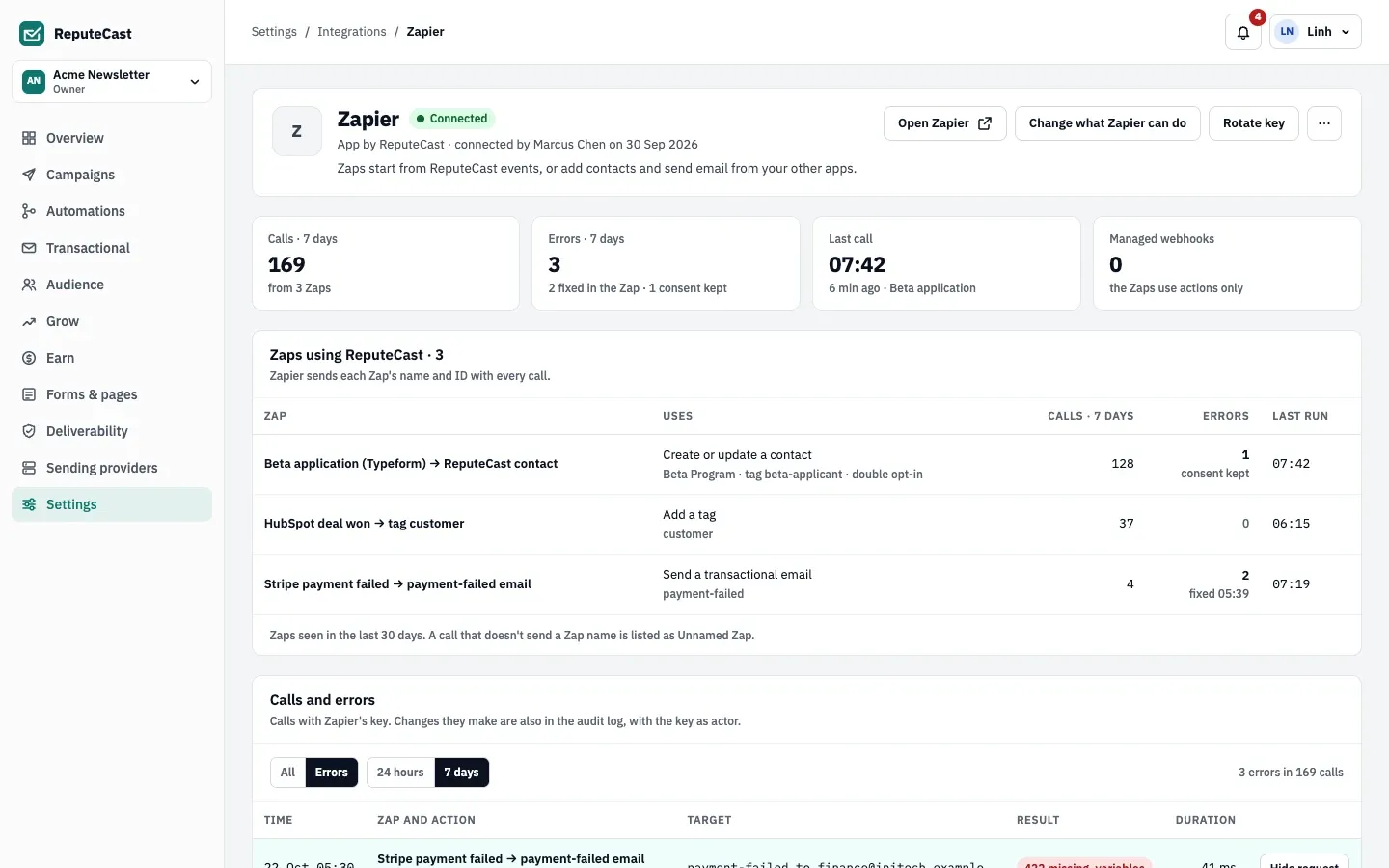
- Change what the tool can do: changes the key’s permissions in place, so there is nothing to paste again. Webhooks of triggers you turn off are deleted.
- Rotate key: creates a new key with the same items. The old key keeps working for 24 hours, so you can paste the new one without failed runs. Stop the old key now ends it early.
- Take over: makes you the key’s owner. Use it when the person who connected the tool has left: their key stops working until someone takes it over. The key’s value stays the same, so nothing changes in the other tool, but from then on it’s limited by your permissions. The dialog lists anything that stops because you don’t hold it.
- Disconnect: revokes every key at once (including an old key still in its 24 hours) and deletes the webhooks the tool manages. Contacts, events and messages it created stay, and so do the call log (until it expires) and the audit log. You can add a reason for the audit log.
- Reconnect: after a key was revoked or expired, creates a new key with the same items.
The call log
Section titled “The call log”Calls and errors lists every call with its time, the workflow and action, the target, the result and the duration.
Show All or Errors over 24 hours or 7 days, and open a row’s request to see what was sent (the first
16 KiB, with secrets masked). Email addresses show only to members with subscribers:view. Changes an integration makes
are also in the audit log, with the key as the actor.
Webhooks managed by a tool
Section titled “Webhooks managed by a tool”Zapier, Make and n8n create a webhook in ReputeCast when you turn a trigger on and remove it when you turn the trigger off. It’s listed read-only on Settings, then Webhooks as “Managed by Zapier” (or Make, or n8n). Read Receive webhooks for the delivery format and signatures.
Consent is kept
Section titled “Consent is kept”An integration can’t add someone back to a list they left, add a suppressed address or send transactional email to one. ReputeCast answers with the reason (“[email protected] left Beta Program on 2 Oct…”), and each tool treats it as a skipped item rather than a failure, so the rest of the workflow keeps running.
Defaults and limits
Section titled “Defaults and limits”| Setting | Default | How to change |
|---|---|---|
| Old key keeps working after Rotate key | 24 hours | Stop the old key now ends it early |
| Call log kept | 7 days | Fixed |
| Needs attention when the key expires within | 7 days | Fixed |
| Needs attention when a managed webhook keeps failing for | 30 minutes | Fixed |
| Needs attention when calls fail | More than 50% of calls in the last hour (at least 4 calls) | Fixed |
| Needs attention when a WordPress site stops reporting for | 24 hours | Fixed |
| WordPress plugin reports to ReputeCast | On connect, every 12 hours and with every post | Fixed |
| Check now timeout for a WordPress site | 10 s | Fixed |
Troubleshooting
Section titled “Troubleshooting”- The connect dialog says your instance isn’t reachable: Zapier and Make need a public HTTPS address. Fix
http.public_urland the proxy, or use n8n on the same network. - Calls fail with “Change what Zapier can do in Settings › Integrations”: the action is off for this key. Turn it on with Change what the tool can do.
- Calls fail because the key’s owner left: choose Take over.
- A revoked or expired key: choose Reconnect and paste the new key into the tool.