
Score contacts by interest
Give every contact a score from 0 to 100 that adds points for what interested people do, such as clicking your pricing page or starting a trial, and takes points away for soft bounces and unsubscribes. With email engagement scoring you can find your most interested readers, send them a different version of a block, or start an automation when someone becomes Hot.
Before you begin
Section titled “Before you begin”- Editing scoring needs
scoring:edit(Owner, Admin and Editor). Anyone who can see contacts can see the rules, the spread and every contact’s score. - Until there is a rule, contacts have no score: they show “—”, and segments and triggers that use the score match nobody.
Set up scoring
Section titled “Set up scoring”-
Go to Audience, then Scoring. The first time, select Start with suggested rules to start from suggested rules you can change (opens, clicks, a pricing-page click, a beta form, a
trial_startedAPI event, soft bounces and unsubscribes), or Add a rule.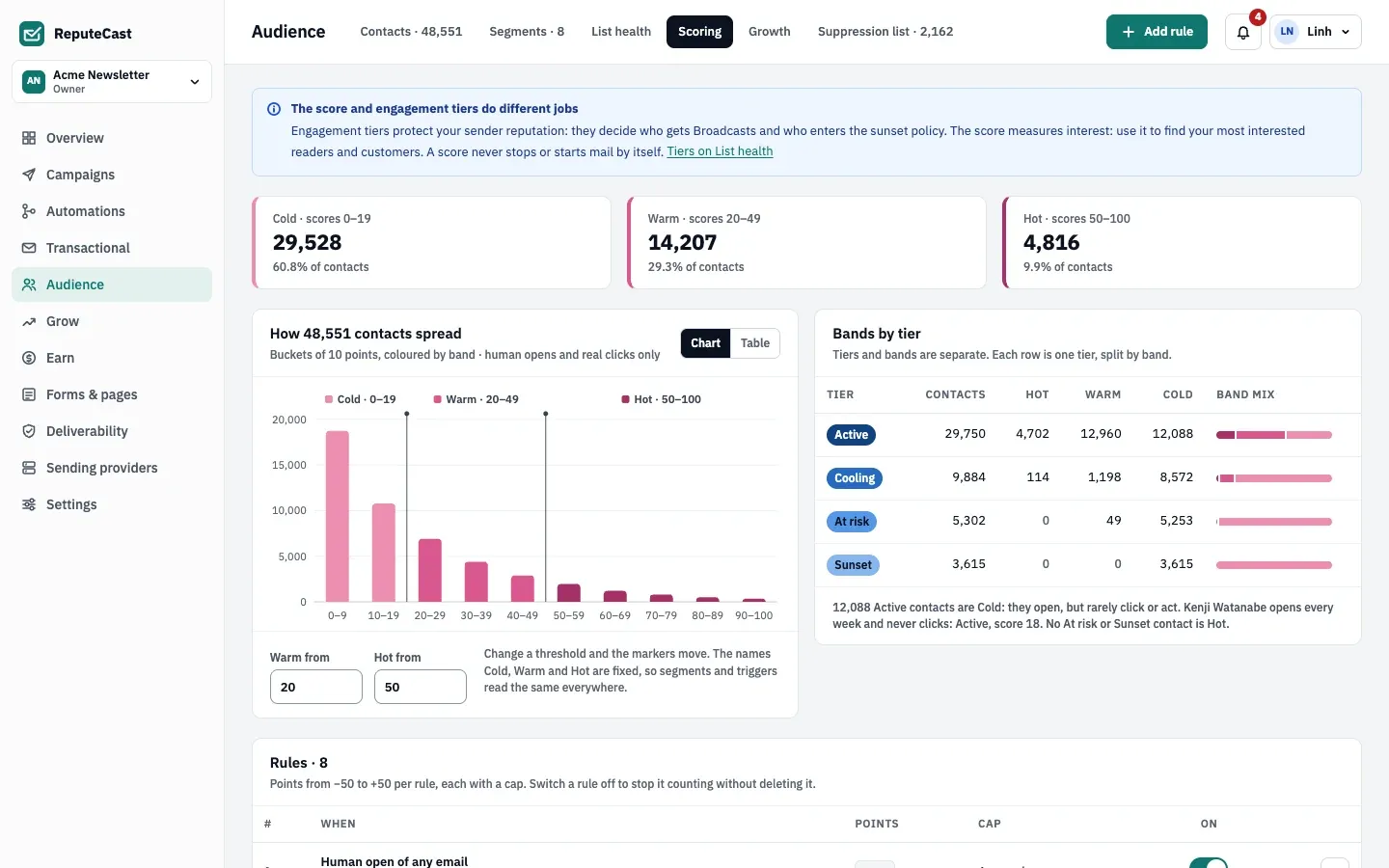
-
Select Add rule and choose When:
When What counts Human open A human open of any email, or of emails to one list. Machine opens never count. Click A click in any email, or on a link whose address contains some text (for example /pricing). Bot clicks never count.Form submitted A confirmed submission of one signup form. API event An event your app sends through the API, such as trial_started.Soft bounce A soft bounce that wasn’t delivered after the retries (counted 72 hours later). Unsubscribed from a list Any list, or one list. Field condition A custom field that is one of some values, is not a value, or is set. Counts while true. Only Broadcast and Automation emails count; transactional and System mail never does. A click also counts as an open.
-
Set Points from −50 to +50 (not 0) and a Cap: No cap, Once, Once a day, Once a week, Once a month, or at most a number of points a day, week or month. Field conditions use While true. Days, weeks and months follow the workspace time zone; weeks start on Monday.
-
Read If you save: how many contacts would change band, with the new spread drawn over today’s. Select Apply.
-
Adjust the bands with Warm from and Hot from. The band names are fixed, so segments and triggers read the same everywhere.
-
Under Decay and limits, keep Decay on so Hot means interested now: after a number of weeks without a human open or click, a percentage of the score comes off each week, never below 0. Decay applies to activity points, not field conditions.
-
Select Save. The dialog lists who moves between bands. If a live automation starts on a score crossing, it asks Start automations for them?; keep Don't start it for them (recommended) unless you want everyone who crosses only because of your change to enter it now.
After a rule change, every score is recalculated in the background from the last 180 days. Until it finishes, contacts keep their previous score, and segments and triggers use it. You get a notification when it is done. Changing only the band thresholds applies at once, without a recalculation.
Defaults and limits
Section titled “Defaults and limits”| Setting | Default | How to change |
|---|---|---|
| Score range | 0–100, from the last 180 days of activity | Fixed |
| Points per rule | −50 to +50 (not 0); up to 50 rules | Audience › Scoring |
| Band thresholds | Warm from 20, Hot from 50 | Audience › Scoring › Bands |
| Decay | On; after 4 weeks without a human open or click, 10% of the score each week | Audience › Scoring › Decay and limits; 1–52 weeks, 1–100% |
| When scores update | New activity within about 15 s; decay and field conditions nightly at 03:00 workspace time | Fixed |
You can have up to 50 rules; a rule that is switched off still counts toward the 50.
Where the score is used
Section titled “Where the score is used”- Contacts: a sortable Score column, a score band filter and a score range under More filters. See Manage contacts.
- Contact profile: the score, its band, the last change and a breakdown by rule.
- Segments: score and score band conditions, and the
scoreandscore_bandcolumns in SQL. See Build segments. - Automations: the “score crosses” trigger starts when a score rises to or falls below a value, at most once per contact in a number of days (90 by default). See triggers and steps.
- Conditional content: show a block only to Hot contacts. See Show blocks to some readers.
The Used by card on the Scoring page lists every automation, segment and conditional block that reads the score.
Check that it worked
Section titled “Check that it worked”- The spread chart shows contacts in all three bands.
- A contact’s profile shows the score and which rules gave the points.
Troubleshooting
Section titled “Troubleshooting”- Every contact shows “—” → no rule is saved yet. Add a rule or start with the suggested rules, then save.
- “Points go from −50 to +50, and not 0” → change the points.
- “A cap of X a week is lower than the Y points…” → raise the cap to at least the rule’s points, or lower the points.
- “Scoring can have at most 50 rules” → delete a rule; switching one off doesn’t free a slot.
- “Someone else saved scoring a moment ago” → select Reload, then make your change again.
- Recalculation stopped → scores are unchanged. Select Try again; it continues where it stopped.
Related
Section titled “Related”- Keep your list healthy
- Record events and conversions for API event rules
- Set up a welcome series