
Build landing and sales pages
ReputeCast’s landing page builder makes pages on your theme from blocks: an About page, a lead magnet, a launch with
a countdown, a webinar registration or a sales page for a digital product. A page lives at /<address> on your custom
domain, or at /p/<workspace>/<address> on your ReputeCast server, and works with or without the
website.
Before you begin
Section titled “Before you begin”- Creating and changing drafts needs the
website:editpermission. Publishing, scheduling and unpublishing needwebsite:publish, and changing a page’s visibility, tiers or navigation needswebsite:manage. Owners, Admins and Editors have all three. - Buy buttons need Stripe and a published product. See connect Stripe and sell digital products.
- Signup blocks show one of your signup forms, so publish the form first.
Create a page
Section titled “Create a page”- Open Forms & pages, then Pages and select New page.
- Pick a template (see the table below), enter the page name and its address, and select
Create page. Addresses use lowercase letters, numbers and single hyphens, up to 80
characters. Addresses the site uses itself, such as
subscribe,archiveoraccount, are refused. - The page opens in the builder as a draft that only your team can see.
| Template | What it starts with |
|---|---|
| About | Who’s behind the newsletter: hero, text, author bios and a subscribe band |
| Lead magnet | A free file for confirmed subscribers: benefits, a signup form, testimonials and FAQ |
| Launch | A countdown and a waitlist that turns into a Buy button when the countdown ends |
| Webinar registration | Event details in each reader’s time zone, speakers, agenda and a registration form |
| Sales page | One product: hero with the Buy button, what’s inside, author, testimonials and FAQ |
| Blank | An empty page on your theme |
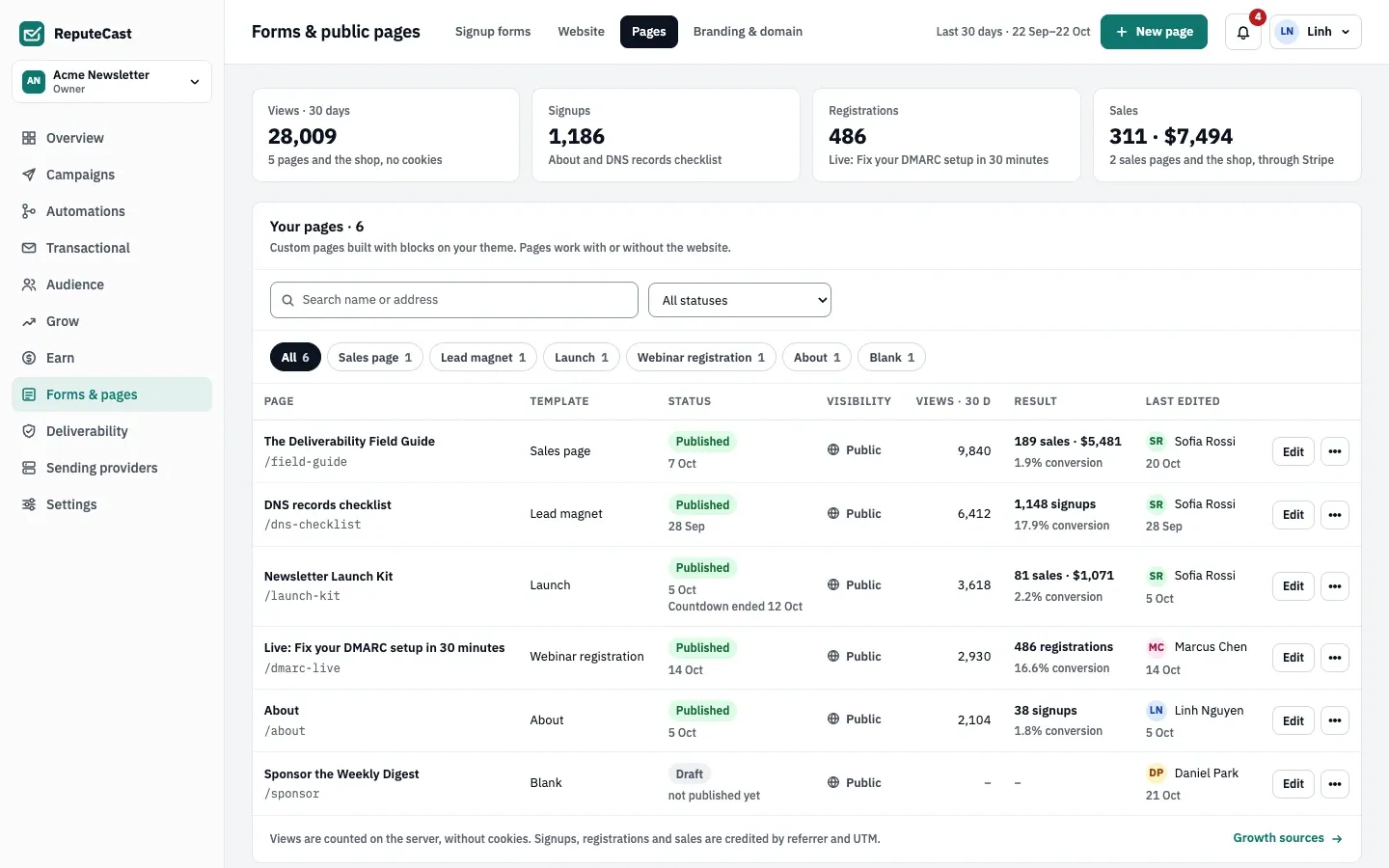
The cards above the list count views on the server without cookies; signups, registrations and sales are credited by referrer and UTM. See where subscribers come from.
Build the page
Section titled “Build the page”The builder has the blocks on the left, the page in the middle and three tabs on the right: Block, Page and Checks.
- Layout: Section, 2 columns, 3 columns, Divider and Spacer.
- Content: Hero, Text, Image, Button, Video, Features list, Testimonials and FAQ. Videos come from YouTube or Vimeo and load only when a reader clicks. FAQ answers open and close without scripts.
- Conversion: Signup form, Countdown, Event details, Product, Product grid, Store product and Pricing tiers.
- From your site: Recent posts (from a tag) and Author bio.
Styles are limited to your theme’s colors, fonts and spacing, so every page stays on brand and keeps its contrast. Images can be PNG, JPEG or GIF up to 5 MB. The saved page never contains scripts, styles, iframes or raw forms.
The builder saves every 30 seconds and whenever you add, move or delete a block. Saving never changes the live page: Publish changes does.
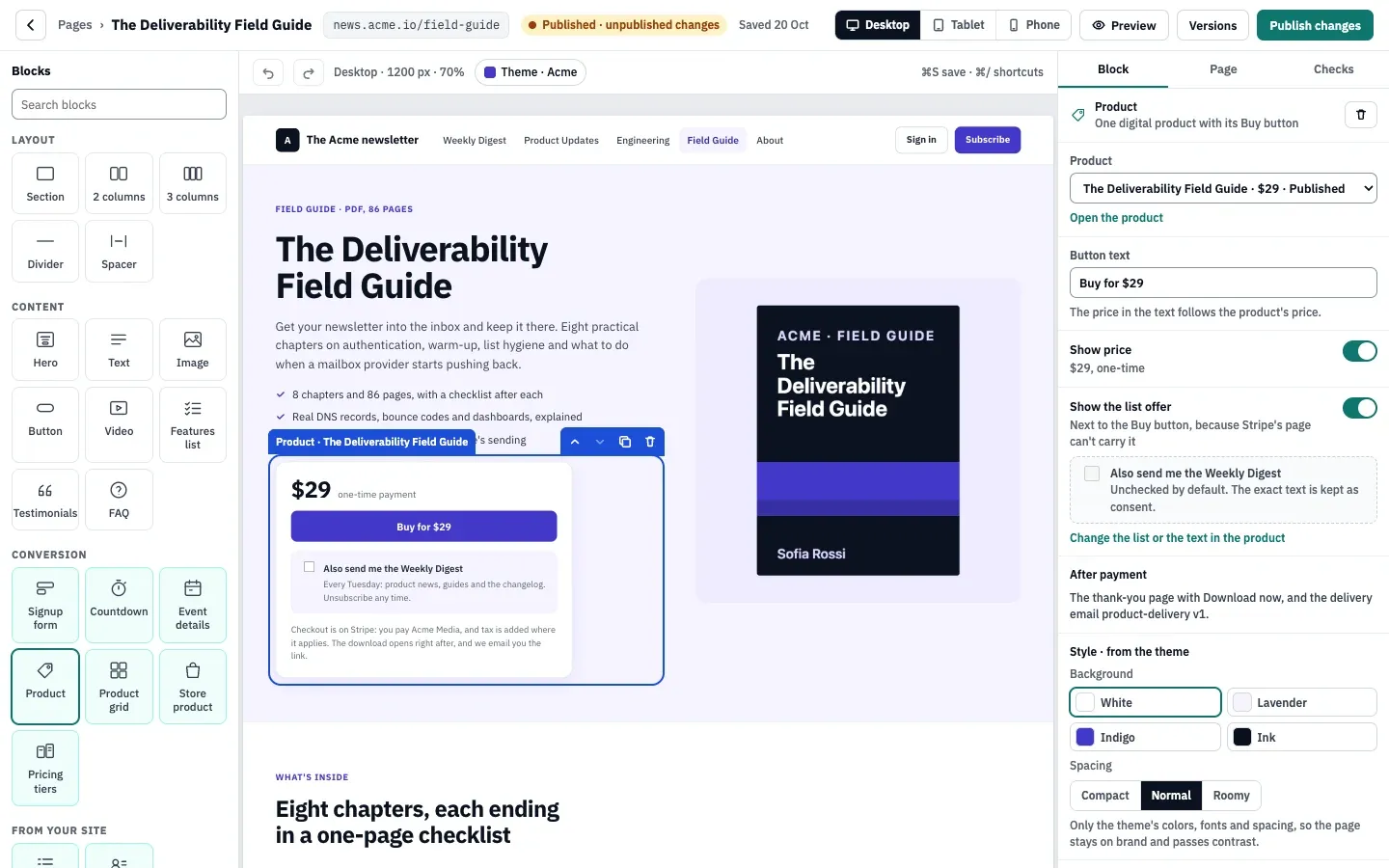
In the Page tab:
- Title (up to 120 characters) and Address. If you change the address of a published page, the old one redirects (301) once the new version is live.
- Visibility: Public, Members (anyone signed in) or Paid (every tier or chosen tiers). Members and Paid need the website, and such pages are hidden from search engines.
- Turn on Hide the site header and navigation for focused landing pages; only the logo stays.
- Turn on Show in navigation to add the page to the header with its own label. The header holds 6 links.
- SEO title, Meta description and a social image (otherwise links show the page’s first image).
- Publish time: when you publish, or at a time.
Pass the publish checks
Section titled “Pass the publish checks”Checks runs on every change. Blocking checks stop publishing; warnings don’t.
| Check | Result | Fails when |
|---|---|---|
| Address | Blocks | Another page or the site itself uses the address |
| Visibility | Blocks | The page is Members or Paid while the website is off |
| Product | Blocks | A product block has no product, or its product is a draft, archived or deleted |
| Stripe | Blocks | The page has a Buy button and Stripe isn’t connected |
| Signup form | Blocks | A signup block has no form, or its form is paused, a draft or deleted |
| Store blocks | Warns | A store product block has no connected store |
| Dates | Warns | An event is in the past, or a countdown ended before the page was ever published |
| Images | Warns | An image has no alt text |
| Heading | Warns | The page doesn’t open with a heading |
| Links | Warns | A link to another site answers with an error or doesn’t answer |
You can keep building without Stripe: drafts and previews work, only publishing a Buy button waits.
Publish, schedule and unpublish
Section titled “Publish, schedule and unpublish”- Select Preview to see the page on desktop, tablet and phone. Links and forms don’t work in the preview.
- Select Publish changes. The dialog shows what changed since the live version and the check results.
- Choose Now and select Publish, or choose a date, time and time zone and select Schedule. A scheduled page goes live within a minute of its time; to cancel, select Unschedule.
- For 10 seconds after publishing, Undo takes the page back down.
To take a page down, select Unpublish, give a reason for the history and, optionally, a path on your site to send readers to. Without one, the address answers 410 (“gone”); with one, it redirects there. The page, its versions and its numbers stay, and you can publish it again. Unpublishing happens at once; it can’t be scheduled.
Every save, settings change and publish makes a version. Versions lists them; restoring one makes it the draft again, as a new version, and the live page doesn’t change until you publish.
Require approval
Section titled “Require approval”When Settings, then Approvals has Publishing a post or page needs approval turned
on, the header shows Request approval instead of publishing. While the rule
The author lacks the send permission is on (the default), people without website:publish see it too.
The approval covers that exact version (content, address, visibility and publish time); once
approved, the page goes live by itself, now or at its scheduled time. See
require approval for risky sends.
Send webinar reminders
Section titled “Send webinar reminders”- Create a custom contact field of type date for the event. See manage contacts.
- In the Event details block, set the date, start time and time zone, and choose the field as the Contact date field. Each registration writes the event’s date into that field.
- When the builder asks whether to create the reminder automation, select Create automation.
You need the
automations:editpermission. - Open the new automation, named after the page with “· reminders”, check its two emails (“Tomorrow: …”, sent the day before at the start time, and “Starting in an hour: …”) and publish it.
The automation is created as a draft, so nothing is sent until you publish it. See publish automation changes safely.
Check that it worked
Section titled “Check that it worked”- In the list, the page shows Published, and View live page opens it at its address.
- Submit its signup or registration form with an address you own and confirm it: the contact appears in your audience. See manage contacts.
- The page’s views and its result (signups, registrations or sales) show in the list.
Troubleshooting
Section titled “Troubleshooting”- “Buy buttons need Stripe.” Connect Stripe in Earn, or remove the Buy button.
- “The address … is taken.” Pick another address; the builder suggests a free one.
- “Members and paid pages need the website.” Turn the website on, or set the visibility to Public.
- The navigation is full. Remove a header link in Forms & pages, then Website, then Home & navigation first.
- “Set the event’s date, start time and time zone first.” Fill in the Event details block before you create the reminder automation.