
Read campaign reports
A ReputeCast campaign report tells you what readers did, not what their mail apps did: the email open rate counts human opens only, so Apple Mail Privacy Protection prefetches and link scanners show up as machine opens instead of inflating it. The report also splits every result by mailbox provider and by sending provider, so you can see where a problem started.
Before you begin
Section titled “Before you begin”- Reading a report needs
reports:view. - Exporting it and creating read-only links needs
reports:share(Owner, Admin and Editor have it; Viewer doesn’t). - Adding bounced addresses to the suppression list from the report needs
subscribers:edit.
Open a report
Section titled “Open a report”-
Open Campaigns and select Report on a sent campaign. Review & send also links to the report once a campaign has finished.
-
Check the status line under the title. “results coming in live” means the campaign is still sending. “results still coming in · final” with a date means the send finished less than 72 hours ago and late opens and clicks are still arriving. “results final after 72 h” means the numbers have settled.
-
Read the eight tiles at the top: sent, delivered, Human opens, Machine opens, clicks, unsubscribes, complaints and bounces. Delivered and bounces are shares of the messages sent; opens, clicks, unsubscribes and complaints are shares of the messages delivered.
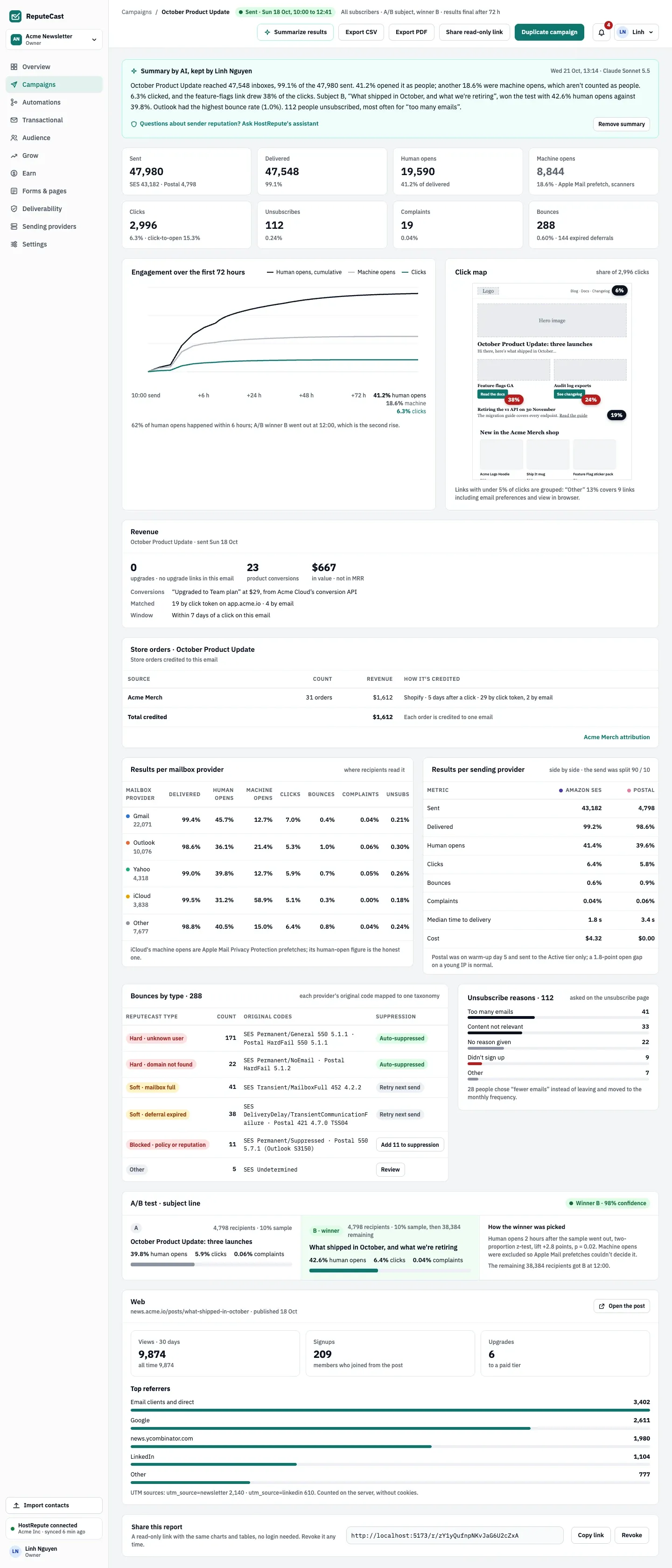
- Engagement over the first 72 hours: human opens, machine opens and clicks hour by hour.
- Click map: where readers clicked, drawn over the email itself.
- Results per mailbox provider: Gmail, Outlook, Yahoo, iCloud and the rest, side by side.
- Results per sending provider: each sending provider’s share, delivery and cost.
How human and machine opens are told apart
Section titled “How human and machine opens are told apart”ReputeCast counts an open as a machine open when:
- it comes from Apple Mail Privacy Protection (Apple’s network or its bare user agent), at any time;
- the Gmail or Yahoo image proxy fetches the email within 30 seconds of sending (later fetches through those proxies are people);
- a security scanner fetches it, by user agent (Safe Links, Mimecast, Proofpoint and similar) or from a scanner network within 2 minutes of sending;
- it arrives within 2 seconds of sending, or it is a request with no user agent.
Clicks get the same treatment: clicks by scanners, clicks within 10 seconds of sending and bursts across several links within 5 seconds still redirect but are never counted. A human click also counts as a human open, and a machine open turns into a human one if the reader opens the email later. A/B test winners are chosen on human opens or clicks for the same reason.
What each section shows
Section titled “What each section shows”- Engagement over the first 72 hours. The chart’s time axis stretches the first hours, when most opens happen.
- Click map. Each link’s share of clicks over the sent email. Links with under 5% of clicks are grouped as Other; links with 20% or more are marked hot. With language versions you can switch the map’s language.
- Results per mailbox provider and per sending provider. Delivery, opens, clicks, bounces and complaints for each, with the sending provider’s warm-up day and cost. A problem with one mailbox provider (Outlook complaints) looks different from a problem with one sending provider (a Postal outage).
- Results per language. Shown when two or more language versions were sent. See send each reader their language.
- Bounces by type. Hard bounces (unknown user, domain not found), soft bounces (mailbox full, deferral expired), blocked by policy or reputation, and other, each with the sending providers’ original codes such as
550 5.1.1. Hard bounces are suppressed automatically and soft bounces are retried at the next send. For blocked bounces you can add the addresses to the suppression list from here; other bounces open a review of what the providers said. Look up a code in SMTP error codes. - Unsubscribe reasons. What people chose on the unsubscribe page, and how many chose fewer emails instead.
- A/B test. Each variant’s human opens, clicks and complaints, how the winner was picked, and the significance of the difference.
- Sections that appear when they apply: polls, revenue (needs
earn:view), sponsor, store orders, web post and product sales.

The winner is the variant with the higher rate when the test window ends; the remaining recipients get it either way. The report adds a two-proportion z-test: below p = 0.05 it shows the confidence (“Winner B · 98% confidence”), otherwise “not significant”.
Export a report
Section titled “Export a report”- Select Export CSV to download the whole report as one CSV file: headline numbers, the mailbox provider, sending provider and language tables, hourly engagement, links, bounces, unsubscribe reasons and the A/B result.
- Select Export PDF to open your browser’s print dialog with a print layout; save it as PDF from there.
Both need reports:share and are recorded in the audit log.
Share a read-only link
Section titled “Share a read-only link”-
Select Share read-only link, or Create read-only link in the Share this report card at the bottom of the report.
-
Under Link expires, keep Never (until revoked) or choose 7, 30 or 90 days.
-
Select Create link. The link (
https://<your public URL>/r/<token>) is copied. Anyone with it sees the same charts and tables without signing in. -
To stop a link working, select Revoke. It stops at once.
The shared page shows aggregate numbers only: it never shows who received, opened or clicked. It leaves out polls, revenue, store orders and the web section, and it is marked noindex and never cached. A report can have 10 active links.
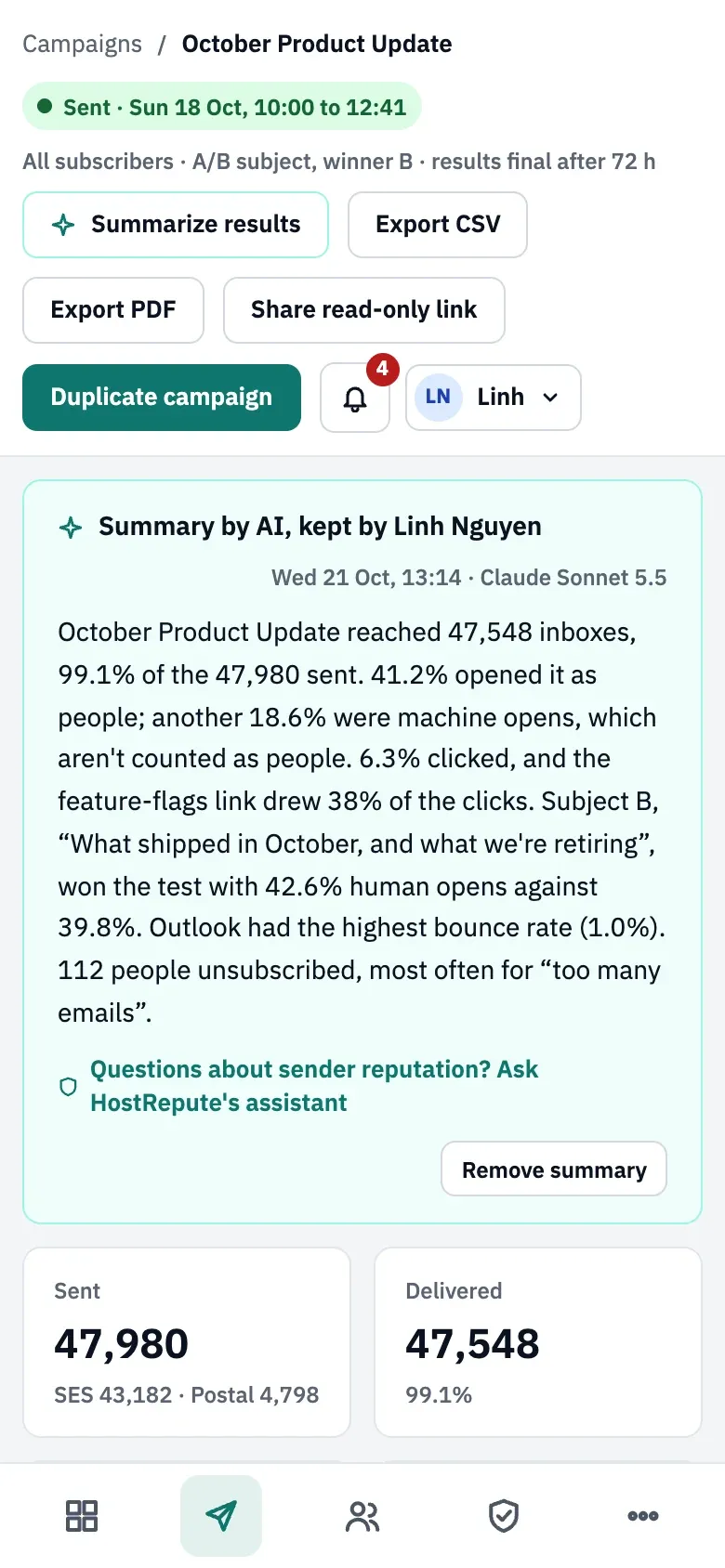
Summarize results with AI
Section titled “Summarize results with AI”If the workspace has connected a model for the AI assistant, members with ai:use see Summarize results. It writes a short summary of the report; a summary you keep is visible to everyone who can read the report, but never on read-only links.
Defaults and limits
Section titled “Defaults and limits”| Setting | Default | How to change |
|---|---|---|
| "Results still coming in" period | 72 hours after the send finishes | Fixed |
| Click map grouping | Links with under 5% of clicks are grouped as Other; 20% or more are marked hot | Fixed |
| Read-only share link expiry | Never (until revoked) | Share this report › Link expires; never, 7, 30 or 90 days |
| Active share links per report | 10 | Fixed; revoke one to create another |
Check that it worked
Section titled “Check that it worked”- The status line reads “results final after 72 h” once the numbers have settled.
- A read-only link opens in a private browser window without signing in and shows “Read-only report”.
Troubleshooting
Section titled “Troubleshooting”- Export CSV and Share read-only link are disabled. They need
reports:share; the button says who can help. - “There’s nothing to share yet.” Read-only links exist only for campaigns that have started sending.
- “This report already has 10 active links.” Revoke one you no longer need, then create a new one.
- “Event ingestion is N minutes behind.” A sending provider’s delivery events are arriving late, so recent numbers are low. See delivery events and suppression sync.
- The open rate looks low next to another tool’s. That tool probably counts machine opens. Compare the sum of human and machine opens instead.
Related
Section titled “Related”- Monitor a send and auto-pause shows the same numbers while the send runs.
- Bounces, complaints and provider limits explains the bounce types.
- Keep your list healthy uses human opens to sort contacts into engagement tiers.
- Public URLs and endpoints lists the
/r/and tracking paths.