
Set up a welcome series
In about 20 minutes you build a welcome email series from the Welcome series starter template and publish it, so every new subscriber gets a first email 10 minutes after joining and a follow-up that depends on whether they opened it.
Before you begin
Section titled “Before you begin”- You need
automations:editandautomations:publish; the Owner, Admin and Editor roles hold both. - Have the list that new subscribers join, ideally with a signup form in front of it (see add a signup form to your site).
- Check that the Automations route has a healthy sending provider: the publish dialog warns when it hasn’t, and emails then wait until one is healthy (see route mail across providers).
- Keep an email address you can read at hand to test the series.
Build the series
Section titled “Build the series”-
Create the draft. Go to Automations. Under Starter templates, select Welcome series. In a workspace without flows, the same card is in the middle of the page; New automation offers it too. ReputeCast creates a draft called Welcome series with 7 steps and its three emails, starts it on the workspace’s first list, and opens it on the canvas.
-
Pick the list. Select the trigger at the top of the flow. Under Starts when, Joined list is selected; pick the list your subscribers join.
- Leave Double opt-in confirmed only on: on a list with double opt-in, contacts get the welcome once they confirm.
- Leave Include contacts added by an import off, so importing old subscribers doesn’t welcome them.
- Leave Re-entry at Once per contact, so a contact who leaves and rejoins the list isn’t welcomed twice.
-
Read the flow from the top. The starter has these steps:
Step What it does Joined list Lets a contact in when they join the list. Delay, 10 minutes Waits 10 minutes. Send email, step 1 Sends “You’re in. Here’s what to expect”. Branch Asks “Opened step 1 within 2 days?”, counting human opens only. Send email, step 2 On the Yes path: sends “Three things to try first”. Send email, step 3 On the No path: sends “Did you get our welcome?”. Goal, First click Ends the flow when the contact clicks any link in the flow’s emails, wherever they are in it. Each contact gets step 1 and then either step 2 or step 3, so two of the three emails within about two days. The goal also ends the flow early for a contact who clicks a link in step 1 before the branch has decided.
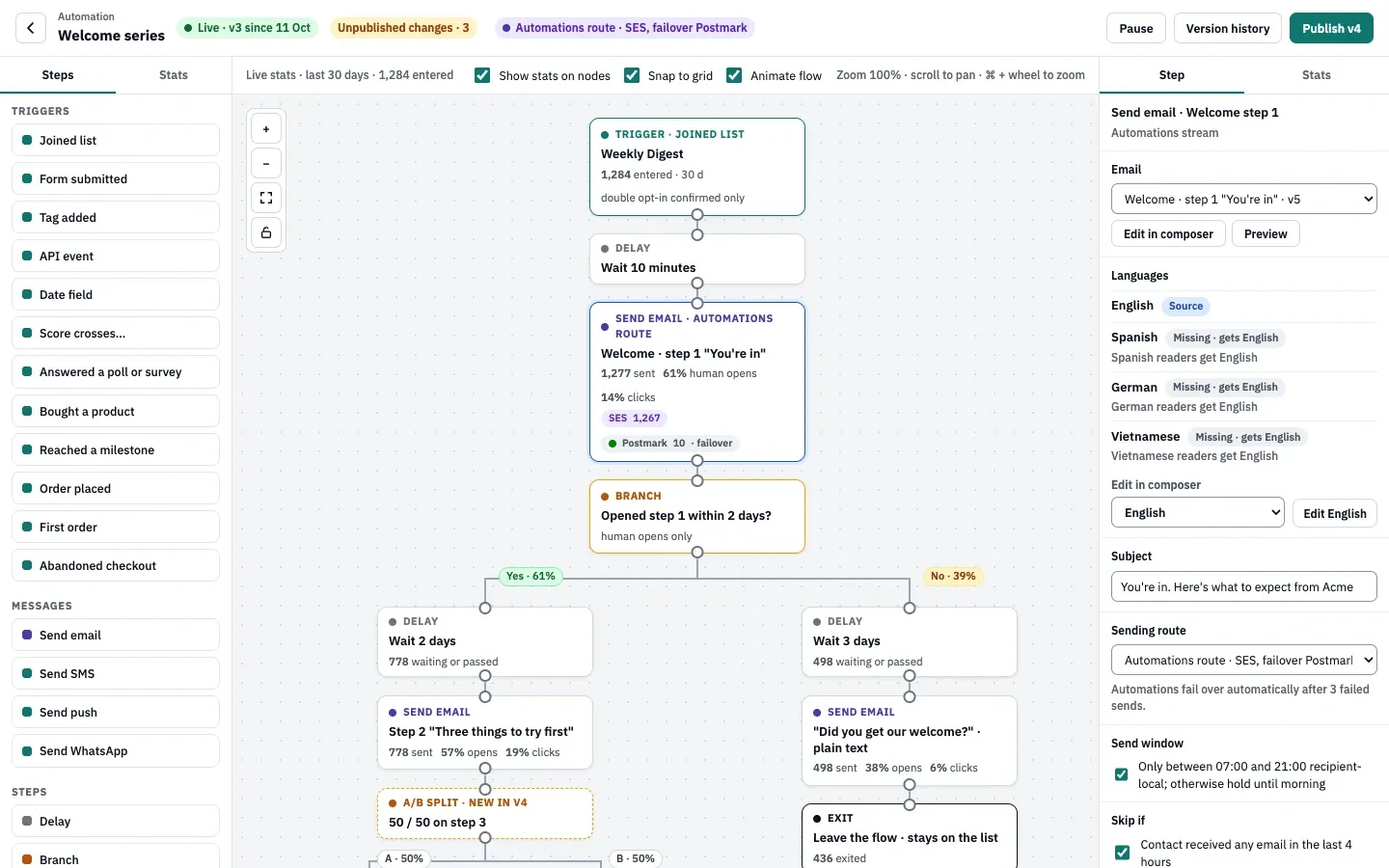
The demo workspace’s version in the screenshot has more steps, such as a delay on each path and an A/B split; your draft starts with the seven steps above.
-
Edit the emails. Select step 1. In the right panel, under Email, select Edit in composer. Change the Subject, Preheader and HTML. Liquid tags such as
{{ first_name | default: "there" }}are filled in when the email goes out. Select Save as new version: the step switches to the new version of the email and sends it once you publish. Preview shows the result.Then check the step’s own Subject field in the right panel. That is the subject that goes out, so update it if you changed the subject in the composer. Repeat for steps 2 and 3.
-
Set the delays. Select the Delay step and set Wait to how long new subscribers wait for step 1. Select the Branch and set Wait up to: how long the flow waits for an open of step 1 before it sends step 3 instead. To space out step 2, drag Delay from the palette onto the connection between the branch’s Yes path and step 2.
-
Check the sending rules. Select each email step and look at the rules below the subject:
- The Sending route is the Automations route.
- The Send window is on: an email due outside 07:00 to 21:00 in the subscriber’s time zone waits until morning.
- The Skip if rule skips the email when the contact got any email in the last 4 hours, for example a broadcast; the contact then moves on without it. Clear it on step 1 if every new subscriber must get the welcome.
-
Publish the series. Select an empty part of the canvas: under Before you publish, the right panel should say every step is connected and set up. Select Publish (the button reads v1 for a first publish). The dialog says this is the first version; read the Pre-publish checks and publish. Contacts who join the list from now on enter the series. Publish automation changes safely explains the dialog in full.
-
Test it. Join the list with your own address through your signup form and confirm. Step 1 arrives about 10 minutes later, or the next morning outside the send window.
-
Watch the stats. Go back to Automations. The Welcome series row shows Live, how many contacts entered in the last 30 days, how many are in the flow, the share that completed it, the human opens rate and the goal rate.
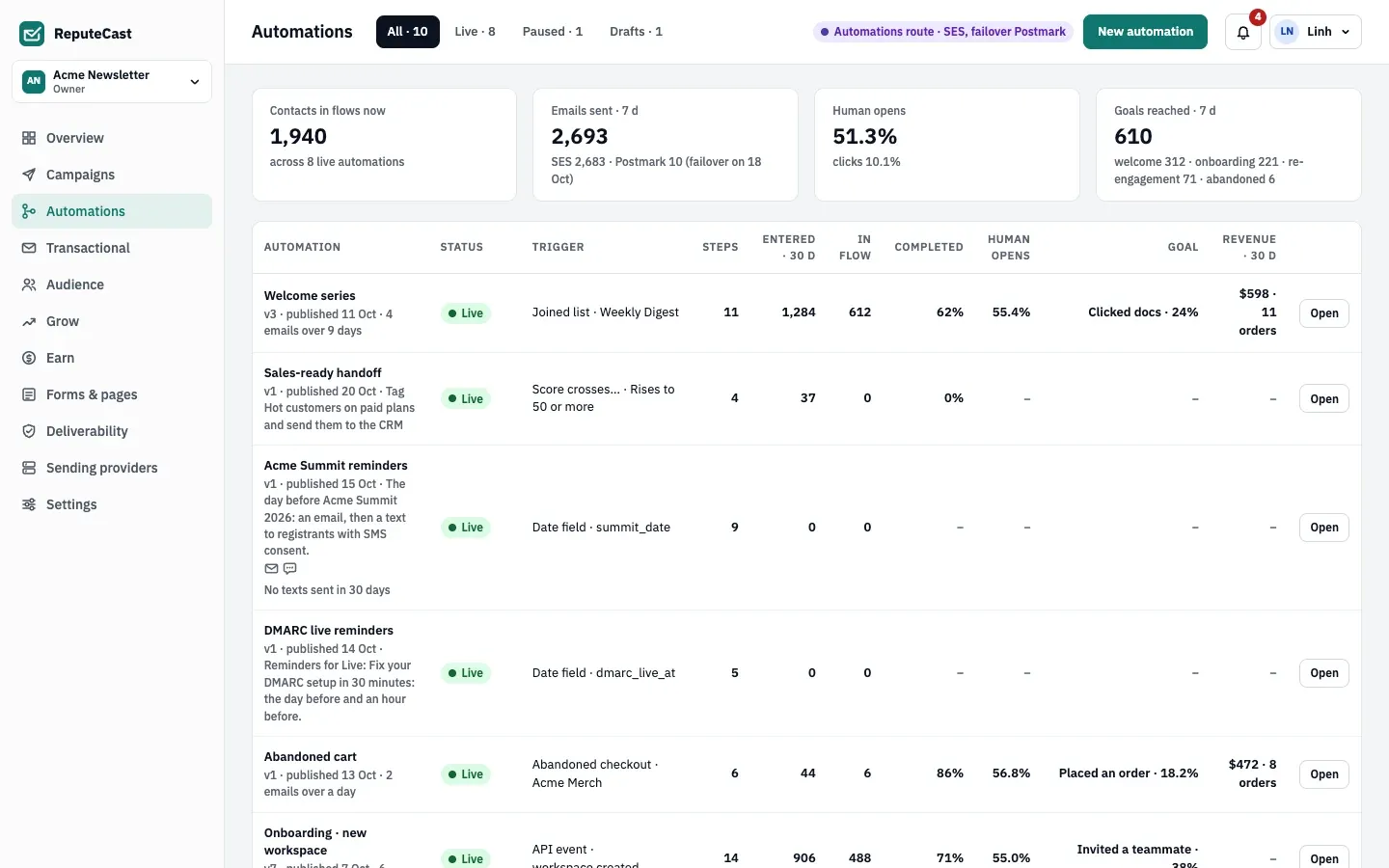
Open the flow to see each step’s numbers on the canvas. The branch shows how many contacts took each path; select any step and open Stats in the right panel for its numbers over the last 30 days.
What you built
Section titled “What you built”A live welcome series on your list: new subscribers who confirm get a welcome email 10 minutes after joining, a second email chosen by whether they opened the first, and the flow ends for them at their first click. Each email is versioned, so you can improve it and publish again without disturbing contacts who are already in the series.
Next steps
Section titled “Next steps”The other starter templates open as drafts the same way:
| Starter | Starts when | What it does |
|---|---|---|
| Re-engagement | The tag sunset-entered is added to a contact. The list-health sunset policy tags contacts sunset when they enter the Sunset tier, so change the trigger’s tag if that policy should start it (see list health). |
Sends “Still want these?”, then waits up to 14 days for an open: contacts who open leave the flow subscribed, the others are unsubscribed from all lists. 5 steps. |
| Onboarding | Your app sends the API event user.signed_up (see record events and conversions). |
Five emails 1, 2, 3 and 7 days apart, a webhook to your CRM after the third (set its URL before you publish), and the goal Activated when your app sends account.activated. 12 steps. |
| Abandoned cart | A checkout in a connected Shopify or WooCommerce store has no order after an hour. Offered once a store is connected. | An email with the cart, a 23-hour delay, the goal Placed an order (ordering ends the flow), then a second email. 6 steps. |