
Connect WordPress
The “ReputeCast” WordPress newsletter plugin puts your ReputeCast signup forms on a WordPress site as a block or a shortcode and sends every newly published post to ReputeCast as a campaign draft. With WPML or Polylang, a post’s translations become the draft’s language versions; with WooCommerce, the checkout gets a marketing consent checkbox (see Connect Shopify or WooCommerce).
Before you begin
Section titled “Before you begin”- WordPress 6.4 or later and PHP 8.1 or later.
- In ReputeCast you need
integrations:manage(Owner or Admin). Each site gets its own key. Read Connect other tools. - At least one signup form in ReputeCast, if you want forms on the site.
Connect a site
Section titled “Connect a site”-
In ReputeCast, open Settings, then Integrations, then WordPress and choose Connect a site.
-
Enter the site address (for example
blog.example.com) and pick what the site may do: List your signup forms and Create drafts from posts. Copy the key: it’s shown once. -
Install the plugin. Choose Get the plugin to download it, then in WordPress open Plugins › Add New › Upload Plugin, upload the zip and choose Activate. Once the plugin is in the WordPress plugin directory, you can also search for “ReputeCast” under Plugins › Add New.
-
In WordPress, open Settings › ReputeCast. Paste the ReputeCast address (the one you sign in at, for example
https://news.acme.io) and the key, then choose Connect. The plugin checks the key, reports in and fetches your forms. ReputeCast lists the site right away.
The plugin stores the key encrypted with a key derived from the site’s salts in wp-config.php, so a copy of the
database alone doesn’t reveal it. Settings › ReputeCast shows it only masked (rc_live_5d1e…7b20).
Add a signup form
Section titled “Add a signup form”- Block: insert the ReputeCast signup form block and pick a form. The block warns when the site isn’t one of the form’s allowed domains, when the form is a draft or paused, and when the form is gone. From the site’s row in ReputeCast, Allow followed by the site’s host adds the site to the form’s allowed domains.
- Shortcode: paste a shortcode such as
[reputecast_form id="frm_8c2e1a"]. Settings › ReputeCast lists each form’s shortcode.
The plugin outputs the same container and public script as ReputeCast’s embed code, and a popup form loads its script only. A page view never calls ReputeCast from WordPress, and forms keep working after you disconnect. The block’s language setting, or else the page language from WPML or Polylang, decides which language the form shows.
Turn posts into campaign drafts
Section titled “Turn posts into campaign drafts”On the site’s row in ReputeCast, under Post drafts, choose Set up a rule: which categories, the audience, template and sender, and who is notified. From then on, every post published on the site is sent to ReputeCast in a background job (publishing never waits for ReputeCast), and the rule decides what becomes a draft. Updates, pages and password-protected posts aren’t sent.
With WPML or Polylang, the post in the site’s default language leads and its published translations become language versions of the draft. A translation published later joins the same draft. Read Send each reader their language.
Site health
Section titled “Site health”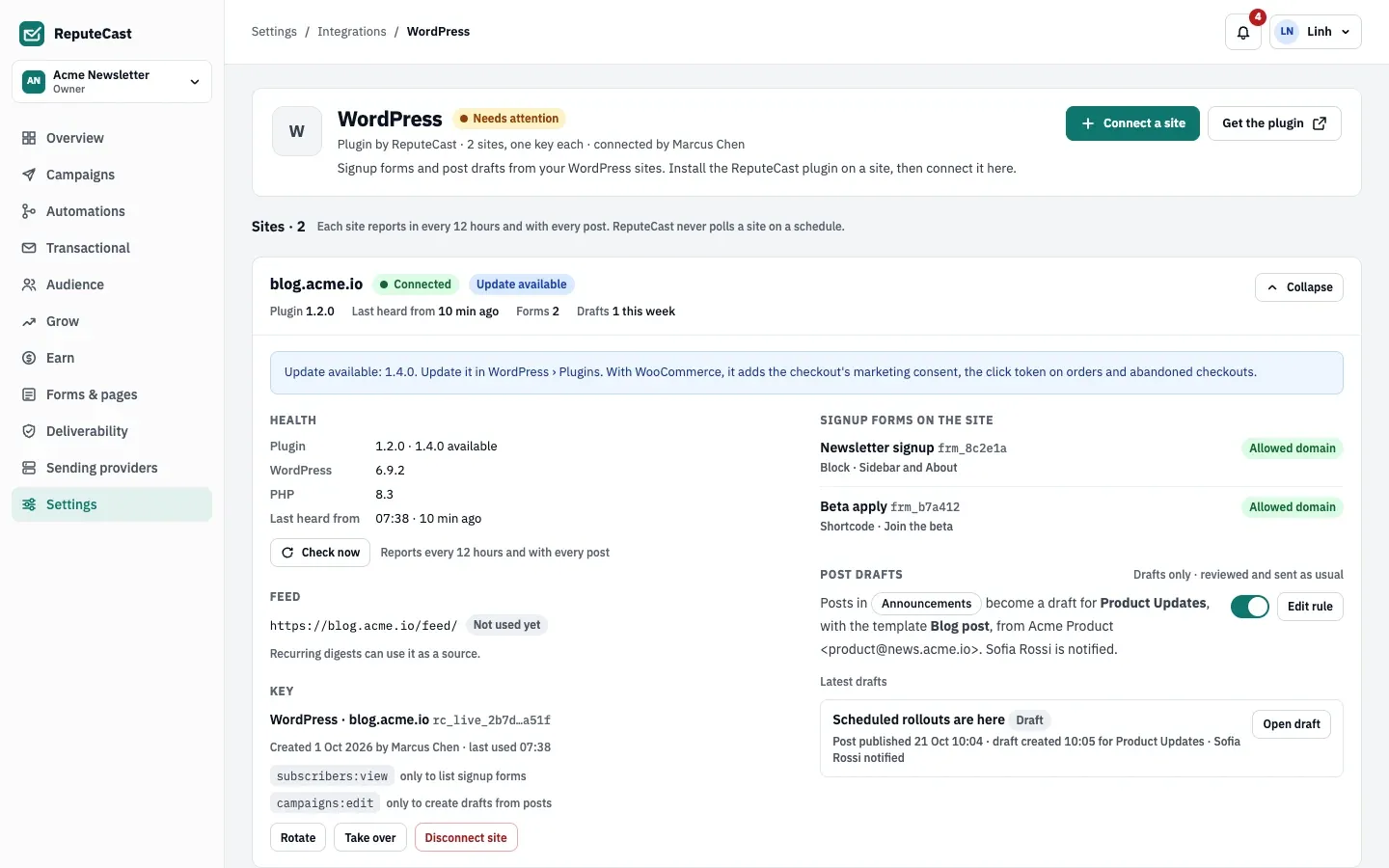
Each site reports in when it connects, every 12 hours and with every post: the plugin, WordPress and PHP versions, the feed URL, its categories and where forms are used. ReputeCast never polls a site on a schedule.
- A site that hasn’t reported for 24 hours shows “Not heard from” and the integration needs attention.
- Check now (
integrations:manage) calls the plugin’s status endpoint (/wp-json/reputecast/v1/status) with a request signed with the site’s key, and waits up to 10 seconds. - Update available appears when a newer plugin version is out (ReputeCast checks the WordPress plugin directory when the instance’s update check is on).
| Setting | Default | How to change |
|---|---|---|
| Old key keeps working after Rotate key | 24 hours | Stop the old key now ends it early |
| Call log kept | 7 days | Fixed |
| Needs attention when the key expires within | 7 days | Fixed |
| Needs attention when a managed webhook keeps failing for | 30 minutes | Fixed |
| Needs attention when calls fail | More than 50% of calls in the last hour (at least 4 calls) | Fixed |
| Needs attention when a WordPress site stops reporting for | 24 hours | Fixed |
| WordPress plugin reports to ReputeCast | On connect, every 12 hours and with every post | Fixed |
| Check now timeout for a WordPress site | 10 s | Fixed |
Disconnect
Section titled “Disconnect”- In WordPress (Settings › ReputeCast › Disconnect): the plugin forgets the key and stops its jobs; forms keep loading.
- In ReputeCast (the site’s Disconnect site): revokes the site’s key. Forms keep working through their public script; post drafts stop.
Do both to remove a site completely. Deactivating the plugin stops its jobs and keeps the connection; deleting it removes its options, jobs and post data.
Troubleshooting
Section titled “Troubleshooting”- “Not heard from”: WP-Cron isn’t running or the site can’t reach ReputeCast. Open the site, check that Settings › ReputeCast shows it connected, and choose Check now.
- Check now fails for a site on your own network: ReputeCast refuses private addresses until an operator sets
webhooks.allow_private_networks. - The block says the site isn’t allowed: add the site to the form’s allowed domains (Allow on the site’s row) or in the form’s settings.
- No draft after publishing a post: the post doesn’t match the rule’s categories, it was an update, or the site’s key can’t create drafts. Check Settings › ReputeCast, which lists the last five posts sent and ReputeCast’s answer.