
Brand your pages and use your own domain
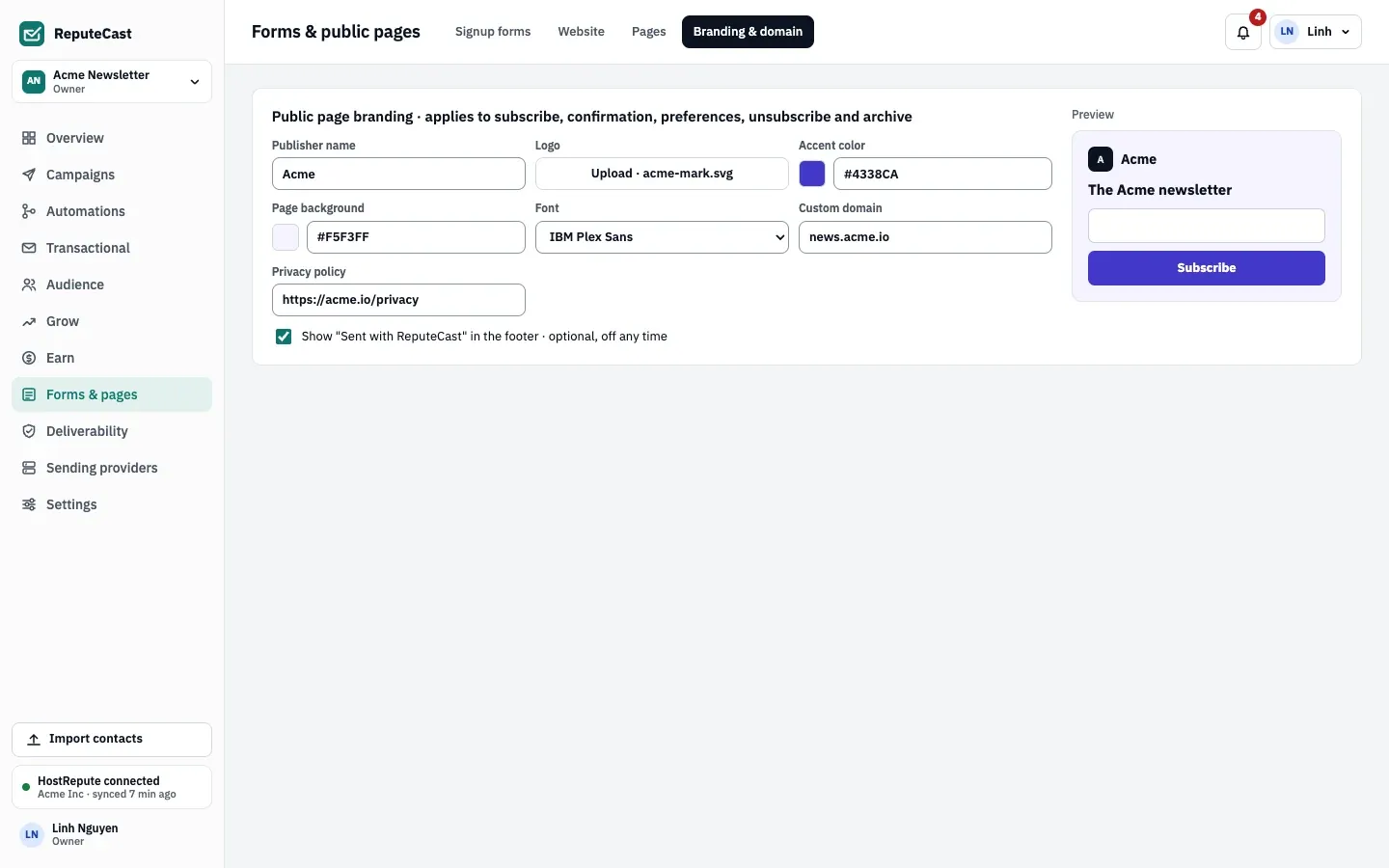
Your branding (publisher name, logo, colors and font) styles every public page ReputeCast serves for a workspace:
the subscribe and confirmation pages, the preference center, the unsubscribe page, the archive, the website and
landing pages. Embedded signup forms use its accent color and your site’s own fonts. Custom domain newsletter pages
answer at the root of an address you own, such as https://news.acme.io/subscribe, instead of under
/p/<workspace>/ on your ReputeCast server.
Before you begin
Section titled “Before you begin”- You need the
forms:editpermission. Owners, Admins and Editors have it. - For a custom domain, you need access to the domain’s DNS records and an operator who can give the reverse proxy a TLS certificate for the domain. ReputeCast doesn’t issue certificates itself.
Set your branding
Section titled “Set your branding”-
Open Forms & pages, then Branding & domain.
-
Enter the Publisher name, up to 80 characters. It heads every public page and starts as the workspace’s name.
-
Upload a Logo: SVG, PNG, JPEG, GIF or WebP, up to 256 KB. An SVG or a 200 px PNG is enough. An SVG with scripts, event attributes or embedded content (
<foreignObject>,<iframe>,<object>,<embed>) is refused, not cleaned: export it again as a plain SVG or a PNG. The logo is also the website’s favicon. Without a logo, pages show the publisher name’s first letter on a dark tile. -
Set the Accent color and the Page background as hex colors such as
#4338CAand#F5F3FF(the defaults). See how colors stay readable. -
Choose the Font: IBM Plex Sans (the default), System default, or Custom web font. A custom font needs the family name as in its CSS, such as
Inter, and anhttps://address ending in.woff2or.woff. -
Optionally, enter your Privacy policy address, such as
https://acme.io/privacy. Pages show it as a Privacy link in the footer, and the words “privacy policy” in a form’s consent text link to it. -
Turn Show "Sent with ReputeCast" in the footer · optional, off any time on or off. It is on by default.
-
Check the preview and select Save branding. Every public page uses the new branding from its next visit.
How colors stay readable
Section titled “How colors stay readable”ReputeCast keeps text on public pages at the WCAG 2.2 AA contrast of 4.5:1, whatever colors you pick:
- If white text on your accent color is below 4.5:1, buttons use dark text instead.
- If the accent color is too light for links, links use a darker shade of it that keeps 4.5:1 on white and on your background.
- The only color ReputeCast refuses is a background so dark that the gray footer text falls below 4.5:1. Pick a lighter background.
The message after saving says which colors were adjusted and why.
Use your own domain
Section titled “Use your own domain”-
In Custom domain, enter the domain without
https://or a path, for examplenews.acme.io, and select Save branding. A domain can serve only one workspace, and it can’t be your ReputeCast server’s own address. -
At your DNS host, add one of these records. The app shows the exact values for your domain.
- For a subdomain such as
news.acme.io(the usual case): aCNAMErecord fromnews.acme.ioto your server’s public URL host, such asreputecast.acme.io. - For an apex domain such as
acme.io, which can’t have a CNAME:AandAAAArecords with the same addresses as your server’s public URL host. - To prove ownership another way: a
TXTrecord named_reputecast.news.acme.iowhose value isreputecast-verify=followed by 24 characters.
The TXT record only proves the domain is yours. Visitors still have to reach your server, so the domain’s own records must lead to it or to your reverse proxy.
- For a subdomain such as
-
Select Check DNS now. While the record is missing, the domain shows “Waiting for DNS”; a wrong record shows “DNS check failed” with the reason, for example a CNAME that points elsewhere. DNS changes can take up to an hour to show. ReputeCast checks again every 10 minutes by itself.
-
Ask your operator to issue a certificate for the domain on the reverse proxy and to pass the original
Hostheader through. See custom domains in the reverse proxy guide.
What changes when the domain is verified
Section titled “What changes when the domain is verified”Only a verified domain serves pages. Once it is:
- Public pages answer at the domain’s root:
/subscribe,/preferences,/unsubscribe,/archive, the website, landing pages, and the Grow and Earn pages. The same pages keep working under/p/<workspace>/on your server. - Canonical links, the sitemap and the page addresses shown in the app use the domain.
- Signup form scripts load from
/p/<workspace>/forms/on the domain. Copy the embed code again so your site uses the new address; the old one keeps working. - Links in emails (unsubscribe, preferences, confirmation and view online) keep using your server’s public URL.
- Without the website, the domain’s root redirects to
/subscribe.
A verified domain is checked again once a day. If one check fails, it keeps serving pages and shows “Last check
failed”; a second failure stops it until DNS is fixed. While the website is on, people with the website:manage
permission get a notification when the domain stops checking out or its certificate fails.
For operators: issue certificates for verified domains only
Section titled “For operators: issue certificates for verified domains only”ReputeCast answers GET /p/_/tls-check?domain=<host> with 200 when the host is a verified custom domain and 404
otherwise. Point an on-demand TLS check at it, such as Caddy’s ask http://localhost:8080/p/_/tls-check, so your proxy
requests certificates only for domains a workspace has verified. ReputeCast routes requests by the Host header, so
the proxy must keep it. The full configuration is in reverse proxy and TLS.
Check that it worked
Section titled “Check that it worked”- Open
https://<your domain>/subscribe. The page shows your logo, colors and font, and the browser shows a valid certificate. - In the app, the subscribe and archive addresses under Forms & pages, then Pages start with your domain.
Troubleshooting
Section titled “Troubleshooting”- “Use a domain name like news.acme.io, without https:// or a path.” Remove the scheme, path and port.
- “… already serves another workspace’s pages.” Remove the domain from that workspace first.
- “No CNAME from … to … yet.” The record isn’t visible yet. Wait up to an hour and select Check DNS now.
- The domain is verified, but the browser shows a certificate error. The proxy has no certificate for the domain. Ask your operator to set up on-demand TLS or a certificate for it.
- “This SVG contains scripts or embedded content.” Export the logo again as a plain SVG or a PNG.
- “The logo is … KB; the limit is 256 KB.” Use a smaller file. An SVG or a 200 px PNG is enough.