
Show blocks to some readers
Conditional content lets one campaign carry blocks that only some readers see: a beta announcement for the Beta Program list, a note for contacts who stopped opening, or a section for paid members. Every reader gets one email, with each conditional content email block shown or hidden for them, and ReputeCast checks every version before the send.
Before you begin
Section titled “Before you begin”- Changing who sees a block needs
campaigns:edit. Previewing as a real contact and seeing their name in the reasons needssubscribers:view. - Visibility rules work in regular campaigns and recurring digest issues. Transactional templates and automation emails don’t support them.
- Create the segments, lists, tags or custom fields your conditions will use.
Set who sees a block
Section titled “Set who sees a block”-
In the composer, select a section, or a block inside one (text, image, button, divider, spacer, social, navbar, raw HTML or table). Columns and groups can’t have a rule.
-
Open Settings and find Visibility.
-
Choose who sees the block:
- Everyone: Show to everyone (the default).
- Only the contacts your conditions match: Only contacts who match.
- Everyone but those contacts: Everyone except contacts who match.
- Readers by paid access, when you sell paid subscriptions: Paid access, then any paid tier, a tier and above, or free subscribers only.
-
Choose whether a contact must match ALL or ANY of the conditions.
-
Select Add condition, pick a condition, its operator and its value. Add more as needed.
-
Read the count under the conditions, for example “1,402 of 31,604 recipients see this block”. It is counted against the campaign’s audience and updated about a second after each change.
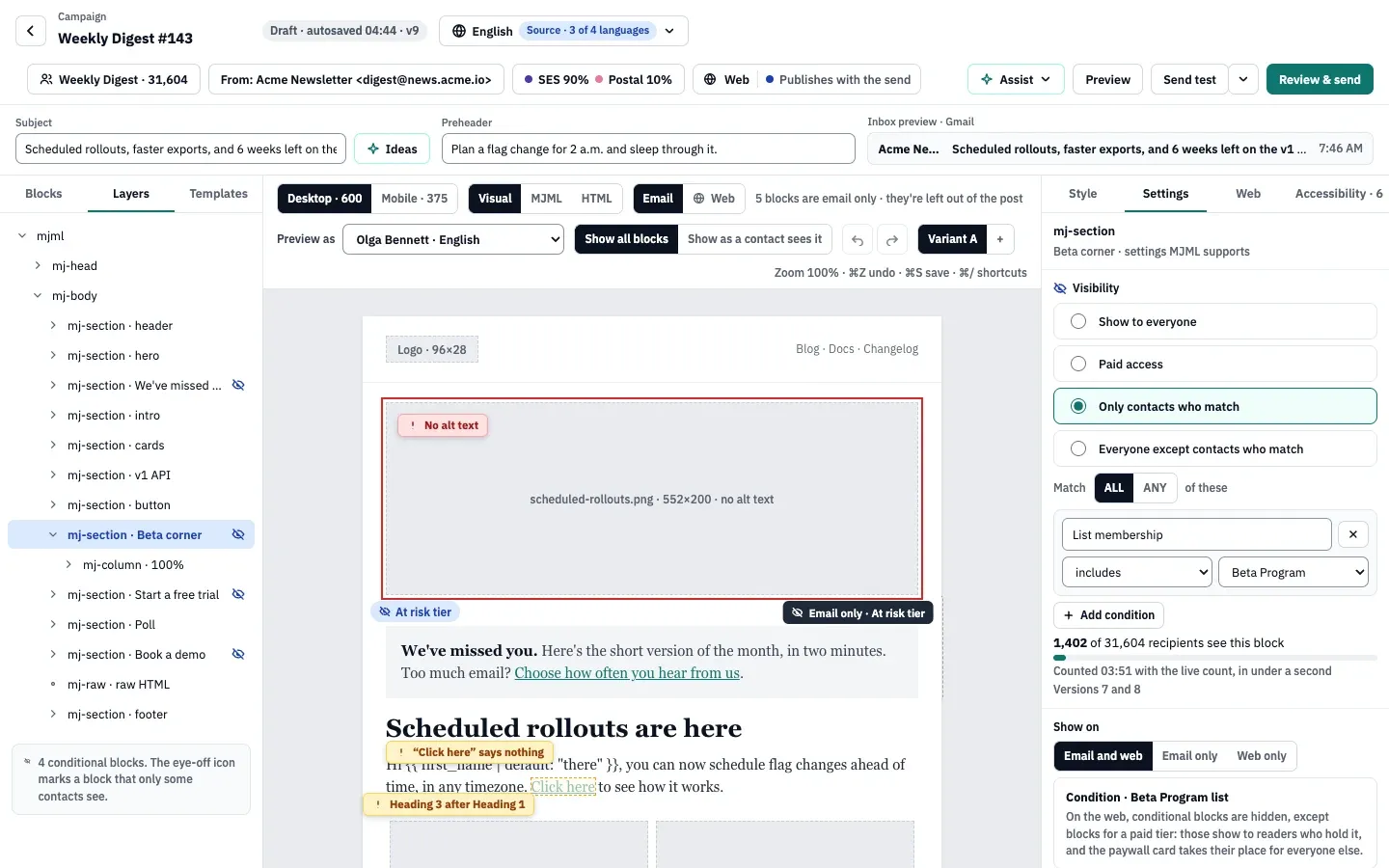
Conditional blocks get an eye-off mark in Layers and a badge on the canvas with the rule in words, such as “Beta Program list”. Removing the last condition removes the rule, and the block shows to everyone again.
Conditions
Section titled “Conditions”| Condition | Operators | Notes |
|---|---|---|
| In a segment | is in, is not in | Any saved segment. |
| On a list | includes, excludes | Shown on the block as List membership. |
| Has a tag | has, doesn’t have | Suggests existing tags; you can type a new one. |
| A field | Depends on the field’s type (below) | Any custom field, shown as Custom field · and its name. |
| Language | is, isn’t | One of the workspace’s content languages, matched on the base code (es-MX counts as es). A contact without a language never matches is. |
| Engagement tier | is, isn’t | Active, Cooling, At risk or Sunset; see keep your list healthy. |
| Score | is at least, is at most, is between | A whole number from 0 to 100; see score contacts by interest. |
| Score band | is, isn’t | Hot, Warm or Cold. |
Field operators by field type:
- Text: is, isn’t, contains, is empty, is set.
- Number: is, isn’t, is greater than, is less than, is empty, is set.
- Date: is before, is after, is empty, is set.
- Boolean: is true, is false.
- Select: is, isn’t, is empty, is set.
Until scoring is set up, nobody has a score: score conditions and “score band is” never match, and “score band isn’t” always does. Paid access counts readers on a trial, with complimentary or gift access, and those whose payment Stripe is still retrying; a higher tier includes a lower tier’s paid content.
Preview each reader’s version
Section titled “Preview each reader’s version”- In the canvas toolbar, Show all blocks shows everything while you edit, and Show as a contact sees it hides what the selected Preview as contact wouldn’t get.
- In Preview, turn on Show why. Each hidden block collapses to a dashed line that says why, for example “Hidden: Beta corner · Olga isn’t on Beta Program”. The header names the version, how many recipients get it, and says so when the contact isn’t in this campaign’s audience.
Check the versions
Section titled “Check the versions”The status bar under the canvas counts the combinations, for example “3 conditional blocks · 6 versions”. Select it (in the Visual view) to open the versions panel:
- one row per combination that occurs in the audience, with what it shows, its recipients and its size,
- a Gmail clips it badge on any version over 102 KB, with a fix to minify the inline CSS,
- Preview this version on each row,
- how many of the possible combinations don’t occur in this audience.
Combinations that no contact gets aren’t counted or checked.
Rules to know
Section titled “Rules to know”- The footer is always shown. A rule on the footer block is ignored, so every version keeps the unsubscribe link and the postal address.
- A block inside a hidden block is hidden with it.
- Who gets what is decided once, when the send builds its audience. Later changes to a contact (a new tag, a list change) don’t change an email that is already queued.
- The plain-text version matches. Each recipient’s text part is built from their own version of the HTML.
- Online copies follow the rules. A reader’s view in browser link shows their own version. The public archive treats the visitor as matching no condition: blocks for only contacts who match are hidden, blocks for everyone except are shown.
What Send Readiness checks
Section titled “What Send Readiness checks”The Conditional content group of Send Readiness renders and checks every version:
- Block when a condition uses a segment, list or field that was deleted. The fixes pick another one, remove the condition, or hide the block for everyone.
- Block when a version has nothing between the header and the footer. The fixes show the block to everyone or preview that version.
- Warn when a version is over Gmail’s 102 KB clipping size. You acknowledge it, or minify the inline CSS.
- Warn when a rule can’t be read; those blocks are shown to everyone.
- Unknown when the versions couldn’t be counted in time (10 seconds). Run the checks again.
Links are checked once across all versions together.
| Setting | Default | How to change |
|---|---|---|
| Versions Send Readiness checks one by one | Up to 50; above that, the 50 with the most recipients plus the largest and smallest email | Fixed |
When not every version can be checked one by one, Send Readiness names the versions it checked and how many recipients they cover together.
Check that it worked
Section titled “Check that it worked”- The block shows an eye-off mark in Layers and a badge with its rule on the canvas.
- Preview as a contact who matches and one who doesn’t: the block appears for the first and is collapsed with a reason for the second.
- The versions panel lists the combinations you expect, each with recipients.
Troubleshooting
Section titled “Troubleshooting”- There is no Visibility choice. A column or group is selected; select the section or a block inside it. In a transactional template the option doesn’t exist.
- The radio buttons are greyed out. The footer is selected, or your role lacks
campaigns:edit. - “Nobody has a score until scoring is set up”. Set up scoring, or use a segment or tag instead.
- “… deleted this segment”. Pick another segment or remove the condition; Send Readiness blocks the campaign until you do.
- A version has nothing between the header and the footer. Every block of that combination is hidden. Show one block to everyone, or change the rules.
- Preview as only offers sample contacts. Your role lacks
subscribers:view.