
Subscribe, preference and unsubscribe pages
Every workspace has built-in public pages: a subscribe page, a confirmation page, an email preference center, an unsubscribe page and an archive of past issues. They work as soon as the workspace exists, use your branding, load no third-party code and work without JavaScript. This page shows what each one does and how to change it.
Before you begin
Section titled “Before you begin”- You need the
forms:editpermission to change the pages. Owners, Admins and Editors have it; anyone withsubscribers:viewcan open the editors and previews. - The pages answer under
/p/<workspace>/on your ReputeCast server’s public URL, or at the root of your custom domain once its DNS check passes. See brand your pages and use your own domain.
The built-in pages
Section titled “The built-in pages”| Page | Address | What readers do there |
|---|---|---|
| Subscribe | /subscribe |
Sign up with the form you choose for it |
| Confirmation | /confirm/<token>, from the confirmation email |
Confirm a double opt-in signup |
| Preference center | /preferences/<token>, a personal link in every email |
Change lists, frequency, a pause, language and first name |
| Ask for a link | /preferences |
Get an email with a link to their preference center |
| Unsubscribe | /unsubscribe/<token>, a personal link in every email |
Take fewer emails or leave, and say why |
| View online | /view/<token> |
Read an email in the browser |
| Archive | /archive, /archive.rss, /sitemap.xml |
Read, search and follow past issues |
Pages reached from a personal link (confirmation, preference center, unsubscribe and view online) are sent with
Cache-Control: no-store, X-Robots-Tag: noindex, nofollow and Referrer-Policy: no-referrer, so they are never
cached, listed by search engines or leaked to other sites. Their links don’t expire. Emails always link to your
server’s public URL, even when the workspace has a custom domain.
Edit a built-in page
Section titled “Edit a built-in page”- Open Forms & pages, then Pages. The built-in pages are listed below your own pages.
- Select Edit next to Subscribe, Preference center, Unsubscribe or Archive. The subscribe and confirmation pages share one editor.
- Change the options on the left. The preview on the right is the real page, rendered by the server, and has a desktop and a mobile view.
- Select Save changes. Subscribers see the change on their next visit.
When the workspace has two or more languages, a language switcher in the editor lets you write each page’s texts per language. See send each reader their language.
Subscribe and confirmation pages
Section titled “Subscribe and confirmation pages”The subscribe editor sets:
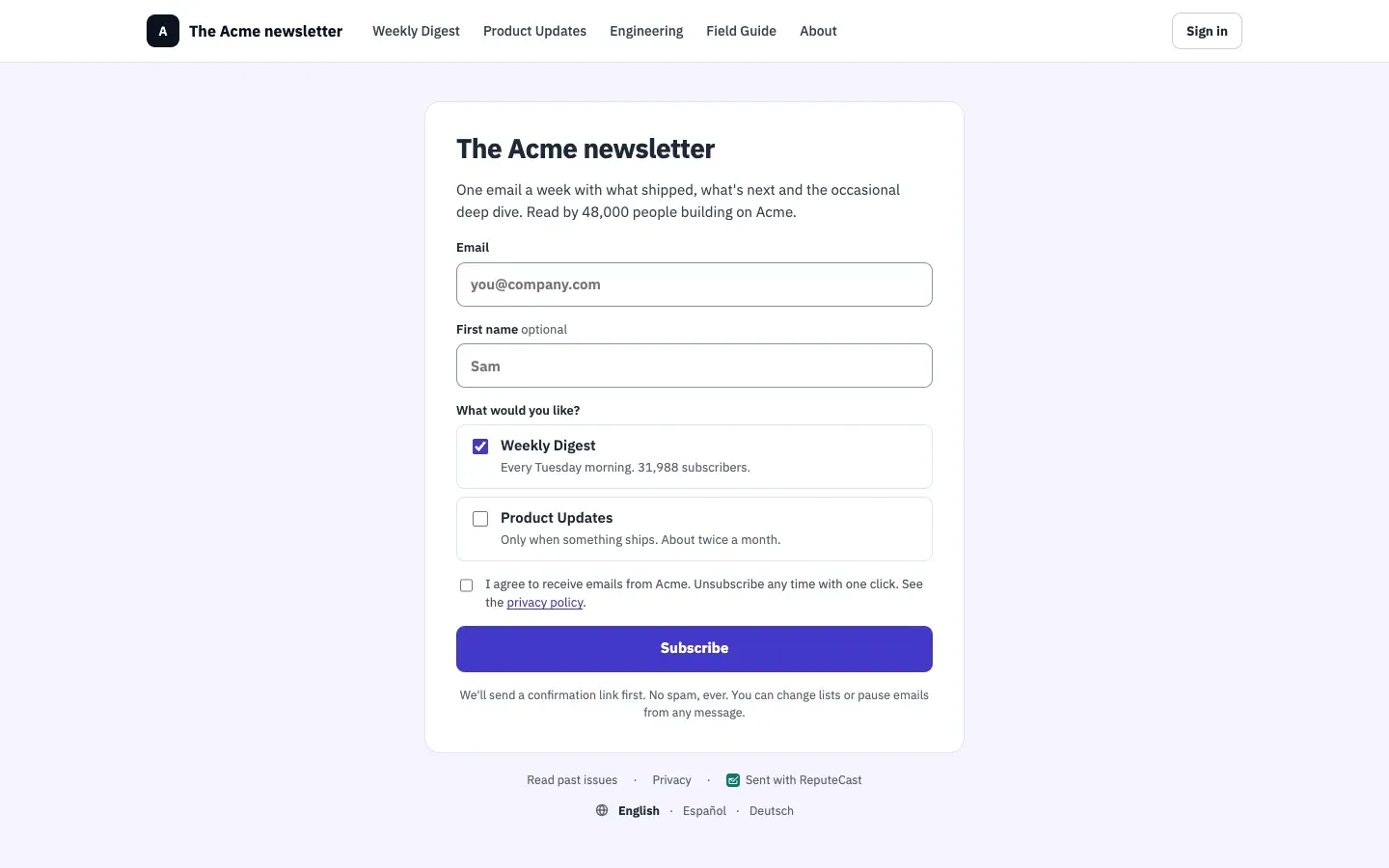
- Form on the subscribe page: the built-in form (email, first name and every public list, with double opt-in) or one of your signup forms. The page uses that form’s fields, lists and consent text, and its own heading.
- The heading, description and the line under the button, plus one line under each list. In a list line,
{subscribers}shows the list’s size. - For the confirmation page: what each list brings after the confirmation click, and an option to ask new subscribers to add your sender to their contacts.
- Let search engines list the subscribe page: on by default.
Preference center
Section titled “Preference center”Every email links to each subscriber’s own preference center. Subscribers can:
- Join or leave lists. They see the lists you offer plus every list they are already on.
- Choose how often: Every issue, Weekly roundup or Monthly best-of. ReputeCast stores the choice on the contact.
- Take a break for 30 or 90 days. Paused contacts get nothing from these lists until the date passes, then resume by themselves.
- Pick the email language, when the workspace has more than one.
- Change their first name.
- Turn texts on or off per list, when the workspace sends SMS and the contact has a phone number, and choose which optional transactional email categories they want.
In the editor, Lists offered sets the lists everyone sees, and Choices turns the frequency, pause and first-name options on or off (all on by default).
Someone who lost their link can open /preferences, enter their address and select “Send me a link”. The answer is
the same whether or not the address is on your lists, and a contact gets at most one such email every 10 minutes.
Unsubscribe page
Section titled “Unsubscribe page”The unsubscribe page asks before it acts. In the editor:
- Fewer emails instead › Offer the monthly best-of before they leave shows an offer with your heading, text and button. A reader who takes it stays on their lists, and their frequency becomes Monthly best-of.
- Ask why they're leaving · optional for them adds an optional question with five answers: “Too many emails”, “Content isn’t relevant to me”, “I didn’t sign up for this”, “I’m switching email addresses” and “Other”. The answers show in each campaign’s report; see read campaign reports.
- The page shows how many people left a list, used one-click unsubscribe, chose fewer emails or said why in the last 30 days.
When a reader confirms, ReputeCast removes the contact from every list and suppresses Broadcasts and Automations to the address. Account emails, such as password resets, still arrive because they go through the System stream. The page then offers to resubscribe, which restores the lists and lifts the suppression. See the suppression list.
One-click unsubscribe (RFC 8058)
Section titled “One-click unsubscribe (RFC 8058)”Every campaign and automation email carries the two headers that let mail apps unsubscribe a reader with one click, without opening the page:
List-Unsubscribe: <https://reputecast.acme.io/p/acme-newsletter/unsubscribe/TOKEN>, <mailto:[email protected]?subject=unsubscribe%20TOKEN>List-Unsubscribe-Post: List-Unsubscribe=One-ClickThe mail app sends POST with List-Unsubscribe=One-Click to the same address as the unsubscribe page. ReputeCast
unsubscribes the contact at once, as described above, and answers 200 with Unsubscribed.; the signed token in the
address is the only credential. A GET or HEAD request never unsubscribes anyone, so link scanners can’t do it.
RFC 8058 requires the one-click address to be HTTPS (checked October 2026),
and Send Readiness warns when your server’s public URL is not https://. For mailbox providers’ requirements and how
to test it with curl, see one-click unsubscribe.
Archive
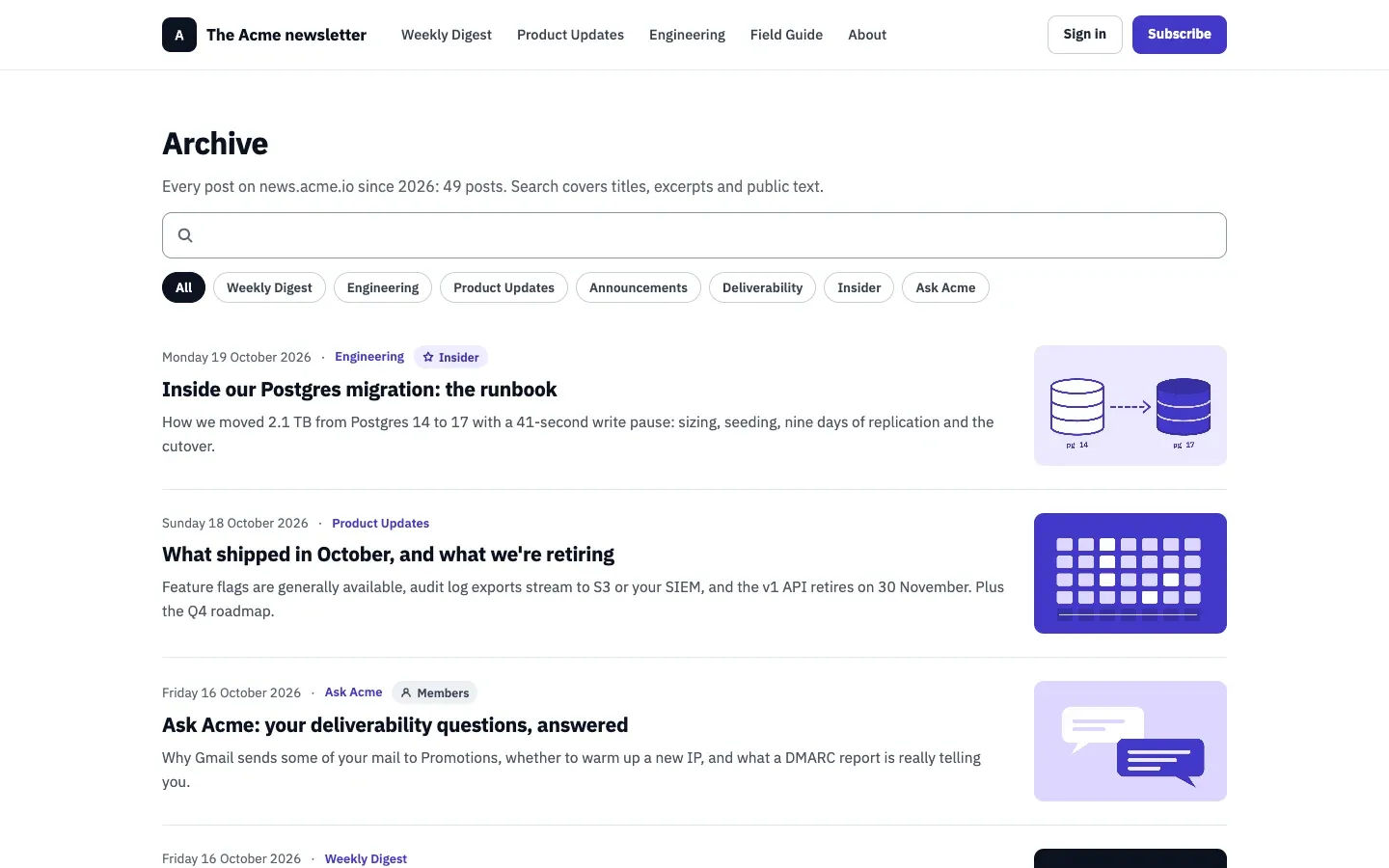
Section titled “Archive”The archive lists your sent email campaigns at /archive, with search, a filter per list, an RSS feed at
/archive.rss (the 50 newest issues) and a sitemap at /sitemap.xml. In the editor:
- Turn the archive on or off with Publish past issues at.
- Under Lists published, choose the lists whose campaigns appear. With none ticked, every public list is published. A campaign appears once it finishes sending; paid-only campaigns never do.
- Let search engines list it · sitemap.xml lets search engines list the archive and its issues. Search results are
always
noindex. - Each issue can be hidden, or given its own title, excerpt, label and list. Hiding removes it from the archive, the feed and the sitemap; the email itself doesn’t change.
In archived issues, the unsubscribe and preference links point to the “ask for a link” page, so a public copy never carries someone’s personal link. When you publish a newsletter website, the archive becomes the site’s list of posts and old issue addresses redirect to their posts.
Which language a page shows
Section titled “Which language a page shows”- Pages reached from an email (confirmation, preference center and unsubscribe) use the contact’s language.
- Other pages use the language picked in the page footer’s menu, then the browser’s languages, then the workspace’s default language.
- A language shows only when its page copy is live; otherwise visitors get the fallback language’s pages.
The pages’ own labels ship in English and Vietnamese. For any other language, you write them in the language settings, starting from a copy of the English ones.
Check that it worked
Section titled “Check that it worked”- Open the page from the editor’s address, or send yourself a test campaign and follow its links.
- On the preference center, change a list and select “Save preferences”. The contact’s profile shows the change.
- To test one-click unsubscribe, use an address you own, then check that the contact is no longer on any list.
Troubleshooting
Section titled “Troubleshooting”- Send Readiness warns about one-click unsubscribe. Your server’s public URL is not
https://. An operator sets it; see reverse proxy and TLS and Gmail, Yahoo and Microsoft bulk sender requirements. - A reader says the preference link opens the wrong person. The link was forwarded. Each link belongs to one contact; the page shows “not you?” next to the address, which leads to the subscribe page.
- The archive is empty. No campaign to a published list has finished sending yet, or Publish past issues at is off.
- Search engines list the subscribe page and you don’t want that. Turn off Let search engines list the subscribe page.