
Run client workspaces as an agency
Run email marketing agency client accounts from one ReputeCast instance: each client gets its own workspace, your staff work across them from the Agency area, and the usage page shows what to rebill each client. Agency mode is free like every other feature.
Before you begin
Section titled “Before you begin”- Turning on agency mode needs an instance admin. There is one agency per instance, and it is off by default.
- Staff permissions are instance-level (
agency:view,agency:usage,agency:library,agency:manage). They never go into a workspace role, an API key or an MCP agent. - Each client keeps its own sending providers, domains, contacts, suppressions, consent, keys and audit log.
-
Turn on agency mode. Open Instance admin, then Instance & updates, then Agency and switch on Agency mode. Set the Agency name, The agency's own workspace, the Default template for new clients and which workspaces are clients, then choose Turn on agency mode. The agency’s own workspace can’t also be a client.
-
Add staff. Instance admins are agency managers automatically. In the Agency area, open Staff and choose Add staff, either From this instance's users or Invite by email. An agency manager sees every client and gets Admin in each, including new ones. An account manager sees only the clients they are assigned to; use Assign to give them a role in a client. You can only assign roles whose permissions you hold there, and never Owner. In the client’s Team page, assigned staff show “via” the agency.
-
Create a client. Choose New client (needs
agency:manage). Enter the name, the slug used in its URLs and the time zone, pick a Workspace template, an Owner among the agency managers and up to 20 Account managers (each becomes Admin). Under The client's first person · optional, you can invite the client as Client approver or Client viewer. Then choose Create client. The result lists what the template added and the next steps: connect a sending provider, verify a domain and invite the client. -
Require client sign-off. In the client’s Settings, then Approvals, turn on Every send needs one approval from a Client approver (and, if you want, Publishing an automation needs it too). Campaigns on every channel then wait for an approval from someone at the client: approvals from your staff are recorded but don’t count. See require approval for risky sends.
-
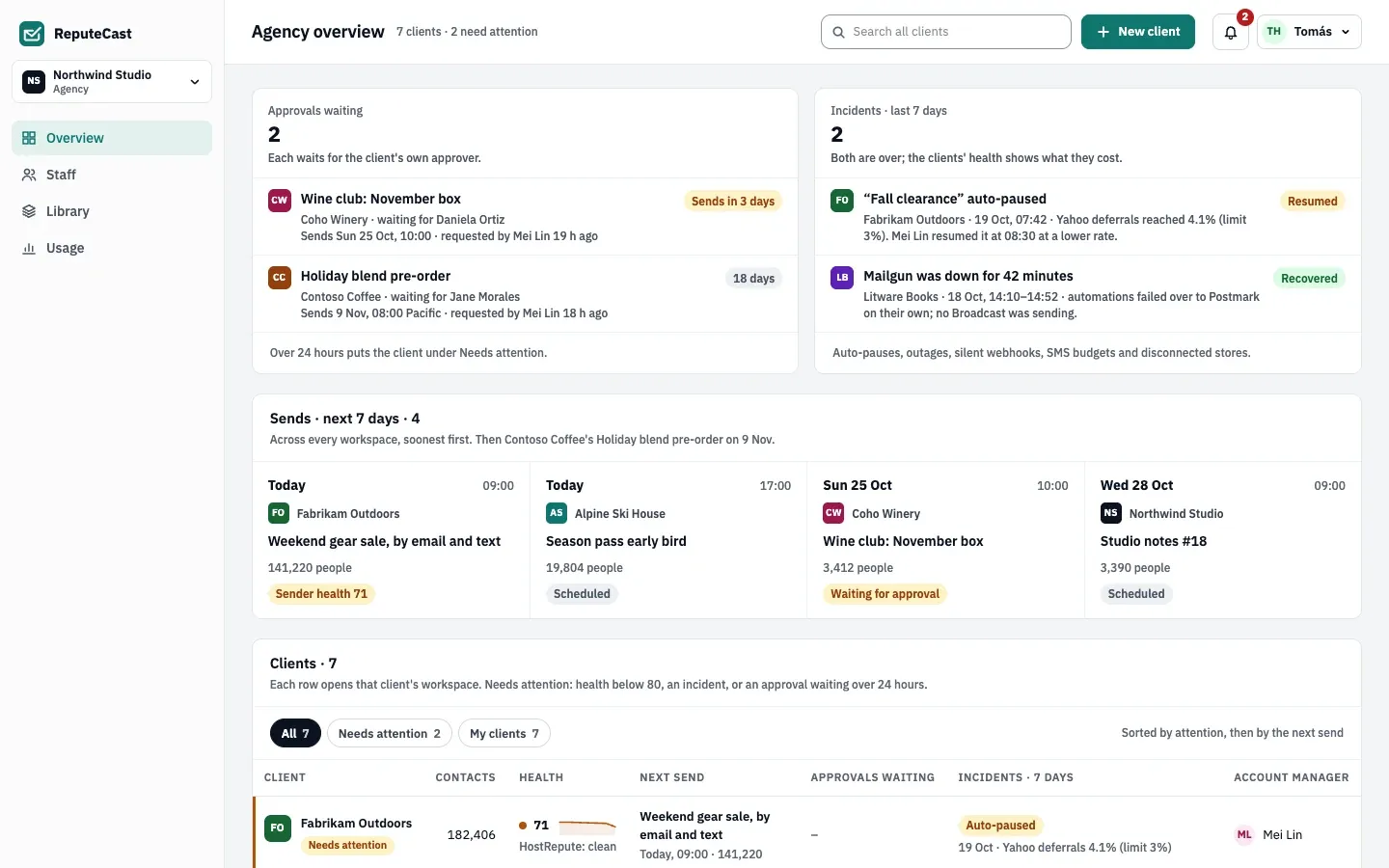
Watch every client. The Agency Overview shows approvals waiting, incidents in the last 7 days, sends in the next 7 days and the client list. Filter it with All, Needs attention or My clients.
| Setting | Default | How to change |
|---|---|---|
| Client needs attention | Health under 80, an incident in the last 7 days, or an approval waiting longer than 24 hours | Fixed |
| Agencies per instance | 1, off by default | Instance admin › Instance & updates › Agency |
| Deleted client can be restored for | 7 days | Fixed |
Client roles
Section titled “Client roles”| Role | Can see | Can do |
|---|---|---|
| Client approver | Campaigns, templates, automations, reports, deliverability and contacts | Approve sends; never export |
| Client viewer | Campaigns, templates, automations, reports and deliverability; no contacts | Nothing else |
Both roles exist only in client workspaces and are read-only, like the other built-in roles.
Templates and the shared library
Section titled “Templates and the shared library”- Workspace templates (in Library) set up a client: empty lists, paused signup forms, automations as drafts, saved sections, campaign templates, the approval policy with client sign-off, custom roles, branding without logo and colors, and default From names and footer address. Providers, domains, contacts, suppressions, consent, keys, integrations and members are never copied. Applying a template only adds what’s missing; it never overwrites or deletes. Create one with New workspace template, or from a client’s general settings with Save as workspace template.
- The shared library holds saved sections, campaign templates, automation templates and transactional templates added from any client. Using an item copies it into the client; copies are not linked, and the composer shows when the library has a newer version.
Usage and rebill rates
Section titled “Usage and rebill rates”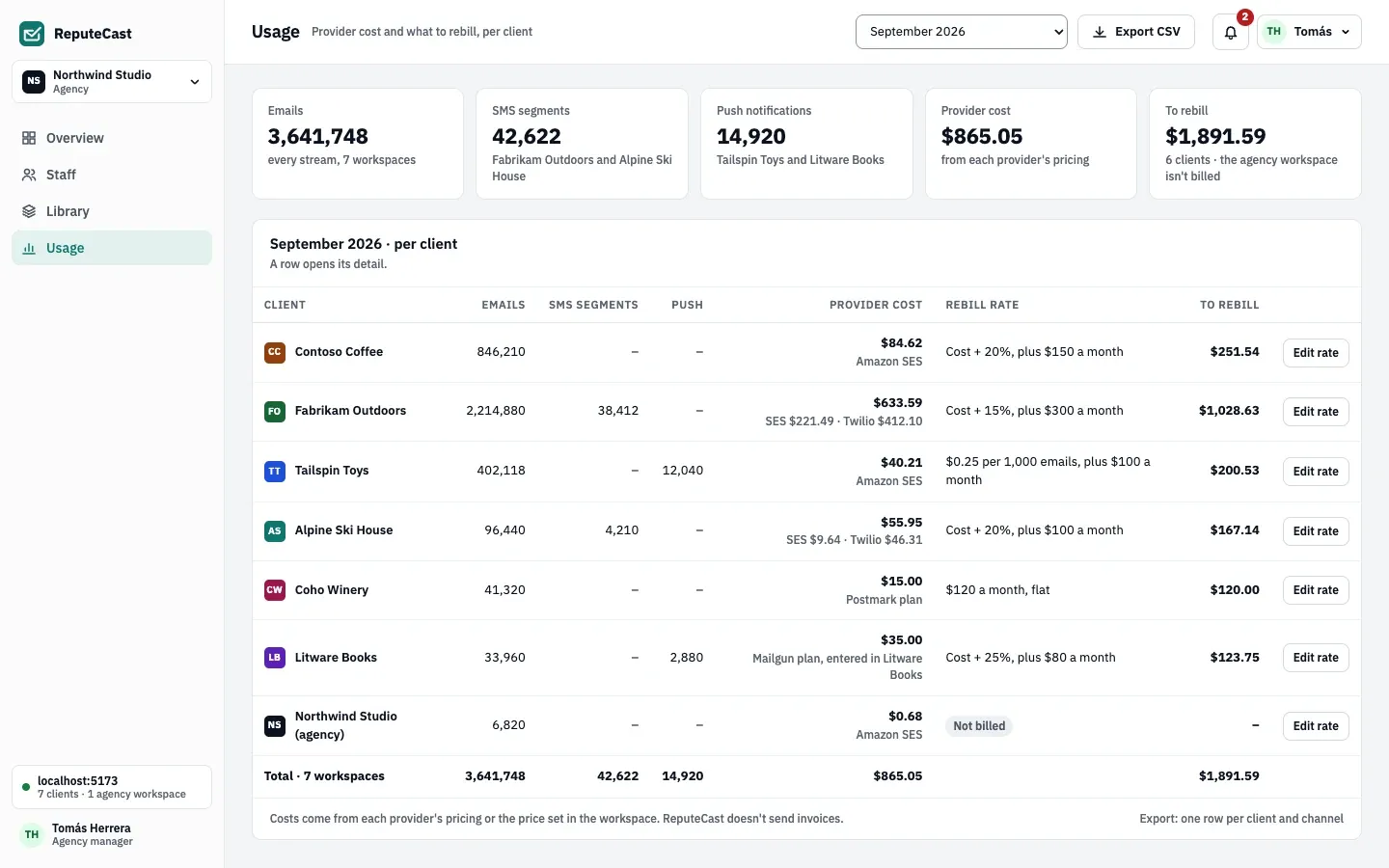
Usage shows, per client and month, emails by stream, SMS segments by country, push
notifications and provider cost in USD. Choose Set a rate or
Edit rate to combine a percentage on top of cost, a price per 1,000 emails, a price per
SMS segment and a monthly fee, or a flat monthly amount instead. A new rate applies from the first day of the current
month. ReputeCast calculates the amount to rebill; it doesn’t send invoices or take payments.
Export CSV downloads one row per client and channel. Rates and costs are visible only to
staff with agency:usage.
Check that it worked
Section titled “Check that it worked”- Staff see the Agency area in the workspace switcher, and clients appear on the Overview.
- The client’s Team page lists your staff “via” the agency, and the client’s audit log shows
agency.client_created.
Troubleshooting
Section titled “Troubleshooting”- “Agency mode is off on this instance.” An instance admin turns it on in Instance & updates.
- A send says nobody can give client sign-off. Invite the client’s approver with the Client approver role first.
- A contact search finds nothing. Search all clients matches contacts only by their exact
email address, and only in clients where you hold
subscribers:view. Every contact search is recorded in the audit log. - Turning agency mode off. Turn off agency mode removes the Agency area and the agency roles; every workspace, membership, template and library item stays and comes back when you turn it on again.