
Instance admin
Instance administration is everything that applies to the whole server rather than to one workspace: who has an account, which workspaces exist, how people sign in, the public URL, and updates. It lives in Instance admin, which only instance admins can open.
Before you begin
Section titled “Before you begin”- You need the instance admin flag. The first Owner created at install has it; an instance admin can give it to others
(see manage users), and
reputecast user make-admingives it from the server (recover access from the command line). - The flag is separate from workspace roles: making someone an instance admin doesn’t change their workspace roles or add them to any workspace. Anyone without the flag who opens the page sees “Only instance admins can open Instance admin”.
- Open it from the account menu at the top right: Instance admin. It has six tabs: Users, Workspaces, Authentication, SSO providers, Instance & updates and Audit log.
Manage users
Section titled “Manage users”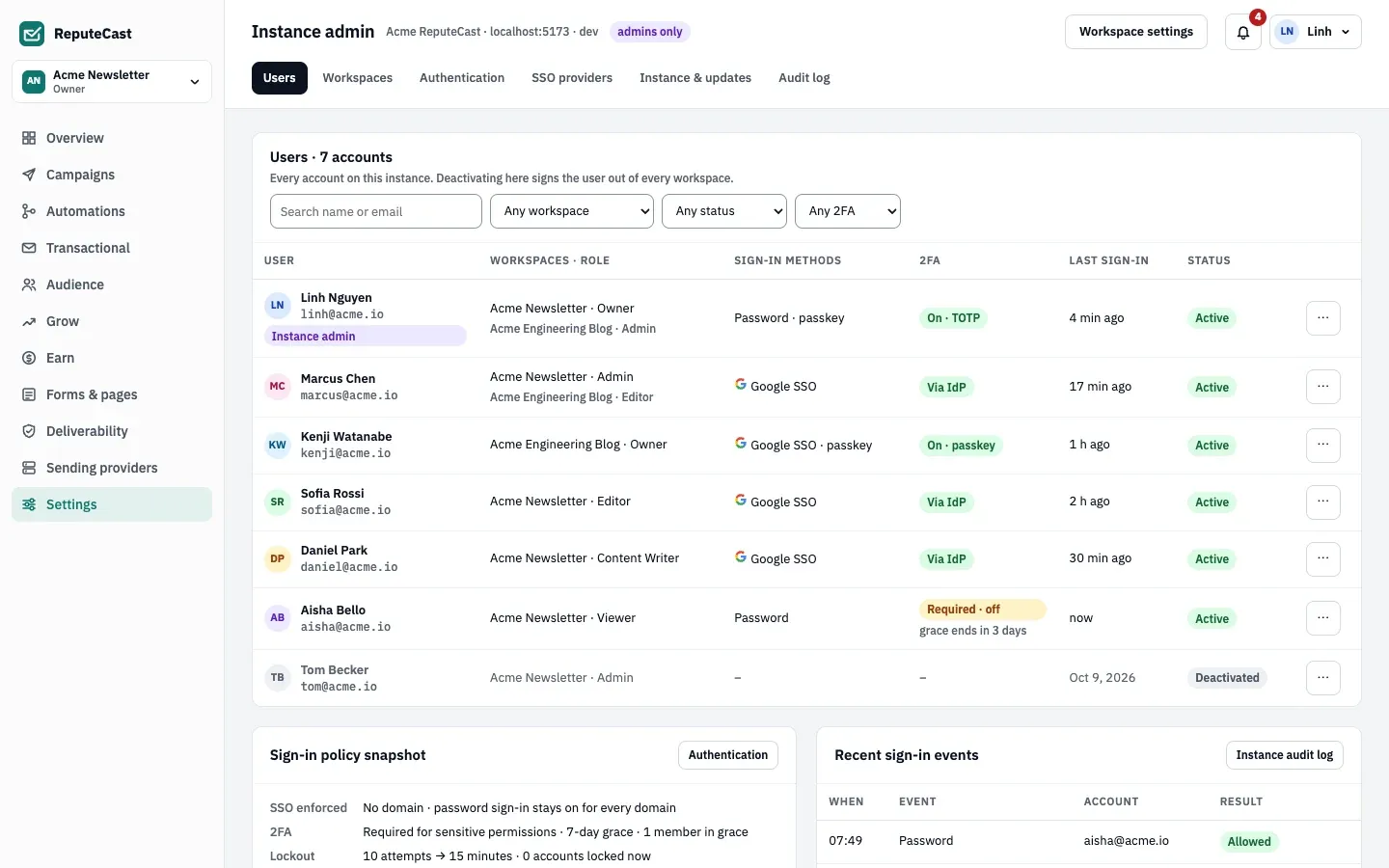
Instance admin, then Users lists every account on the instance, with filters for workspace, status and two-factor status. Below the list, a sign-in policy summary and the most recent sign-in events link to the other tabs. Each row’s ⋯ menu has these actions:
| Action | What it does |
|---|---|
| Force sign-out | Ends every session of the account. |
| Reset two-factor | Removes their authenticator app and recovery codes; passkeys stay. Asks for a reason (written to the audit log) and your password, restarts the policy’s grace period, signs them out and notifies them. Only for accounts with an authenticator app. |
| Send password reset | Emails a one-time link that works for 15 minutes, on the System stream. Show CLI reset command shows reputecast user reset-password --email … for when no System-stream provider exists. |
| Unlock sign-in | Shown while the account is locked after failed sign-ins; lifts the lock now. |
| Make instance admin, Remove instance admin | Gives or takes the instance admin flag. The last instance admin can’t be removed. |
| Deactivate account | Signs the person out of every workspace and blocks sign-in. Asks for a reason; by default also revokes the API keys and agents they created. Their history, campaigns and audit entries stay. |
| Reactivate account | Lets a deactivated person sign in again and brings back the workspace memberships that were deactivated with the account. |
Guards: you can’t deactivate your own account, the last instance admin, or the only Owner of a workspace (transfer ownership in that workspace’s settings first). ReputeCast has no way to delete an account or change its email from here; people change their own email in Account & security.
Manage workspaces
Section titled “Manage workspaces”Instance admin, then Workspaces lists every workspace with its members, contacts, sending providers and creation date. The same list also sits at the bottom of Instance & updates.
-
To add one, choose Create workspace, then enter a name (up to 80 characters), pick the Owner (any active account) and the timezone. The Owner invites everyone else.
-
To delete one, choose Delete on its row and type its name. Scheduled sends stop at once, and the workspace’s API keys and MCP agents stop working. Export the workspace first if you need its data; the dialog links to the export for members of the workspace.
-
To bring a deleted workspace back, choose Restore within 7 days. After that it is deleted for good. The shared suppression list, the audit log and the members’ accounts are kept either way.
From this list you can open a workspace’s settings only if you are one of its members. See workspaces for what each workspace holds.
Set the sign-in policy
Section titled “Set the sign-in policy”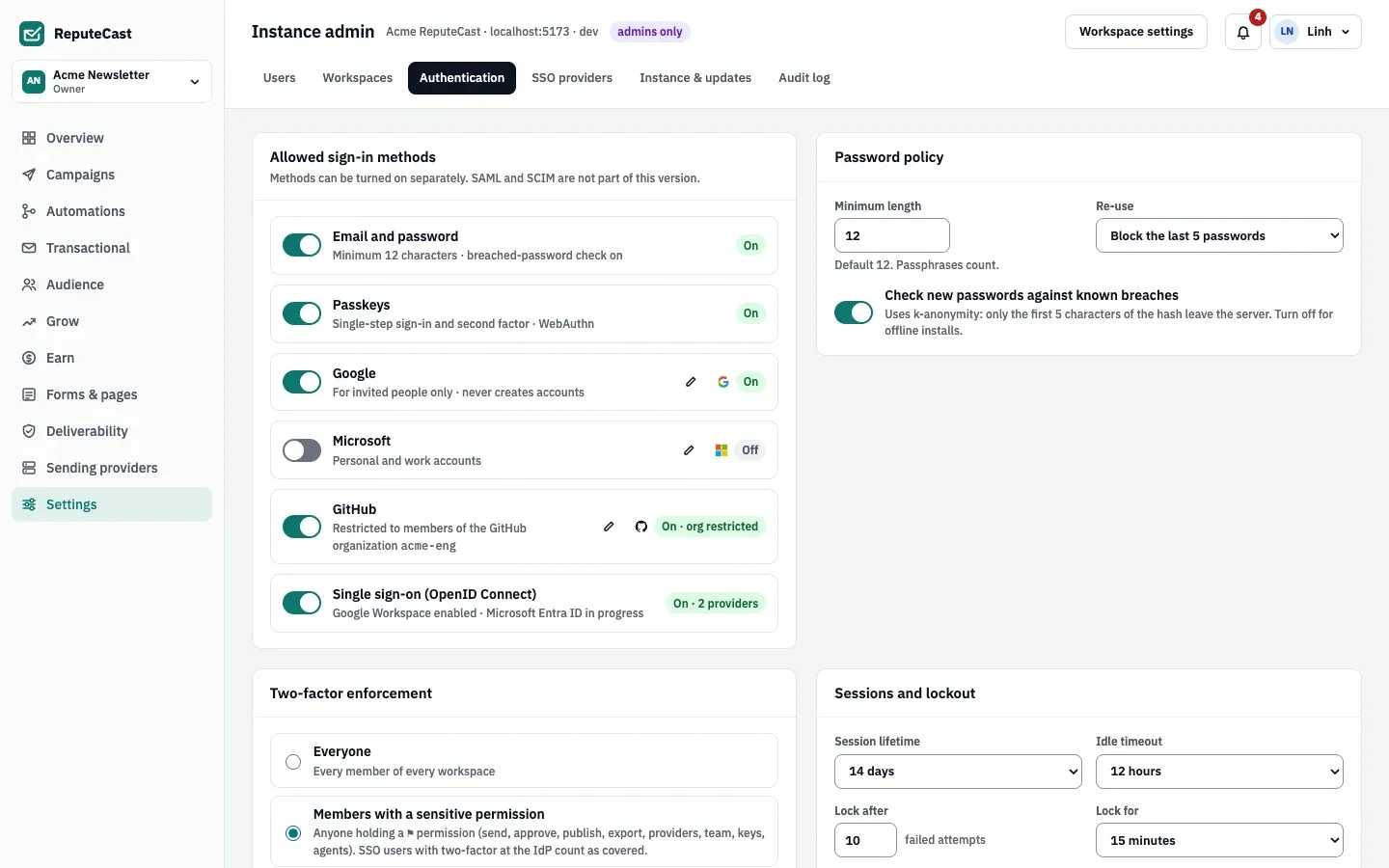
Instance admin, then Authentication holds the policy for every account. Nothing applies until you choose Save policies.
- In Allowed sign-in methods, turn Email and password, Passkeys, Google, Microsoft, GitHub and Single sign-on (OpenID Connect) on or off. ReputeCast does not support SAML or SCIM. See Google, Microsoft and GitHub sign-in and single sign-on with OIDC.
- In Password policy, set the minimum length, the re-use of recent passwords and the check against known breaches.
- In Two-factor enforcement, require two-factor authentication from everyone, from members with a sensitive permission, or from nobody, and set the grace period to set it up.
- In Sessions and lockout, set the session lifetime, the idle timeout and the lockout after failed passwords.
- In Email domain allowlist for automatic accounts, list the email domains that may get an account automatically through SSO.
ReputeCast refuses a policy that would lock you out (This would leave you no way to sign in. Add a passkey or link a sign-in that stays on, then save again.), one with every method off, and turning off single sign-on while a provider
enforces a domain. A new session lifetime applies to sessions started after the change; a shorter idle timeout
reaches existing sessions within about 30 seconds.
| Setting | Default | How to change |
|---|---|---|
| Session lifetime | 14 days | Instance admin › Authentication; 1 day, 7 days, 14 days or 30 days (API 1–2,160 hours); applies to new sessions |
| Idle timeout | 12 hours | Instance admin › Authentication; 1, 4, 12 or 24 hours (API 5–4,320 minutes), never longer than the session lifetime |
| Lockout after failed sign-ins | 10 failed attempts for one email lock it for 15 minutes | Instance admin › Authentication; 3–100 attempts, 5 minutes, 15 minutes or 1 hour (API 1–1,440 minutes) |
| Two-factor authentication required for | Members with a sensitive permission | Instance admin › Authentication; everyone, members with a sensitive permission, or off |
| Grace period to set up two-factor authentication | 7 days | Instance admin › Authentication; none, 1, 3, 7 or 14 days (API 0–90) |
| Minimum password length | 12 characters | Instance admin › Authentication, 8–128; passwords can be up to 256 characters |
| Password re-use | The last 5 passwords are blocked | Instance admin › Authentication; block the last 5, block the last 10, or allow re-use |
| Check new passwords against known breaches | Off | Instance admin › Authentication |
| Email domains allowed for new SSO accounts | Up to 50 (none means any domain the identity provider allows) | Instance admin › Authentication |
| Password reset link | Works once, for 15 minutes | Fixed |
Time to set up two-factor authentication again after reputecast user reset-2fa | 72 hours | Fixed; a reset in Instance admin › Users uses the policy's grace period |
| Recovery codes | 10, each works once | Account & security › regenerate (replaces all) |
| Email change verification link | 24 hours | Fixed |
| Time to finish the second sign-in step | 10 minutes; 5 wrong codes restart the sign-in | Fixed |
Set the instance name, public URL and defaults
Section titled “Set the instance name, public URL and defaults”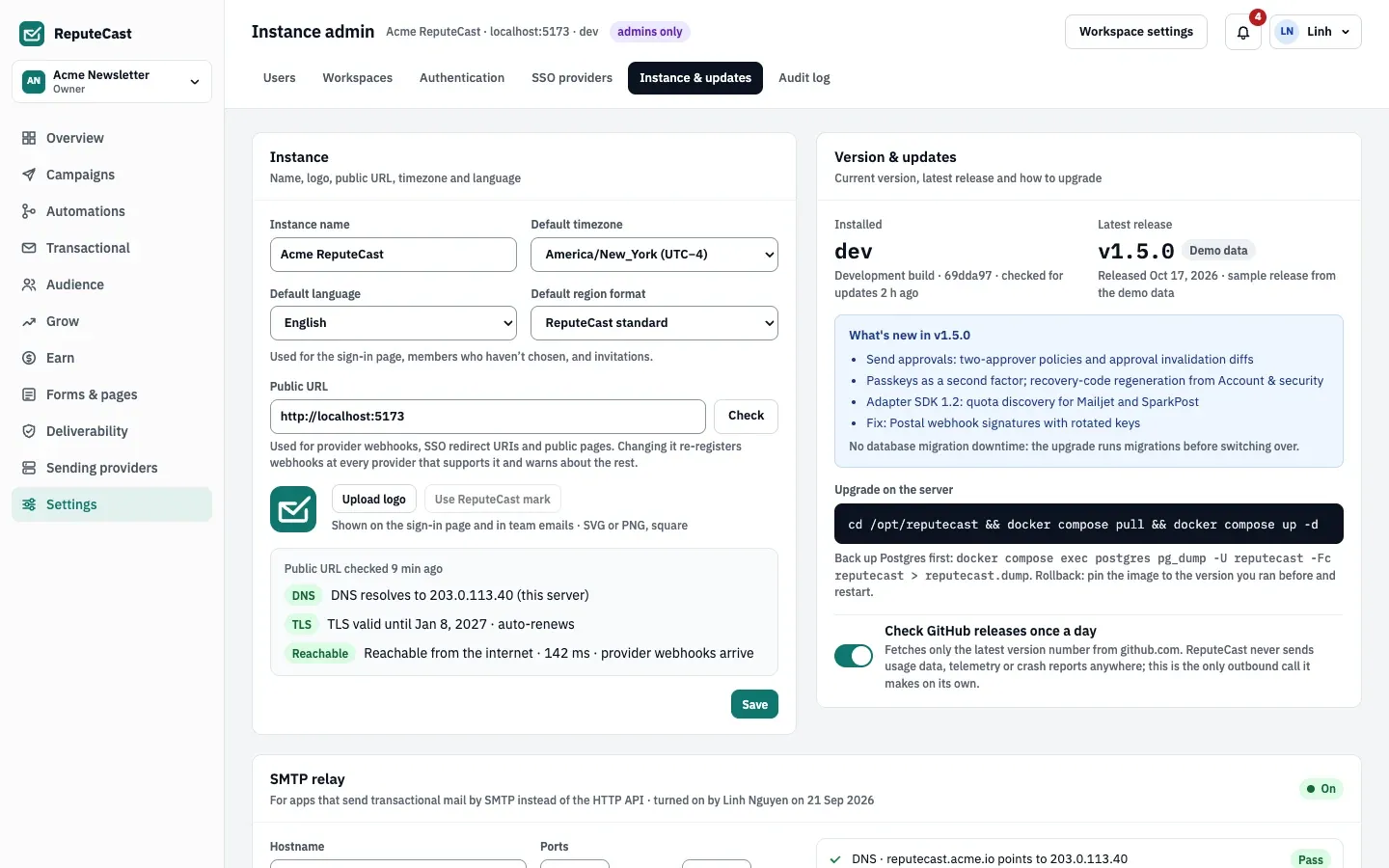
In Instance admin, then Instance & updates, the Instance card sets:
- The instance name and logo, shown on the sign-in page and in team emails.
- The default timezone, language and region format, used on the sign-in page, for invitations and for members who haven’t chosen their own (language and region).
- The Public URL, used for provider webhooks, SSO redirect URIs, public pages and links in
emails. Check tests three things: DNS (the host resolves), TLS (a valid certificate,
with a warning under 14 days or on plain
http://) and reachability (/healthzanswers from outside).
The other cards on this tab:
- The Version & updates card shows the installed and latest version, the upgrade command and the daily release check. See upgrade ReputeCast.
- The SMTP relay card turns on the relay for apps that send by SMTP. See send through the SMTP relay.
- The Agency card turns on agency mode. See run client workspaces as an agency.
| Setting | Default | How to change |
|---|---|---|
| A public URL change reaches every process | Within 30 s | Instance admin › Instance & updates › Public URL |
| Release check on GitHub | Daily, on by default; sends no usage data | Instance admin › Instance & updates; config updates.check turns it off for the instance |
| Instance logo | SVG up to 100 KB, or PNG up to 512 KB and 16–1,024 px per side | Fixed |
| Instance name | 1–80 characters | Instance admin › Instance & updates |
Review the instance audit log
Section titled “Review the instance audit log”Instance admin, then Audit log shows sign-ins, SSO, policy and user changes, and the events of every workspace. Filter by workspace, actor type, result and date; export with Export CSV or Export JSON. Sign-in rejections carry the reference ID people see on the error page.
- Retention: instance-level entries are kept 365 days by default (90 days to 10 years); each workspace keeps its own entries for its own period. An hourly cleanup removes older ones.
- Stream instance events: posts instance-level entries to your SIEM or warehouse in batches of up to 500, signed with HMAC-SHA256 like outgoing webhooks. The signing secret is shown once.
See audit log for what each entry records.
Check that it worked
Section titled “Check that it worked”- Policy changes show the toast “Policies saved” and apply at the next sign-in.
- Every action on this page appears in Audit log with you as the actor.
Troubleshooting
Section titled “Troubleshooting”- “You can’t deactivate your own account”: ask another instance admin.
- The last instance admin can’t be removed or deactivated: make someone else an instance admin first.
- “…is the only Owner of…” when deactivating: transfer ownership of those workspaces first.
- A deleted workspace has no Restore button: the 7-day hold is over and the workspace is gone.
- The public URL check reports a problem next to Reachable: the address doesn’t answer from outside. Check DNS, the firewall and your reverse proxy.
Related
Section titled “Related”- Recover access from the command line
- Security and hardening
- Roles and permissions: what workspace roles allow, as opposed to the instance admin flag.