
Single sign-on with OIDC
This OIDC SSO setup lets people sign in to ReputeCast with your organization’s identity provider (IdP), create their accounts on first sign-in, and get workspace roles from their IdP groups. ReputeCast speaks OpenID Connect; it does not support SAML or SCIM.
Before you begin
Section titled “Before you begin”- You are an instance admin. SSO is set up once for the whole instance.
- The public URL is final and uses
https://(Instance admin, then Instance & updates, then Public URL). The redirect URI you register at the IdP is built from it; if the URL changes later, update the registration at the IdP too. - You can create an application (client) in your IdP, and you know which email domains your people use.
- Single sign-on (OpenID Connect) is on in Instance admin, then Authentication (it is on by default).
Set up a provider
Section titled “Set up a provider”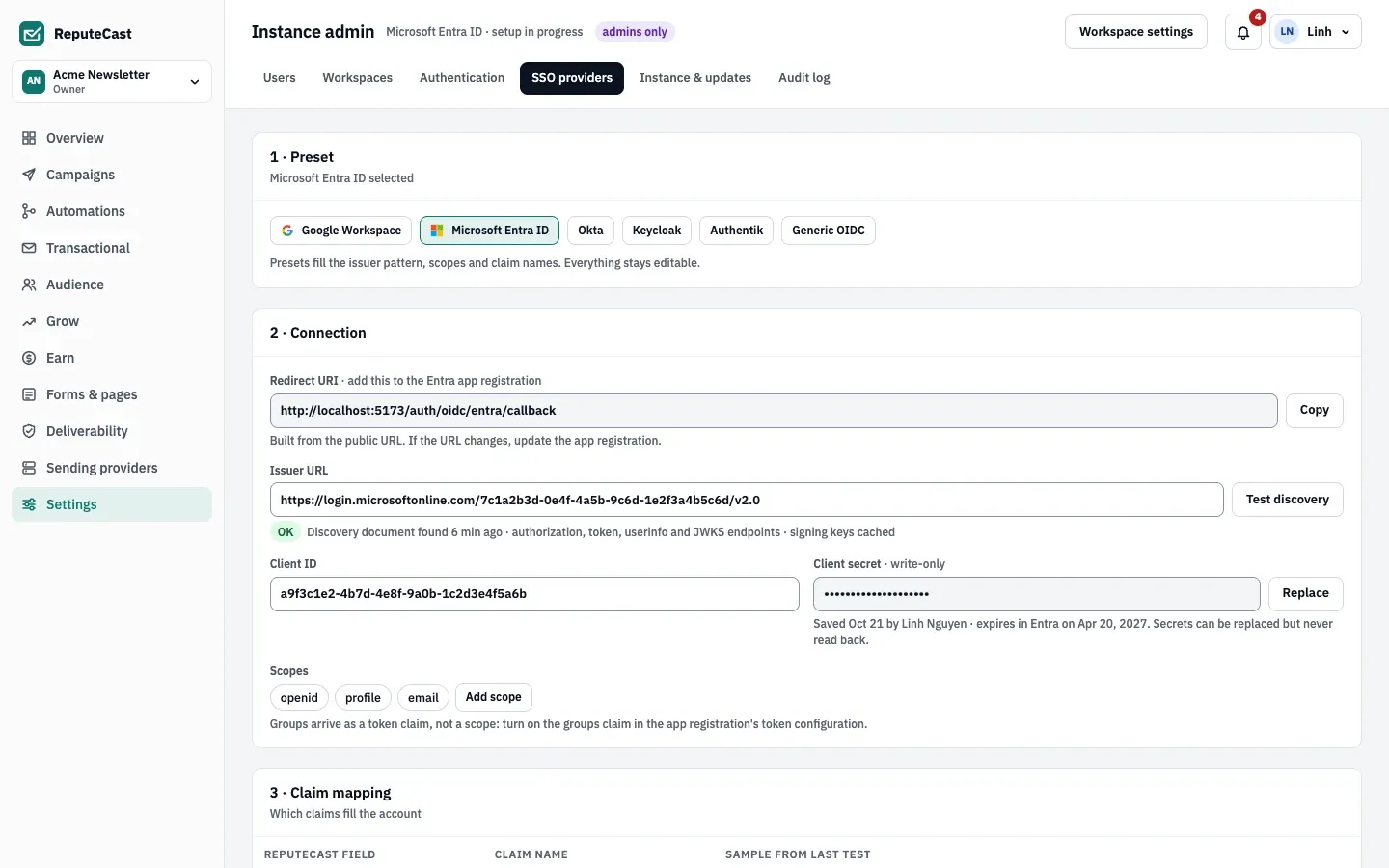
-
Open Instance admin, then SSO providers and choose Add SSO provider. In 1 · Preset, pick your IdP: Google Workspace, Microsoft Entra ID, Okta, Keycloak, Authentik or Generic OIDC. ReputeCast saves a draft at once; nothing is live until you enable it.
-
In 2 · Connection, copy the Redirect URI. It has the form
<public URL>/auth/oidc/<slug>/callback, where the slug comes from the preset:google,entra,okta,keycloak,authentikoroidc(a second provider with the same preset gets-2). -
Register ReputeCast at your IdP as a web application that uses the authorization code flow, with the redirect URI from step 2. Note the issuer URL, the client ID and the client secret.
- Create an OAuth client ID of type Web application in the Google Cloud console (APIs & Services › Credentials) and add the redirect URI as an authorized redirect URI (Google OpenID Connect documentation, checked October 2026).
- Issuer URL: always
https://accounts.google.com(the preset fills it in). - Groups: Google doesn’t send a groups claim over OIDC, so group mapping is not available. Give new accounts a default role through automatic accounts (step 7), or assign roles in each workspace’s team settings.
- Two-factor: ReputeCast trusts Google’s sign-in as two-factor (2-Step Verification enforced in Workspace).
- Create an app registration (Web platform) in the Microsoft Entra admin center, add the redirect URI, and create a client secret (Microsoft identity platform and OpenID Connect, checked October 2026). Entra client secrets expire: enter the expiry date in ReputeCast so it shows when to replace the secret.
- Issuer URL:
https://login.microsoftonline.com/<tenant-id>/v2.0, with your tenant ID (a GUID) or verified domain. Find the tenant ID under Entra ID › Overview. - Groups: open the app registration’s Token configuration, choose Add groups claim and include security groups in the ID token. Entra sends group object IDs, not names: paste the ID into a mapping and give it a label. Someone in more than 200 groups gets an overage link instead of the claim; use app roles then.
- Two-factor counts when the ID token’s
amrclaim says MFA (for example, enforced by Conditional Access).
- Create an OIDC web application integration with the redirect URI as its sign-in redirect URI (Okta: customize tokens with a groups claim, checked October 2026).
- Issuer URL: your Okta domain or an authorization server, such as
https://acme.okta.com/oauth2/default. Find it under Security › API › Authorization Servers. - Groups: add a groups claim to the authorization server (filter: matches regex
.*). The Okta preset already requests thegroupsscope. - Two-factor counts when the ID token’s
amrclaim says MFA (enforced by a sign-on policy).
- In your realm, create an OpenID Connect client with client authentication on and the redirect URI as a valid redirect URI (Keycloak server administration guide, checked October 2026).
- Issuer URL: ends with the realm, for example
https://sso.acme.io/realms/acme. - Groups: in Clients › your client › Client scopes › the dedicated scope, add a Group Membership mapper with the
token claim name
groupsand full group path off. - Two-factor counts when the ID token’s
amrclaim says MFA (OTP required by the realm’s browser flow).
- Create an OAuth2/OpenID provider (confidential client) with the redirect URI, and an application that uses it (Authentik OAuth2 provider, checked October 2026).
- Issuer URL: ends with the application slug and a slash, for example
https://auth.acme.io/application/o/reputecast/. - Groups: Authentik sends them in the
groupsclaim of theprofilescope. Keep the default profile mapping in the provider’s scope mappings. - Two-factor counts when the ID token’s
amrclaim says MFA (an MFA stage in the authentication flow).
-
Back in 2 · Connection, enter the Issuer URL and choose Test discovery. ReputeCast fetches
<issuer>/.well-known/openid-configurationand its signing keys; the issuer must usehttps://and match the document exactly. Then enter the client ID and the client secret. The secret is encrypted and never shown again; you can only replace it. -
Scopes:
openid,profileandemailare always requested. Add others only if your IdP needs them for groups. -
In 3 · Claim mapping, check which claims fill the account:
email,email_verified,nameand, where the preset has groups,groups. The defaults fit each preset; change a name only if your IdP uses another one. An email that the IdP marks as not verified is rejected. A missingemail_verifiedcounts as verified only for the allowed domains of step 7. -
In 4 · Access, decide who gets in and with which role:
- Under Allowed email domains (up to 50), sign-ins from other domains are rejected and logged. The sign-in page shows “Continue with …” for this provider only to people whose email is at one of these domains. With no domain, any domain can sign in, but the button doesn’t appear on the sign-in page.
- The switch Create accounts automatically (JIT) creates an account at the first sign-in, in a default workspace with a default role (Viewer unless you pick another; never Owner). Off means only people who already have an account can sign in. The instance-wide Email domain allowlist for automatic accounts in Authentication limits which domains may get automatic accounts.
- Under Group → workspace → role, choose Add mapping for each IdP group (up to 200 mappings). Mappings are applied again at every sign-in and override roles set by hand. When someone leaves a mapped group, the next sign-in removes them from that workspace and revokes the API keys and agents they created there; in the default workspace of automatic accounts they fall back to the default role instead. A mapping never makes anyone an Owner and never changes an Owner. You can only map a role whose permissions you hold yourself in that workspace.
- The enforcement switch turns off other sign-in methods for the allowed domains: see enforce SSO for your domains.
-
In 5 · Test sign-in, choose Run test sign-in. A popup opens your IdP; after you sign in, ReputeCast shows the claims it received and what a real sign-in would do (new or existing account, workspaces, roles, two-factor). It signs nobody in and changes nothing.
-
Choose Enable (or Save as draft to finish later). Enabling needs a successful discovery test, the client ID and a saved client secret.
Enforce SSO for your domains
Section titled “Enforce SSO for your domains”Enforcement turns off password, passkey and social sign-in for every account at the provider’s allowed domains, so people at those domains can only sign in through the IdP. Turn it on in 4 · Access; the dialog lists who signs in how today and after, then confirm with Turn on enforcement.
- Break-glass Owners keep password and two-factor sign-in, so you can get in when the IdP is down. When you turn
enforcement on, every Owner at those domains is marked break-glass; the first Owner created by
reputecast installis one too. Their password sign-ins are logged as break-glass. - If no Owner at the domain keeps a password, the dialog warns you: should the IdP fail, nobody at that domain can sign in. Keep an instance admin at another domain, or see recover access from the command line.
- A domain can be enforced by only one enabled provider. Disabling the provider ends its enforcement.
Check that it worked
Section titled “Check that it worked”- In a private browser window, open the sign-in page and enter an email at an allowed domain: “Continue with …” takes you to the IdP and back, signed in.
- Instance admin, then Users shows the person with their SSO sign-in method, and “Via IdP” in the 2FA column when the IdP vouched for two-factor.
- Instance admin, then Audit log records the sign-in, and any account or role it created.
Troubleshooting
Section titled “Troubleshooting”- Discovery failed: the issuer URL is wrong or unreachable from the server. Copy it exactly as your IdP shows it, including a trailing slash for Authentik, and use the tenant-specific issuer for Entra ID. A provider that is already enabled keeps using its saved issuer until a new test passes.
- The IdP says the redirect URI doesn’t match: the public URL changed, or the URI was pasted with a typo. Copy the Redirect URI again and update the IdP.
- “No account for …”: automatic accounts are off and the person has no account, or their domain isn’t allowed here or in the instance allowlist. Invite them, or turn on Create accounts automatically (JIT).
- The test says “Groups claim missing”: the IdP sent no groups, so mappings don’t apply; existing roles stay and new accounts get the default role. Follow the groups step for your IdP above, then run the test again.
- “The client secret can’t be decrypted with this server’s key”: the server’s secret key changed since the secret was saved. Replace the client secret. See security and hardening.
- The sign-in took too long: a sign-in must come back from the IdP within 10 minutes. Start again.
Related
Section titled “Related”- Google, Microsoft and GitHub sign-in: sign-in for invited people without an IdP.
- Instance admin: the sign-in policy and two-factor enforcement.
- Roles and permissions: what each role a mapping grants can do.