
Change the app language and region format
Change ReputeCast language and region format for your own account: the language of the app’s screens and of the emails ReputeCast sends you, and how dates, times and numbers look. These settings are personal. Emails and pages for your contacts use their own language (see send each reader their language).
Before you begin
Section titled “Before you begin”- No permission is needed for your own settings. Instance defaults need an instance admin.
- The app is available in English and Vietnamese (Tiếng Việt). Release builds offer only fully translated languages, and both are complete; builds run from source in development mode offer every language. To add another language, see translate ReputeCast.
-
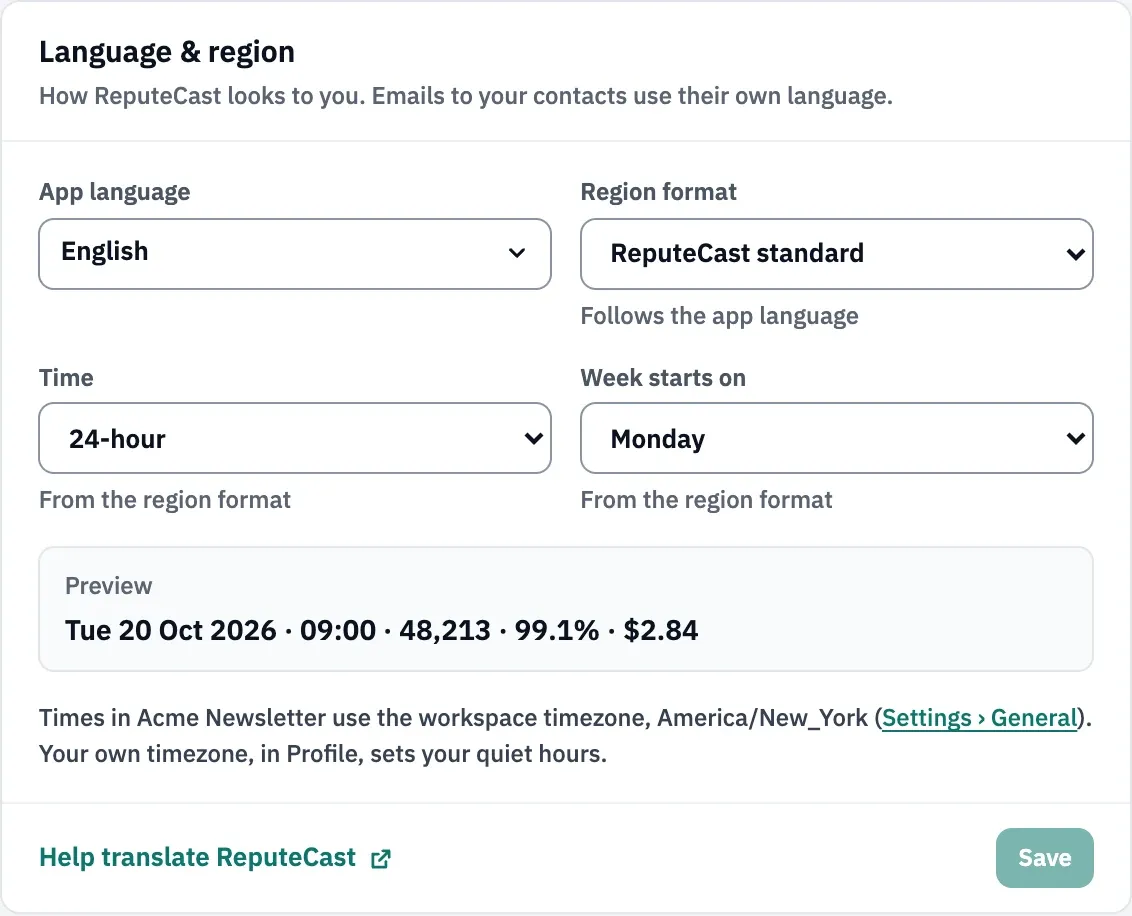
Open Account & security, then Language & region. The account menu item that shows your current language opens the same card.
-
Pick the App language. The first option follows the instance default.
-
Pick a Region format: ReputeCast standard, English (United States), Tiếng Việt (Việt Nam), Deutsch (Deutschland), English (United Kingdom), Español (España), Français (France) or Português (Brasil). Region formats are independent of the language. Until you pick one, it follows the app language.
-
Optional: override the Time (24-hour or 12-hour) and Week starts on (Monday or Sunday). Until you change them, they come from the region format.
-
Check the preview line, then choose Save. The app switches at once, without a reload. The confirmation offers Undo for 10 seconds.
What changes
Section titled “What changes”| Setting | Changes | Stays the same |
|---|---|---|
| App language | Translated screens, messages from the server (notifications, check results, audit log lines), and emails to you (invitations, password resets, notifications) | Audit action names, CSV exports, webhook payloads, permission keys, API error codes, provider names and providers’ own messages, demo data, anything people typed |
| Region format | Dates, times, numbers, percentages and amounts in the app and in emails to you | The workspace timezone used for schedules and reports |
Text that ReputeCast stored before your instance had a language, such as older audit log lines and notifications, keeps its English.
Times in a workspace always use the workspace timezone from Settings, then General. Your own timezone, in Profile, sets your notification quiet hours.
Instance defaults
Section titled “Instance defaults”Instance admins set the Default language and Default region format in Instance admin, then Instance & updates, then Instance. They apply to the sign-in page, to members who haven’t chosen, and to invitations. When you invite people, the Invitation language field sets the language of the invitation email and the page it opens (it appears when the instance offers more than one language; release builds offer English and Vietnamese). Once they sign in, members pick their own.
On the sign-in, invitation and password-reset pages, visitors can switch language from the menu at the bottom of the card. If your browser prefers a language ReputeCast offers and you still follow the instance default, the app asks you once whether to switch.
Check that it worked
Section titled “Check that it worked”- Menus and buttons show the language you picked, and the account menu item names it.
- Dates in reports follow the preview line you saw before saving.
Troubleshooting
Section titled “Troubleshooting”- Your language isn’t in the list. ReputeCast offers English and Vietnamese. Release builds offer only fully translated languages; see translate ReputeCast to add one.
- Some text stays in English. Demo data, what people typed, providers’ own messages, audit action names and text stored before your instance had the language show as they were written.
- Times look an hour off. Check the workspace timezone in Settings, then General and your own timezone in Profile.