
Connect Stripe
Connect your Stripe account to ReputeCast with a Stripe restricted key, so readers can pay for tiers, gifts and
digital products. A restricted key can do only what ReputeCast needs; secret
keys (sk_live_…, sk_test_…) are refused because they give full access to your Stripe account, including payouts.
Before you begin
Section titled “Before you begin”- You need the
payments:managepermission (sensitive). See which roles hold it in Permissions and roles. - You need a Stripe account and access to its dashboard (Developers › API keys).
- Your instance’s public URL must be reachable from the internet over HTTPS, because Stripe sends events to
https://<your public URL>/hooks/stripe/<token>. See Reverse proxy and TLS.
The 13 permissions the key needs
Section titled “The 13 permissions the key needs”Create the key in Stripe under Developers › API keys › Create restricted key. Set these resources and leave everything else at None. The wizard shows the same table with a Copy the list button.
| Stripe resource | Access | Why |
|---|---|---|
| Customers | Write | Create and match customers at checkout |
| Checkout Sessions | Write | Open checkout for tiers and gifts |
| Customer portal | Write | Manage billing, and the cancel step |
| Products | Write | One product per tier |
| Prices | Write | Tier and gift prices |
| Coupons | Write | Offers |
| Promotion codes | Write | Offer codes and referral rewards |
| Subscriptions | Write | Read status; cancel when a team member asks |
| Invoices | Read | Payments, failures and lifetime value |
| Charges | Read | Refunds and disputes |
| Webhook endpoints | Write | Register ReputeCast’s webhook |
| Events | Read | Fill gaps when a webhook is missed |
| Tax settings | Read | Show whether Stripe Tax is on |
Connect the account
Section titled “Connect the account”-
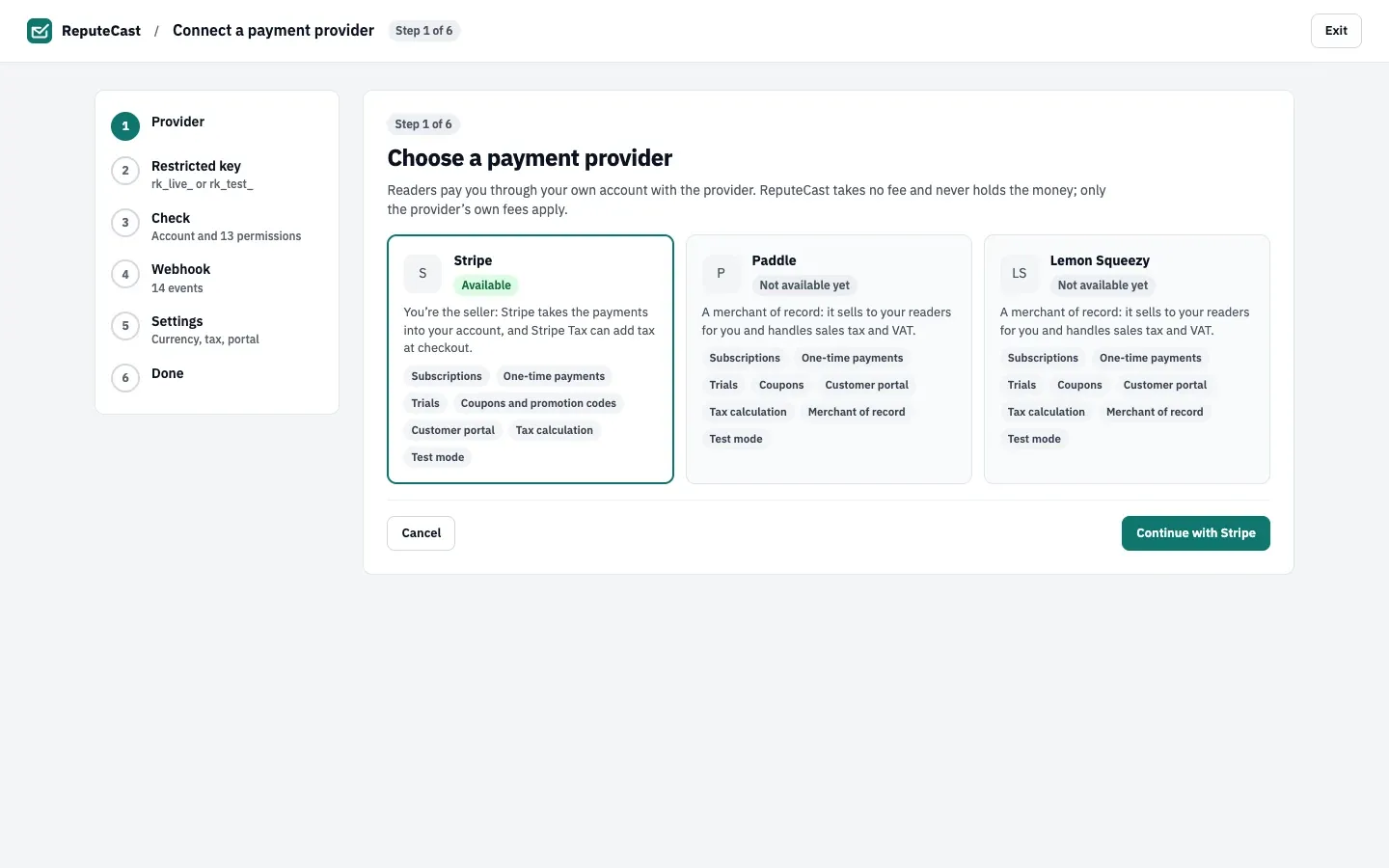
Open Earn and select Connect Stripe. The wizard has six steps: Provider, Restricted key, Check, Webhook, Settings and Done.
-
Choose Stripe and select Continue with Stripe.
-
Paste the restricted key. A key starting with
rk_test_connects test mode;rk_live_connects live mode. Start with a test key: checkout then runs with Stripe’s test cards and nothing is charged. The key is write-only: it is sealed when saved and never shown again. -
Select Check key. ReputeCast makes one harmless call per permission and shows the account name, country, currency, mode and whether Stripe Tax is on. Nothing is created in Stripe yet. If a permission is missing, edit the key in Stripe and select Check again.
-
Select Register the webhook. ReputeCast creates the endpoint in your Stripe account, subscribes it to 14 events and stores the signing secret, sealed like the key. You don’t need to wait for the first event to continue.
-
Choose the checkout settings: currency (fixed once a tier has prices), whether prices include tax or have it added at checkout by Stripe Tax, and what readers can do in Stripe’s customer portal. You can change these later in Earn, then Settings, then Payments.
-
Finish the wizard. To take real payments later, add the live key the same way. The test key stays for test checkouts, and public pages switch to the live key once it is connected. Each key gets its own webhook.
The 14 webhook events
Section titled “The 14 webhook events”checkout.session.completedcheckout.session.async_payment_succeededcustomer.subscription.createdcustomer.subscription.updatedcustomer.subscription.deletedcustomer.subscription.trial_will_endinvoice.paidinvoice.payment_failedinvoice.upcomingcharge.refundedcharge.dispute.createdcharge.dispute.closedcustomer.updatedcustomer.deletedEach event’s signature is verified, the raw event is stored, Stripe gets a 200 at once and the event is applied
right after. Every hour ReputeCast also asks Stripe for events the webhook missed, so a short outage of your server
does not lose payments.
Check that it worked
Section titled “Check that it worked”- The chip next to the Earn title shows Stripe, your Stripe account’s name and Live or Test.
- In the wizard’s Webhook step, First event received appears after the next payment, renewal or test checkout. Select Try a test checkout to send one now to send one yourself.
- In Stripe › Developers › Webhooks, an endpoint for your public URL lists 14 events.
Troubleshooting
Section titled “Troubleshooting”- “This is a secret key” → you pasted an
sk_…key. Create a restricted key with the 13 permissions above. - A permission shows as missing → edit the key in Stripe, set that resource to the access in the table, then select Check again.
- “Stripe couldn’t deliver a test event” → Stripe can’t reach your public URL. Check DNS, TLS and your proxy, then select Check the address again. You can also add the webhook by hand: in Stripe › Developers › Webhooks, add an endpoint at the address the wizard shows, select the 14 events and paste its signing secret into the wizard.
- Earn warns that the webhook is silent → no Stripe event arrived for 24 hours while 50 or more subscriptions are active. Use Register again in Earn, then Settings, then Payments to re-create the webhook. The hourly check keeps paid statuses up to date meanwhile.