
Fix content warnings before sending
The composer runs an email spam checker and a set of content checks while you write, so you can fix what would hurt inbox placement or break the law before Send Readiness runs its full review. Most findings come with a one-click fix.
Before you begin
Section titled “Before you begin”- The checks run for anyone who can open the campaign. Applying a fix needs
campaigns:edit. - The checks rerun about a second after each change to the canvas, subject or preheader. They don’t open your links; Send Readiness does that.
- Set your postal address under Settings, then Senders (Footer address), so the footer block can carry it.
Fix the warnings
Section titled “Fix the warnings”-
Open the campaign in the composer. When any check finds a problem, the canvas toolbar shows how many are blocking and how many are warnings, and the inspector gets a Deliverability tab with a count.
-
Open Deliverability. Blocks are listed first, then warnings, then subject findings.
-
Select a finding’s title to select the element it is about on the canvas.
-
Apply a fix button, or change the email yourself. The list updates as you edit.
-
Select Review & send. While Blocks remain, the button turns red and names the count.
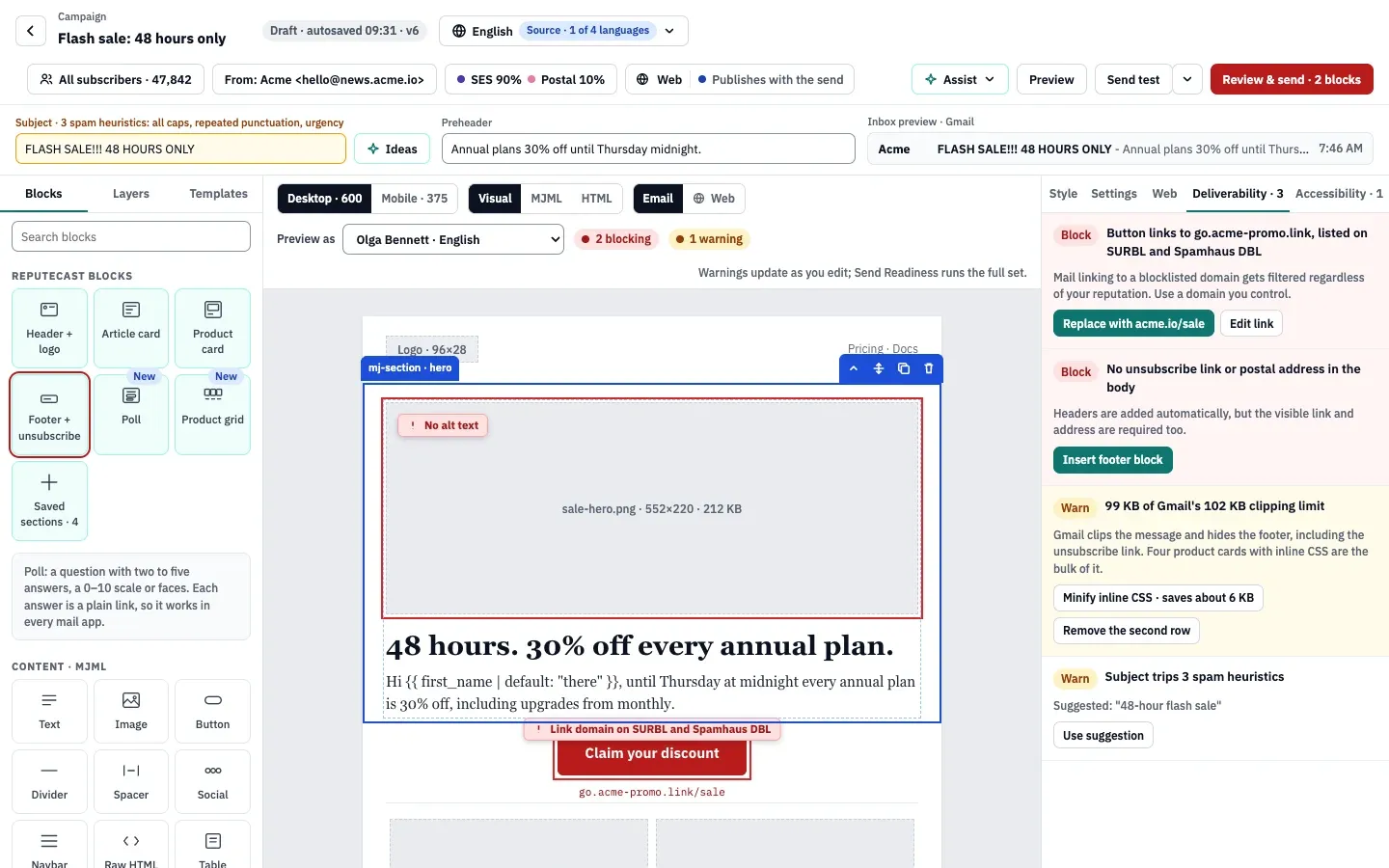
Findings also show where they are: a red tag on the canvas (for example “No alt text” on an image), a red strip with Insert footer block when the footer is missing, and an amber subject field listing the heuristics it trips.
What the composer checks
Section titled “What the composer checks”| Check | Result | When it triggers | One-click fix |
|---|---|---|---|
| The subject is empty | Block | No subject. | None. |
| Subject spam heuristics | Warn | The subject trips at least one heuristic (see below). | Use suggestion, when ReputeCast can write a version that passes. |
| Personalization syntax | Block | A Liquid tag in the subject, preheader or body doesn’t parse. The finding names the part and the line. | None. See the Liquid reference. |
| Unknown field | Warn | A token such as {{ plan }} isn’t a contact field and has no fallback, so it prints nothing. |
None. Fix the spelling or add | default: "…". |
| No unsubscribe link or postal address | Block | The body has no visible unsubscribe link, no postal address, or neither. | Insert footer block |
| Gmail clipping size | Warn | The compiled HTML reaches 85 KB. Gmail clips messages over 102 KB and hides the rest, including the unsubscribe link. | Minify inline CSS (offered when it saves at least 1 KB), and Remove the section that makes up most of the size. |
| Image-heavy email | Warn | Images take up more than 85% of the email, estimated from image sizes against the amount of text. | None. Add text or use fewer images. |
| Image without alt text | Warn | An image has no alt attribute. An empty alt="" counts as a decorative image, and tracking-pixel-sized images are skipped. |
Type a description and Save. |
| Empty plain-text version | Warn | The email has images but no text, so its text/plain part is blank. | None. Add a sentence that says what the images show. |
| Button without a link | Warn | A button’s link is empty or #. |
Edit link |
| Link to a blocklisted domain | Block | A link’s domain is on a blocklist in ReputeCast’s latest link-domain lookups (for example SURBL or Spamhaus DBL). | Replace with the same path on your sending domain, or Edit link. |
| URL shortener | Warn | A link goes through a shortener such as bit.ly, tinyurl.com, t.co, goo.gl, ow.ly or rebrand.ly (19 are known). | Edit link |
| Store product removed | Warn | A product block names a product your store no longer has. | None. Remove it or pick another product. |
| Sponsor creative missing | Block | A Sponsor block’s booking has no creative yet. | Open booking, or remove the block. |
Alt text findings move to the Accessibility tab, which runs the fuller accessibility checks as soon as the canvas has content.
Subject heuristics
Section titled “Subject heuristics”The subject trips a heuristic when it has:
- All caps: at least 6 letters, 70% or more of them uppercase.
- Repeated punctuation: two or more
!or?in a row, or four or more dots. - Urgency phrasing: “act now”, “urgent”, “hurry”, “last chance”, “limited time”, “today only”, “only”, “ends today”, “ending soon”, “don’t miss”, a number of hours and similar phrases.
- Money words: “free”, “100% free”, “guarantee”, “cash”, “no cost”, “risk-free” or
$$. - Click-bait: “you won’t believe”, “shocking”, “jaw-dropping”, “mind-blowing”, “what happens next”, “doctors hate” and similar phrases.
Urgency, money and click-bait phrases are matched in English subjects and in emails without a language; language versions in other languages are checked for all caps and repeated punctuation only. The suggestion lowercases a shouting subject, removes repeated punctuation and urgency words, and turns “48 hours” into “48-hour”, so FLASH SALE!!! 48 HOURS ONLY becomes 48-hour flash sale.
Only the subject is checked for spam phrases; the preheader and body aren’t. What else decides whether mail reaches the inbox is in email deliverability for self-hosted senders.
How the footer check finds the link and the address
Section titled “How the footer check finds the link and the address”- The unsubscribe link counts when a link points to
{{ unsubscribe_url }}, or a link’s text contains “unsubscribe”. - The postal address counts when your workspace’s footer address appears in the email text, or the text has something that reads as a street address (a number followed by a street word such as Street, Ave, Road or Rue) or a postcode.
The Footer + unsubscribe block covers both and adds the preferences and view-in-browser links. Mailbox providers and anti-spam laws require both; see consent and anti-spam law basics and one-click unsubscribe.
What each fix does
Section titled “What each fix does”| Fix | What it changes |
|---|---|
| Insert footer block | Adds the footer block at the end of the email, with your footer address and the unsubscribe, preferences and view-in-browser links. |
| Use suggestion | Replaces the subject with the suggested one. |
| Minify inline CSS | Turns on CSS minifying for this campaign’s saves and sends. The canvas and the MJML stay as they are. |
| Remove a section | Deletes the section named in the finding. Press ⌘ Z to undo. |
| Replace with … | Rewrites the link to the same path on your first sender’s domain. |
| Edit link | Selects the element and puts the cursor in its Link URL field in Settings. |
| Save (alt text) | Sets the image’s alt text to what you typed. |
What Send Readiness checks on top
Section titled “What Send Readiness checks on top”Send Readiness repeats most of these checks in its Content, Links and Compliance groups and adds more. Where its rules differ:
- It opens every link (up to 40 per run, 4 at a time) and warns about links that return 404, 410 or a server error, or don’t respond. The composer never opens links.
- It warns when images make up 60% or more of the email, and whenever the plain-text version is empty.
- A Warn there needs a typed acknowledgement before you can send; a Block stops the send until it is fixed.
- It doesn’t repeat the personalization checks. Fix Liquid errors in the composer: an email whose personalization doesn’t render can’t start sending.
Check that it worked
Section titled “Check that it worked”- The Deliverability tab disappears: it only shows while there is a Block or a warning.
- The toolbar shows undo and redo again instead of the warning counts.
- Review & send no longer names blocks.
Troubleshooting
Section titled “Troubleshooting”- No fix buttons. Your role lacks
campaigns:edit, or the campaign is sending or sent. - The footer warning stays after you typed an address. Use the address saved as your footer address, or write it with a street number and street word or a postcode.
- “Replace with” isn’t offered for a blocklisted link. The link already uses your sending domain. Change the destination with Edit link, and check the domain in blocklist checks.
- The size warning stays after minifying. Minifying removes only whitespace and HTML comments. Remove a section, shorten long text, or split the email.
- Send Readiness reports a broken link the composer didn’t. Only Send Readiness opens links. Fix the address and run the checks again.