
Add a signup form to your site
A newsletter signup form embed is two lines of HTML that render a ReputeCast form on your own website. You build the form once, choose whether it sits in the page, opens as a popup or lives on a hosted page, and ReputeCast records the exact consent text each person agreed to.
Before you begin
Section titled “Before you begin”- You need the
forms:editpermission to create, change and publish forms. Owners, Admins and Editors have it. - Create the lists people can join first. See lists, consent and double opt-in.
- Route the System stream to a sending provider, so double opt-in confirmations can go out. See route mail across providers.
- Set your logo, colors and font in branding: every form uses them.
Create and publish a form
Section titled “Create and publish a form”Your workspace’s hosted subscribe page works before you create any form. A form of your own lets you choose its fields, lists and type.
-
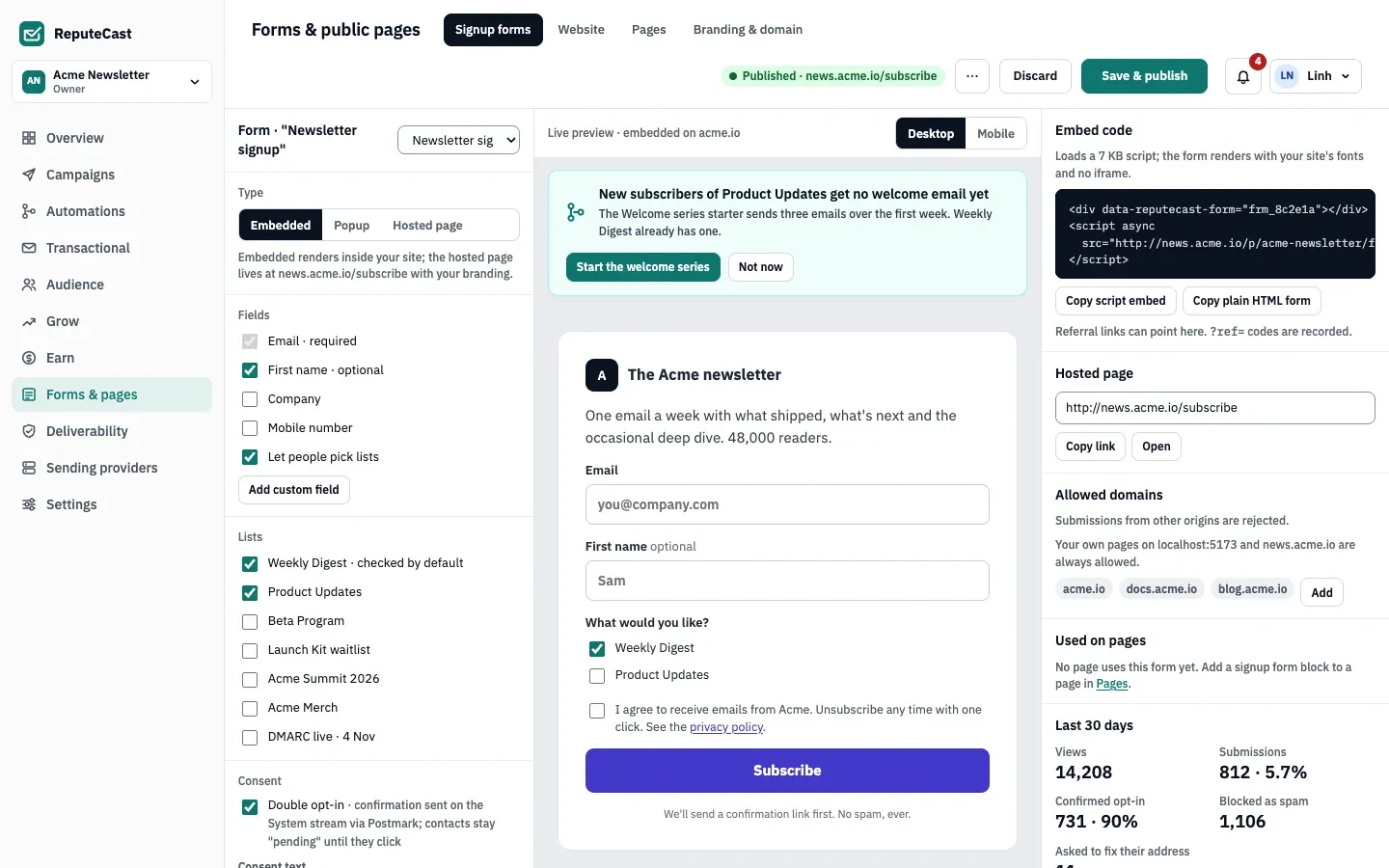
Open Forms & pages, then Signup forms and select New form.
-
Name the form, choose its type and select Create form:
- An Embedded form renders inside a page of your site.
- A Popup form opens over your site. Set when with Opens after (s) (8 by default) and Or scrolled (%), whichever comes first. After someone closes it, it stays closed in that browser for the days in Closed for (days) (14 by default).
- Hosted page lives on its own page at
/subscribe/<form-slug>(the slug comes from the form’s name), so you can link to it from anywhere without code.
A new form starts with the email and first name fields, your first public list, double opt-in and the honeypot and timing check. It stays a draft until you publish it.
-
Under Fields, choose what the form asks for. Email is always required. Tick First name or Company, or use Add custom field for Last name and your workspace’s custom fields. A form holds up to 20 fields.
-
Under Lists, tick each list the form offers. Turn on Let people pick lists to show a checkbox per list; when it is off, a signup joins every offered list. To choose which lists start checked, tick their boxes in the live preview.
-
Under Consent, edit the Consent text. The words “privacy policy” link to the privacy address from your branding. Every change starts a new consent version, and earlier signups keep the text they agreed to. ReputeCast stores the IP address, the time and the exact text as consent evidence.
-
Keep Double opt-in on (the default) unless the people who sign up are already known to you. With it on, contacts stay pending until they click the link in the confirmation email. A contact who unsubscribed before must confirm even on a form without double opt-in.
-
Choose the checks under Spam protection (see spam protection).
-
Under After submit, show the built-in message (“check your inbox” with double opt-in, “you’re subscribed” without it) or redirect to an address of your own, such as
https://acme.io/thanks. -
Under Allowed domains, select Add domain for each site the form is embedded on, for example
acme.io. Enter the host only. Subdomains need their own entry. -
Select Save & publish.
Embed the form on your site
Section titled “Embed the form on your site”Under Embed code, select Copy script embed and paste the code into your site where the form should appear:
<div data-reputecast-form="frm_8c2e1a"></div><script async src="https://news.acme.io/p/acme-newsletter/forms/frm_8c2e1a.js"></script>The script is served from /p/<workspace>/forms/<form id>.js on your custom domain, or on your ReputeCast server’s
public URL when you have none. It renders the form inside the <div> with your site’s fonts. It loads no
third-party code, uses no iframe and sets no cookies; it keeps two flags in the browser’s local storage, one after a
signup and one when someone closes a popup.
- Popups: paste only the
<script>element. The script opens a popup only when the page has nodata-reputecast-formelement; with the<div>in place, the form renders inline instead. - Language: the form follows the
langattribute nearest to the<div>(or adata-reputecast-langattribute on it). When the form isn’t live in that language, it shows its fallback language. - Updates: browsers can cache the script for 5 minutes, so a published change can take that long to reach your site.
Use the plain HTML form
Section titled “Use the plain HTML form”For a site that can’t load scripts, select Copy plain HTML form. You get the form as plain HTML in one language. It posts to the form’s hosted page, which shows the result:
<form action="https://news.acme.io/p/acme-newsletter/subscribe/newsletter-signup" method="post" accept-charset="utf-8" lang="en"> <input type="hidden" name="_plain" value="1"> <input type="hidden" name="_lang" value="en"> <label>Email <input type="email" name="email" autocomplete="email" required></label> <label>First name <input type="text" name="first_name" autocomplete="given-name"></label> <fieldset> <legend>What would you like?</legend> <label><input type="checkbox" name="list" value="01a1637b-5a5f-75a9-9c7b-b2786b3c5968" checked> Weekly Digest</label> <label><input type="checkbox" name="list" value="01a1637b-5a60-7ea9-9b79-848e29771b81"> Product Updates</label> </fieldset> <label><input type="checkbox" name="consent" value="1" required> I agree to receive emails from Acme. Unsubscribe any time with one click. See the <a href="https://acme.io/privacy">privacy policy</a>.</label> <div style="position:absolute;left:-10000px" aria-hidden="true"><input type="text" name="website" tabindex="-1" autocomplete="off"></div> <button type="submit">Subscribe</button></form>Copy the HTML again after you change the form’s fields, lists or consent text: the copy on your site doesn’t update by itself. The plain form skips the timing check, so the allowed domains and the honeypot field do the spam work.
Link to the hosted page
Section titled “Link to the hosted page”Every form has a hosted page under Hosted page, at
/p/<workspace>/subscribe/<form-slug>, or /subscribe/<form-slug> on your custom domain. The form chosen for your
workspace’s own subscribe page answers at /subscribe. To change which form that is, see
subscribe, preference and unsubscribe pages.
Spam protection
Section titled “Spam protection”Spam protection has three checks:
- Honeypot field and timing check (on by default). A hidden field catches bots that fill in every input, and a submission sent less than 3 seconds after the form loaded looks automated. Bots that fill the honeypot see a success message, and nothing is saved.
- Cloudflare Turnstile (off by default). ReputeCast shows the Turnstile check only for submissions that already look automated, and holds them for 30 minutes while the person completes it. The keys are shared by every form of the workspace: paste the site key and secret key from the Cloudflare dashboard and select Save keys. The secret is stored encrypted and never shown again.
- Reject disposable domains and role addresses (on by default). Throwaway inboxes and addresses such as
info@are refused with a message that explains why.
Rate limits apply to every form: 5 submissions a minute from one IP address across the workspace’s forms, and 120 a minute per form. To check each address with a verification service as people sign up, see verify email addresses.
Defaults and limits
Section titled “Defaults and limits”| Setting | Default | How to change |
|---|---|---|
| Double opt-in on a new form | On | Form builder |
| Confirmation reminder | One reminder 24 hours after the confirmation email | Fixed |
| Confirmations wait for a System provider | Up to 3 days | Fixed; then the signups are listed as waiting for 30 days with copyable links |
| Suspicious submission held for a Turnstile check | 30 minutes | Form builder › Turnstile |
| Submissions faster than this look automated | 3 s | API minSeconds, 0–60 |
| Submissions per IP address | 5 per minute across the workspace's forms | API rateLimitPerIp, 1–120 |
| Submissions per form | 120 per minute | Fixed |
| Popup timing | Opens after 8 s; stays closed for 14 days after it's dismissed | Form builder › Opens after (0–600 s), Or scrolled (0–100%), Closed for (0–365 days) |
| Pause options in the preference center | 30 or 90 days | Forms & pages › Pages › preference center |
| Download link after a form signup | 7 days | Form builder › Links work for, 1–30 days |
Confirmation emails go out on the System stream. When no sending provider can send System mail yet, signups wait up to
3 days. The builder then lists the people still waiting, and Copy confirmation links lets someone
with the subscribers:edit permission send each person their link by hand. Every copied link is logged.
Check that it worked
Section titled “Check that it worked”- Open a page of your site with the form and subscribe with an address you can read.
- Open the confirmation email and confirm. The confirmation page opens.
- In ReputeCast, find the address in the audience: the contact is on the form’s lists, and its consent history shows the form, the consent version and the text. See manage contacts.
- In the builder, the last 30 days show the view, the submission and the confirmed opt-in.
Troubleshooting
Section titled “Troubleshooting”- The form says “This form can’t be used on this site.” The site isn’t in the allowed domains. Add its host under Allowed domains and save and publish. The builder also shows an alert with the number of rejected submissions per site, with buttons to allow the site or Keep blocked.
- The script answers 404. The form is still a draft. Publish it.
- A popup renders inside the page. The page contains the
<div data-reputecast-form>element. Remove it and keep only the<script>element. - A popup no longer opens for you. After you close it, it stays closed for the days in Closed for (days) (14 by default), and it never opens again in a browser that already signed up. Try a private window.
- Visitors see “This form isn’t taking signups right now.” Someone selected Pause signups. Resume signups from the same menu.
- Confirmation emails never arrive. No sending provider is routed for the System stream. Connect one and route System mail to it: confirmations that have waited less than 3 days then go out. For older signups, use Copy confirmation links.
Related
Section titled “Related”- Subscribe, preference and unsubscribe pages
- Brand your pages and use your own domain
- Lists, consent and double opt-in
- Triggers and steps: start an automation when a form is submitted
- Run a referral program: referral links can point to any form page