
Check email accessibility
ReputeCast’s email accessibility checker reads the compiled HTML of every language version you send and lists what makes the email hard to use with a screen reader, in low vision or on a small screen. It runs as you edit in the composer, again in Send Readiness, and when an automation or a transactional template is published.
Before you begin
Section titled “Before you begin”- Fixing issues needs
campaigns:edit. - Changing the workspace policy (Warn or Block, minimum text size) needs
workspace:manage. Everyone in the workspace can see it.
What the checker looks for
Section titled “What the checker looks for”Issues are serious or moderate. Only serious issues can block a send, and only when the workspace policy says so.
| Severity | Issue | Tag on the canvas |
|---|---|---|
| Serious | An image without alt text (unless you mark it decorative). A linked image without alt text also counts as a link with no text. | “No alt text” |
| Serious | A link or button with no text. | “Link has no text”, “Button has no text” |
| Serious | Text contrast below WCAG AA. | “Contrast 2.1:1” |
| Moderate | Link text that says nothing (“Read more”, “Learn more”) or a bare URL as link text. | ““Read more” says nothing” |
| Moderate | A skipped heading level. | “Heading 3 after Heading 1” |
| Moderate | Text smaller than the workspace minimum. | “11 px text” |
- Contrast follows WCAG 2.2: 4.5:1 for normal text and 3:1 for large text (24 px, or 18.66 px bold). Ratios are rounded down to one decimal, so 4.49:1 never shows as 4.5:1. Text over a background image can’t be measured and isn’t counted.
- The vague-link-text check knows English, Spanish, German, French, Portuguese and Vietnamese phrases. In other languages only bare URLs and empty links are found.
ReputeCast also adds three things to every email when it is saved, so you don’t have to: a lang attribute with the version’s language, dir="ltr", and role="presentation" on layout tables (tables with headers or captions are left alone). Right-to-left languages are not supported, so the direction is always left to right.
Fix issues in the composer
Section titled “Fix issues in the composer”-
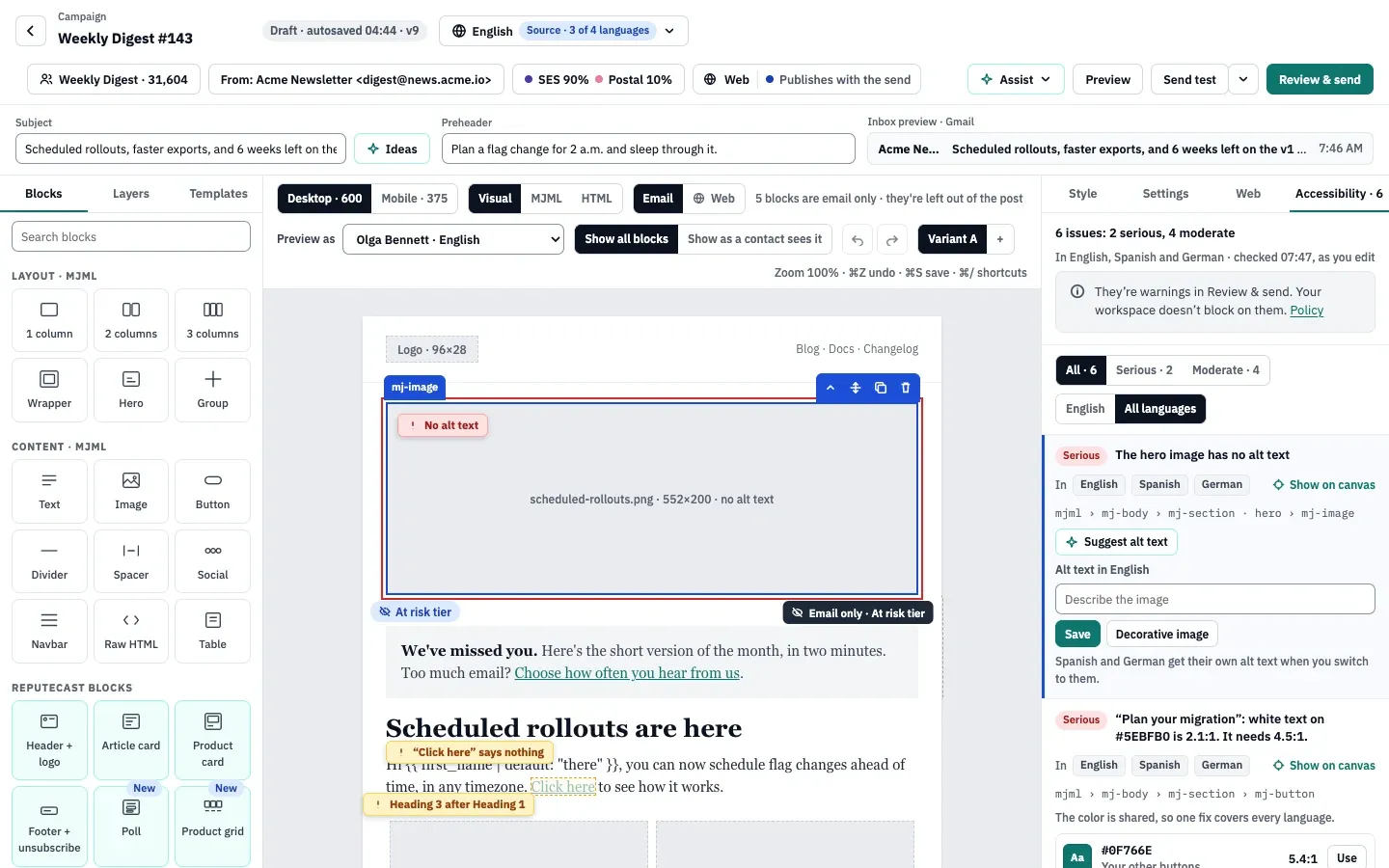
Open the campaign in the composer and select the Accessibility tab in the right panel. The tab shows the number of open issues, and the summary says how many are serious and moderate and which languages were checked.
-
Filter the list by severity, and choose the current language or all languages. An issue that appears in several language versions lists each language.
-
Select Show on canvas to jump to the element. The canvas tags it as well.
-
Fix it:
- Write alt text in each language, or mark an image that carries no information as a Decorative image.
- For contrast, open the color picker. Its chip shows the ratio and whether it passes AA or AAA, and it suggests colors that pass (your other buttons, the nearest color that passes AA, one that passes AAA). A color shared by every language is fixed once for all of them.
- Rewrite vague link text so it names the destination, and fix heading levels with the text role.
-
Open Review & send. The Accessibility group lists the serious issues one by one and the moderate ones in a single row, with one-click fixes such as marking an image as decorative or using a passing color.
Choose what serious issues do
Section titled “Choose what serious issues do”-
Open Settings, then General and find the Accessibility card.
-
Choose what happens When serious issues remain. With Warn (the default), Review & send shows serious issues as warnings and sending stays possible. With Block, sends wait until serious issues are fixed, and so does publishing an automation or a transactional template.
-
Choosing Block first shows which drafts and scheduled sends it would affect. Confirm with Switch to Block. The change is recorded in the audit log.
-
Set the Minimum text size (12 to 16 px). Smaller text is a moderate issue, so it never blocks.
With Block on:
- Send Readiness turns Blocked while a serious issue remains, and a scheduled send is held at the recheck before it starts. See schedule and send a campaign.
- Publishing an automation or a transactional template is refused until its emails are fixed.
- Live automations and published transactional templates keep sending. Block applies to the next publish.
- Moderate issues never block.
| Setting | Default | How to change |
|---|---|---|
| When serious issues remain | Warn | Settings › General › Accessibility; Warn or Block (needs workspace:manage) |
| Minimum text size | 12 px | Settings › General › Accessibility, 12–16 px |
| Text contrast required (WCAG AA) | 4.5:1 for normal text, 3:1 for large text (24 px, or 18.66 px bold) | Fixed |
Check that it worked
Section titled “Check that it worked”- The composer’s status bar reads “Accessibility: all clear” and the tab shows no open issues.
- In Review & send, the Accessibility group passes, and its rows confirm
langanddirare set for every language and how many layout tables gotrole="presentation".
Troubleshooting
Section titled “Troubleshooting”- The send button is disabled and the Accessibility group shows Block. The workspace policy is Block. Fix the serious issues, or ask someone with
workspace:manageto switch the policy to Warn. - An automation won’t publish (
accessibility_blocked). One of its emails has a serious issue and the policy is Block. Open each email step and fix the issues listed. - Contrast on text over an image shows “Can’t check”. ReputeCast can’t measure text on an image. Check it yourself, or add a solid background color behind the text.
- The policy card is read-only. Changing it needs
workspace:manage; the card names who can help.
Related
Section titled “Related”- Design emails in the composer covers the inspector and the text role.
- Send each reader their language explains language versions; each one is checked on its own.
- Send Readiness: check before you send lists the other check groups.
- Publish automation changes safely describes the pre-publish checks.