
Create and manage campaigns
Email campaign management in ReputeCast happens on one screen, Campaigns: you start every kind of campaign there, follow each one from draft to report, and reuse what worked.
Before you begin
Section titled “Before you begin”- To see campaigns you need
campaigns:view. To create or edit one you needcampaigns:edit. Sending or scheduling needscampaigns:sendas well; see roles and permissions. - SMS, push and WhatsApp campaigns appear as choices only after that channel is set up: SMS, web push, WhatsApp.
Start a campaign
Section titled “Start a campaign”-
Open Campaigns and select New campaign.
-
Under What are you sending?, pick the kind of campaign:
- The Regular choice is one email, sent once; A/B tests live here. It opens the composer on the template gallery.
- The Recurring digest choice builds issues from an RSS, Atom or JSON feed, or a connected WordPress site, on a schedule. It opens the digest’s settings.
- The Text message (SMS) choice is one text, sent once, routed by country. It opens the SMS composer.
- The Push notification choice is a notification to readers’ browsers on your push sites. It opens the push composer.
- The WhatsApp message choice sends an approved WhatsApp template to people with WhatsApp consent. It opens the WhatsApp campaign.
-
Select Continue. A recurring digest also needs a feed address or a connected WordPress site before Continue works; see send RSS digests automatically.
-
Write the email in the composer, then open Send Readiness to check and send it.
A new regular campaign is saved as a draft named “Untitled campaign” the moment the composer opens.
Find a campaign
Section titled “Find a campaign”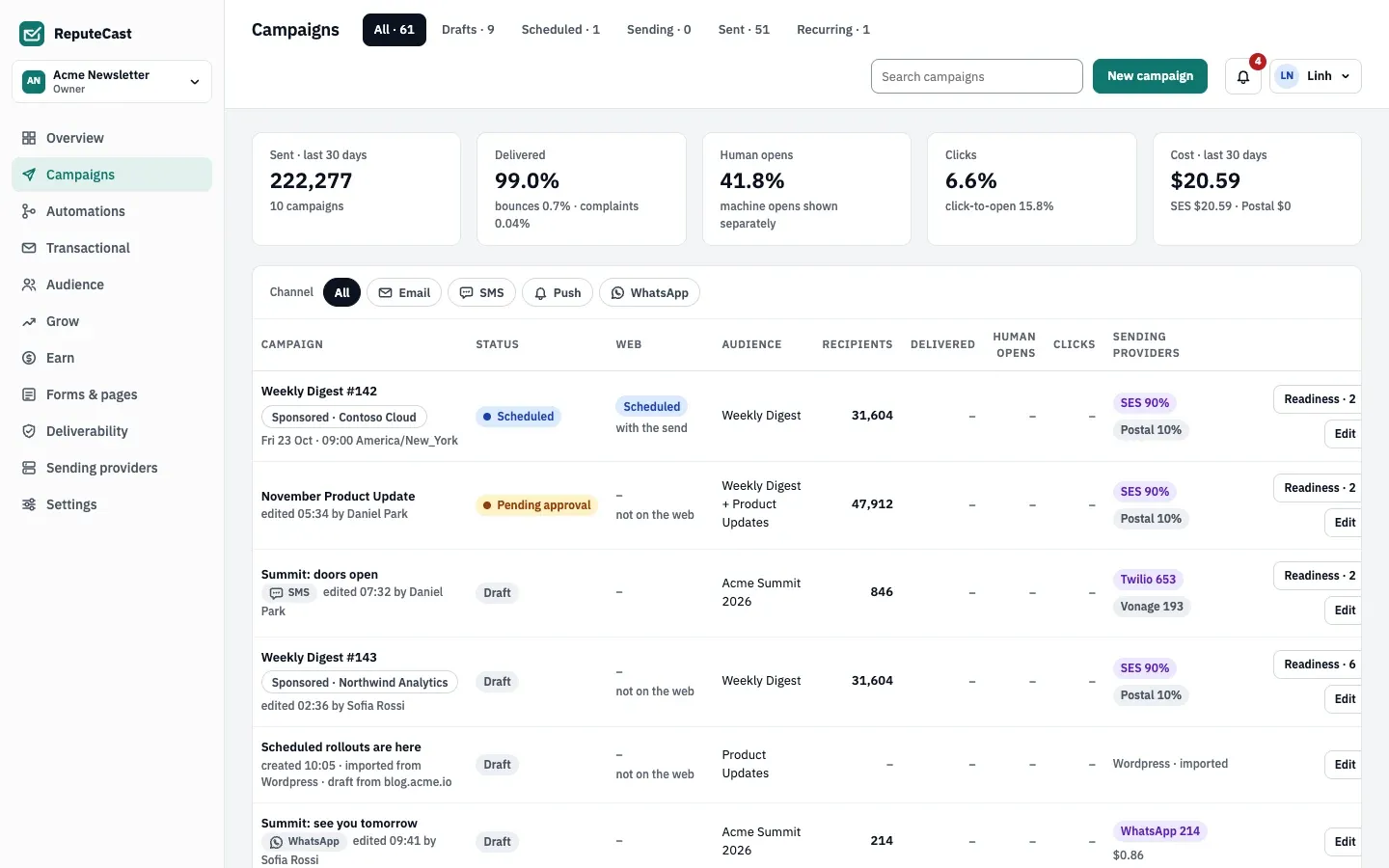
The page has three ways to narrow the list:
- Status tabs. Each tab shows its count. Drafts holds drafts, campaigns pending approval and approved ones; Sending holds sending and auto-paused campaigns; Sent holds sent, cancelled and failed ones. Recurring lists your recurring digests instead of campaigns, and a Paid only tab appears once a campaign goes to paid members only.
- Channel chips. Once two or more channels are set up, chips for All, Email, SMS, Push and WhatsApp sit above the table. Choosing SMS changes the columns to opt-outs and cost instead of opens.
- Search. Search campaigns matches part of a campaign’s name, in any letter case. It doesn’t search subjects or content.
The list shows 25 campaigns per page. Sending and auto-paused campaigns come first, then scheduled ones (soonest first), campaigns waiting for or holding approval, drafts, and finally sent, cancelled and failed campaigns. Inside each group the newest is first. Columns can’t be sorted.
The five totals above the table always cover the last 30 days of every channel, whatever tab or search you choose: messages sent, delivered (with bounce and complaint rates), human opens (machine opens such as Apple Mail Privacy Protection prefetches are counted apart), clicks with the click-to-open rate, and the sending cost per sending provider. Imported history doesn’t count.
Campaign statuses
Section titled “Campaign statuses”| Status | Meaning | The name opens | Row actions |
|---|---|---|---|
| Draft | Being written. Draft · blocked means the last Send Readiness run found a Block. | The composer | Edit, plus a readiness button |
| Pending approval | Waiting for an approver; see require approval for risky sends. | The composer | Edit, plus a readiness button |
| Approved | Approved and ready to send or schedule. | The composer | Edit, plus a readiness button |
| Scheduled | Sends at its scheduled time. | The composer | Edit, plus a readiness button |
| Sending | Going out now. | The live monitor | Live monitor |
| Auto-paused | Guarded sending stopped part or all of the send and waits for a decision. | The live monitor | Live monitor |
| Sent | Finished. | The report | Report |
| Cancelled | Stopped before every message went out. | The report | Report |
| Failed | The send couldn’t start or run. | The report | Report |
The readiness button reads Readiness · N when the last check found warnings, or N blocking issues when it found a Block, and opens Send Readiness. It only appears after Send Readiness has run at least once.
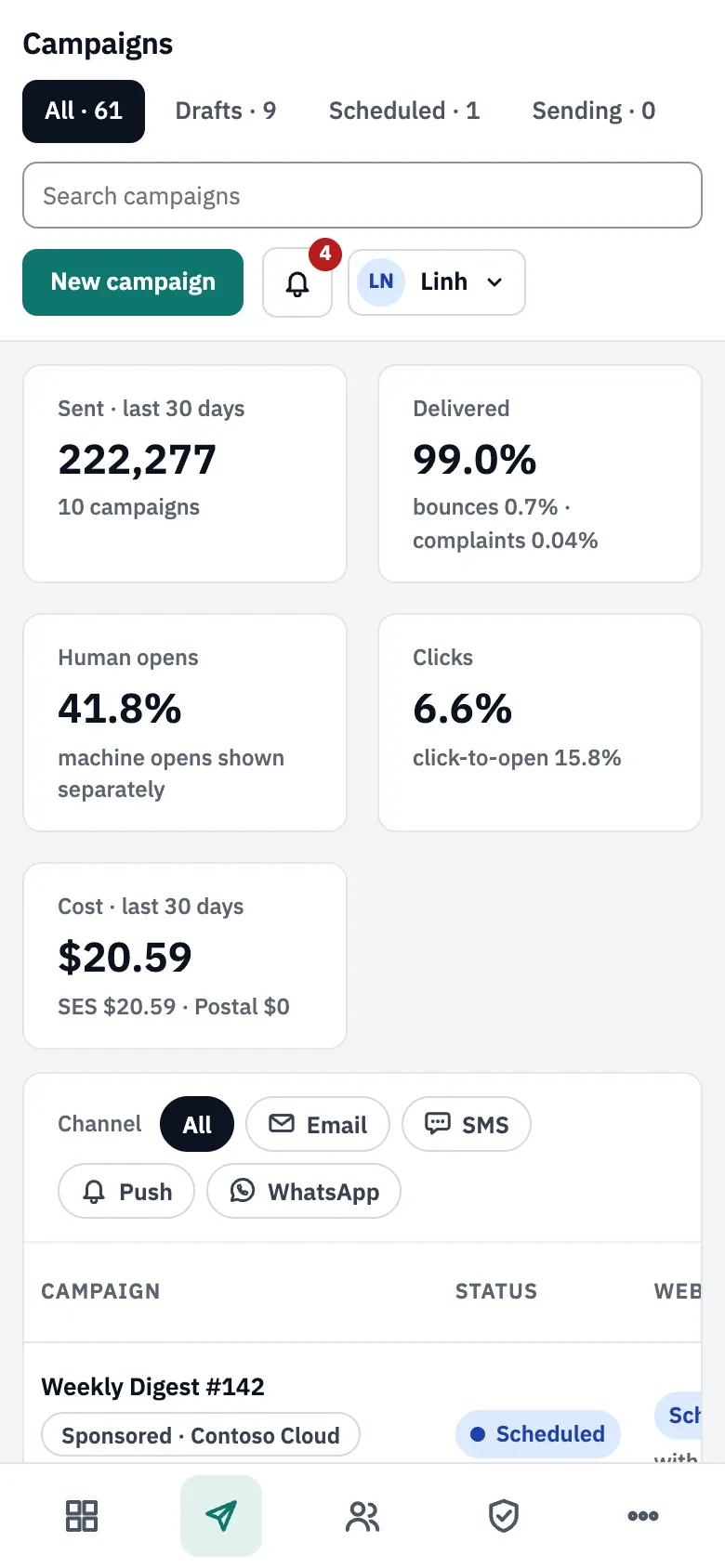
On a phone the table becomes one card per campaign and the sections move to the tab bar at the bottom of the screen.
Reuse a sent campaign
Section titled “Reuse a sent campaign”-
Open the sent campaign’s report: select its name in the list, or Report in its row.
-
Select Duplicate campaign.
-
A new draft named “Copy of …” opens in the composer.
The copy keeps the subject, preheader, content, audience (lists, segments and exclusions) and sender, plus the A/B test setup without its winner. It doesn’t keep the schedule, route or threshold overrides, language versions or approvals. Its version history starts with “copied from” and the original’s name.
SMS, push and WhatsApp campaigns have a Duplicate button in their list row, which makes a copy in the same way. To copy a campaign from a script, use the duplicate campaign API operation.
Check that it worked
Section titled “Check that it worked”- Your new campaign appears under the Drafts tab with the status Draft.
- A duplicated campaign appears as “Copy of …” in Drafts, with the source’s subject in the composer.
Troubleshooting
Section titled “Troubleshooting”- New campaign is greyed out. Your role lacks
campaigns:edit; the button says who can help. Ask a workspace Owner or Admin. - No SMS, Push or WhatsApp choice. That channel isn’t set up in this workspace yet, or your role can’t see sending providers (
providers:view). - Duplicate in an email campaign’s row does nothing. In this build the button on email rows has no action. Open the report and use Duplicate campaign instead.
- A campaign you expect is missing. Search only matches names. Check the tab: an auto-paused send is under Sending, a cancelled one under Sent.
Defaults and limits
Section titled “Defaults and limits”| Setting | Default | How to change |
|---|---|---|
| Campaigns per page | 25 | Fixed in the app; API pageSize, 1–100 |
| Variants in an A/B test | 2 or 3 (A, B, C) | Composer › A/B variants |
| A/B test sample size | 20% of the audience | Composer › A/B variants › Sample size, 10–50%; the API accepts 5–50% |
| A/B test duration before the winner goes to the rest | 2 hours | API durationHours, 1–72 |
| A/B winner chosen by | Human opens | Composer › A/B variants › Winner by; human opens, clicks or manual pick |
| Significance shown in the report (two-proportion z-test) | p below 0.05 | Fixed; at the end of the window the variant with the higher rate is sent either way |
| Recipients of a test send | Up to 10 addresses | Fixed; members without campaigns:send can send tests only to themselves |