
Connect HostRepute
The HostRepute integration connects a workspace to HostRepute, the email-reputation service built by the team behind ReputeCast. Once connected, HostRepute checks your sending domains and IPs on 84 blocklists every hour and brings Google Postmaster Tools, Microsoft SNDS and DMARC report data into Deliverability and Send Readiness. Connecting is optional: every ReputeCast feature works without it, with the built-in checks instead.
What is shared and what you get
Section titled “What is shared and what you get”HostRepute is a separate service with its own account and plans. ReputeCast sends it only what it needs to monitor:
| Sent to HostRepute | Never sent |
|---|---|
| Sending domains and their organization domains | Contacts or any personal data |
| Dedicated sending IPs | Email content, subjects or templates |
| Self-hosted server hostnames, only when someone selects Add to monitoring | Campaign reports, events or statistics |
In return, the workspace receives:
- Blocklist status from 84 sources, checked hourly instead of 8 sources once a day, with listing history and delisting requests you file from ReputeCast.
- Google Postmaster Tools data for your sending domains (domain and IP reputation, spam rate, authentication, flagged campaigns) and Microsoft SNDS data for your dedicated IPs (filter result, complaint rate, spam trap hits).
- DMARC aggregate report summaries (see Read DMARC aggregate reports).
- Alerts for new listings, delistings and reputation drops, delivered as ReputeCast notifications to members who can see Deliverability.
Before you begin
Section titled “Before you begin”- You need
integrations:hostrepute. Owners and Admins have it. - You need a HostRepute account and team. Your HostRepute plan sets how many assets the team can monitor; that is a HostRepute limit, and nothing in ReputeCast depends on it.
- The instance’s public URL must open in your browser, because HostRepute sends you back to
<public URL>/api/v1/integrations/hostrepute/callbackafter you approve. Operators set it withhttp.public_url(Configuration reference).
Connect with HostRepute
Section titled “Connect with HostRepute”-
Open Settings, then Integrations, then HostRepute, or select Connect HostRepute on Deliverability.
-
Read the lists of what is shared and what is received, then select Connect with HostRepute.
-
Sign in to HostRepute and approve the request for the scopes
monitor:read,alerts:readandassets:write. The request expires after 15 minutes. -
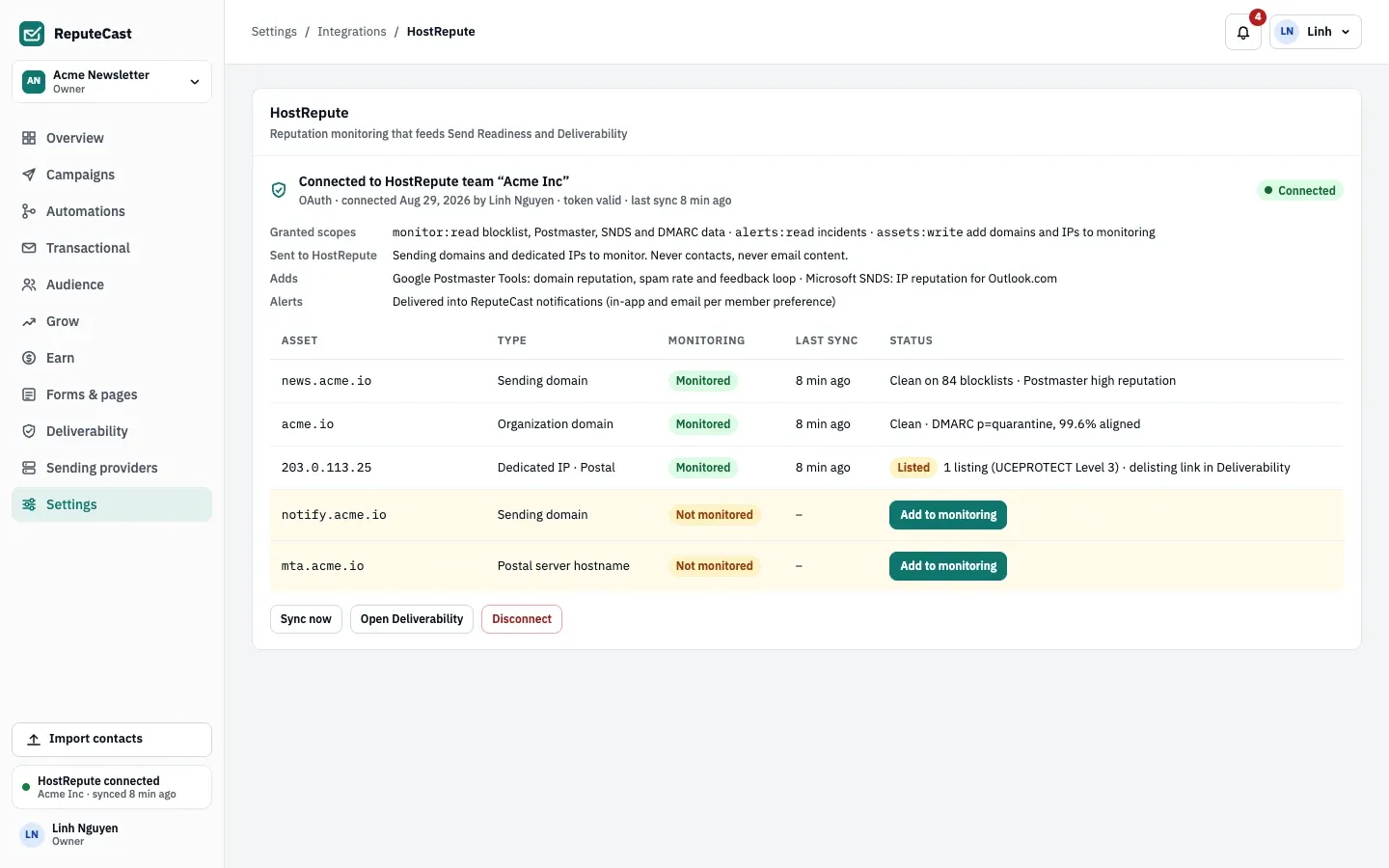
Back in ReputeCast, the page names the HostRepute team you connected and starts the first sync, which takes about a minute. Assets HostRepute doesn’t monitor yet are listed as suggestions; select Add to monitoring for each one you want checked.
Only the person who started the connection can finish it. The sign-in uses OAuth 2 with PKCE and a single-use state, and the tokens are stored encrypted with the instance’s secret key; the API never returns them.
Connect with an API key instead
Section titled “Connect with an API key instead”Use an API key when the browser can’t reach HostRepute and come back, for example on an instance without a public URL.
-
In HostRepute, create an API key with the scopes
monitor:read,alerts:readandassets:write. -
In ReputeCast, open the connect page as above and select Use an API key instead.
-
Paste the key (it starts with
hr_live_) and select Connect. ReputeCast checks the key with HostRepute before it saves it.
The key is write-only: you can replace it but never read it back. ReputeCast can’t revoke an API key. When you disconnect, ReputeCast forgets it, and you revoke it in HostRepute.
Check that it worked
Section titled “Check that it worked”- Settings, then Integrations, then HostRepute shows the connected team, the granted scopes, the assets HostRepute monitors and when it last synced.
- The header of Deliverability says HostRepute is connected with hourly checks, and the blocklist table lists 84 sources.
- To fetch new data at once, select Sync now. Otherwise ReputeCast syncs every hour.
| Setting | Default | How to change |
|---|---|---|
| Built-in blocklist checks | 8 lists (Spamhaus ZEN, Spamhaus DBL, SURBL, URIBL, Barracuda BRBL, SpamCop, Mailspike, PSBL), daily, for sending domains and dedicated IPs | Run all checks now; skipped while a healthy HostRepute connection supplies the results |
| Run all checks now | At most once a minute | Fixed |
| DNS lookup timeout | 4 s | Config dns.timeout; resolvers in dns.servers |
| DMARC aggregate report upload | XML, .xml.gz or .zip, up to 20 MiB compressed and uncompressed | Fixed (needs domains:manage) |
| HostRepute sync | Hourly per connected workspace; failed syncs retry hourly and the built-in checks run meanwhile | Fixed |
| History read from HostRepute | Google Postmaster 30 days, Microsoft SNDS 30 days, DMARC 7 days | Fixed |
| Time to approve the connection in HostRepute | 15 minutes | Fixed |
| Incident timeline | Last 45 days, latest 8 items | Fixed |
When HostRepute can’t be reached
Section titled “When HostRepute can’t be reached”- HostRepute is unreachable. ReputeCast keeps showing the last data, marked stale, retries every hour and runs the built-in blocklist check as a fallback. Send Readiness marks the blocklist checks Unknown instead of passing them; when a request to HostRepute times out during the check, you can select Continue with provider data only, which records the skipped checks in the audit log and runs them again during the send.
- The token was revoked or expired. The connection shows that it needs reconnecting, members with
integrations:hostreputeget a notification, and the built-in checks take over. Send Readiness shows the reputation check as Unknown, never as a Block. Select Reconnect with HostRepute to restore it.
Troubleshooting
Section titled “Troubleshooting”- “You declined the request on HostRepute.” Nothing was connected, or an existing connection is unchanged. Start again and approve.
- “This handoff was started by someone else.” The OAuth return must come back to the person who started it. Sign in as yourself and start again.
- HostRepute didn’t accept the approval. The request expired after 15 minutes or was already used. Start again.
- The monitoring limit is reached. Your HostRepute team’s plan is full. Raise the limit in HostRepute, or swap an asset: ReputeCast suggests one it could stop monitoring, such as an organization domain, to make room for one that sends mail.
- The API key is refused. Paste the whole key without spaces; it starts with
hr_live_and needs all three scopes. - Data shows as stale. HostRepute couldn’t be reached at the last sync. The error and the time are shown on the integration page; ReputeCast retries every hour.