
Read DMARC aggregate reports
A DMARC aggregate report tells you which servers sent mail as your
domain and whether that mail passed DMARC. This guide shows how to collect the reports, bring them into ReputeCast
and read them under Deliverability, then Health, so you can move your
DMARC policy from p=none to quarantine or reject without losing real mail.
Mailbox providers that support DMARC send these reports as XML files, by default once a day, to the addresses in the
rua tag of your DMARC record (RFC 7489, section 6.3, checked
October 2026). ReputeCast has no inbox of its own for them: either HostRepute
collects and parses them for you, or you receive them in your own mailbox and upload them.
Before you begin
Section titled “Before you begin”- Your sending domain publishes a DMARC record. If it doesn’t, start with Set up SPF, DKIM and DMARC.
- Reading the reports needs
deliverability:view, which every built-in role has. Uploading a report needsdomains:manage(Owner and Admin). - Decide where the reports go: HostRepute, a mailbox you own, or both.
ruatakes several addresses separated by commas.
Collect the reports
Section titled “Collect the reports”Through HostRepute
Section titled “Through HostRepute”-
Connect HostRepute (Connect HostRepute). On an empty DMARC card, Use HostRepute as rua takes you there.
-
Copy the report address HostRepute gives your account. The DMARC card shows it (“aggregate reports to …”), and ReputeCast’s suggested DMARC record includes it as
rua=mailto:…once HostRepute is connected. -
Add the address to the
ruatag of your DMARC record at your DNS host.
HostRepute parses the reports, and ReputeCast reads the last 7 days of results with its hourly sync.
In your own mailbox
Section titled “In your own mailbox”-
Add a mailbox you own to the
ruatag:_dmarc.acme.io TXT v=DMARC1; p=none; rua=mailto:[email protected] -
If the mailbox is on a different organizational domain than the DMARC record, that other domain has to accept the reports by publishing a TXT record
v=DMARC1at<your domain>._report._dmarc.<its domain>, for exampleacme.io._report._dmarc.example.net. Without it, mailbox providers don’t send the reports there (RFC 7489, section 7.1, checked October 2026). -
Save the report attachments as they arrive. They usually come as
.xml.gzor.zipfiles.
Upload a report
Section titled “Upload a report”-
Open Deliverability, then Health. While no report covers the last 7 days, the card reads DMARC report summary with the badge No reports yet.
-
Select Upload report XML and choose one file: the
.xmlreport, or the.xml.gzor.zipit came in. A.zipmust hold the.xmlreport; ReputeCast reads the first one inside. The file can be up to 20 MiB, compressed and uncompressed. -
Select Upload. The notice names the organization that sent the report, the number of messages and the domain.
ReputeCast stores only the report’s counts: the policy that was published, and per sending IP the message count, what the receiver did, and the SPF and DKIM results. Uploading the same report again (same organization and report ID) replaces the earlier copy, so nothing is counted twice.
The upload button exists only on the empty card. Once reports from the last 7 days are shown, upload further reports
with the API operation Upload a DMARC aggregate report, which takes the raw file and needs
an API key with domains:manage:
curl -X POST "https://reputecast.example.com/api/v1/workspaces/acme-newsletter/deliverability/dmarc/reports" \ -H "Authorization: Bearer $REPUTECAST_API_KEY" \ -H "Content-Type: application/octet-stream" \ --data-binary @report.xml.gzA successful upload returns 201 with the organization, report ID, domain, period and message count. See
Authentication and API keys to create a key.
Read the DMARC card
Section titled “Read the DMARC card”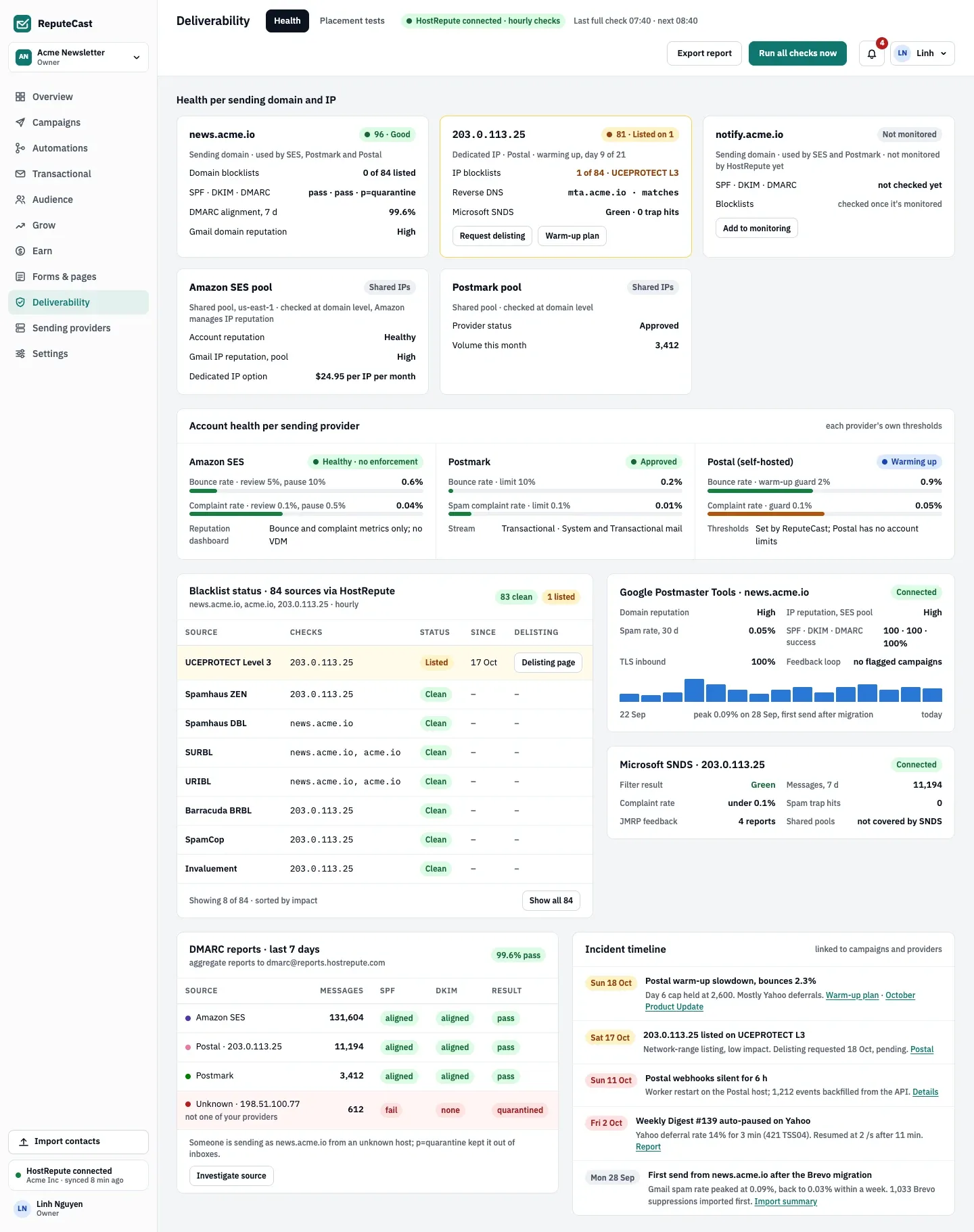
The DMARC reports card is at the bottom left, next to the incident timeline.
- Health per sending domain and dedicated IP, including DMARC alignment over 7 days.
- Blocklist results for the same domains and IPs.
- Account health per sending provider.
The card is titled DMARC reports · last 7 days and summarizes every report whose period ended in the last 7 days. Its badge is the pass rate: the share of messages that passed DMARC through SPF or DKIM. It is green from 98%, amber from 90%, and red below.
| Column | What it shows |
|---|---|
| Source | The sending provider for its shared pool (Amazon SES), the provider and IP for a dedicated IP (Postal · 203.0.113.25), or Unknown · <IP>. |
| Messages | Messages from that source in the reports. |
| SPF | aligned when at least half of the messages passed SPF in line with the From domain; otherwise the most common result, such as fail. |
| DKIM | The same, for DKIM. |
| Result | pass when SPF or DKIM is aligned. Otherwise quarantined or rejected when at least half were treated that way, else fail. |
Only mail with a From domain of this workspace counts. Known sending providers come first, by volume, then unknown sources, which are tinted red and marked “not one of your providers”.
Investigate a source
Section titled “Investigate a source”When an unknown source sent mail as your domain, the card adds a line under the table, for example “Someone is sending
as news.acme.io from an unknown host; p=quarantine kept it out of inboxes.” With p=none it says receivers may still
deliver that mail.
-
Select Investigate source.
-
Read the dialog: messages and reports in the last 7 days, the dates seen, which organizations reported it, the reverse DNS name, the From domains used, the SPF and DKIM results with their domains, and what receivers did with the mail (delivered, quarantined or rejected).
-
Decide what the source is:
- A service you use, such as a CRM, a help desk or an invoicing tool: add it to the SPF record of the domain and turn on DKIM signing in that service.
- Not yours: nothing to fix on your side. If receivers still delivered the mail, raise your DMARC policy.
Move to quarantine or reject
Section titled “Move to quarantine or reject”Raise the policy once every source you recognize shows aligned for SPF or DKIM, and only unknown sources fail.
Microsoft advises moving in steps, from none to quarantine to reject, to avoid losing mail
(Microsoft, “Outlook’s new requirements for high-volume senders”,
FAQ, checked October 2026).
-
Fix the remaining sources you recognize, as in Investigate a source.
-
Change
p=nonetop=quarantinein the DMARC record at your DNS host. Keep theruatag:_dmarc.acme.io TXT v=DMARC1; p=quarantine; rua=mailto:[email protected] -
Watch the card for a few weeks. Mail that fails now shows
quarantinedin the Result column. -
When nothing legitimate is quarantined, change the policy to
p=reject.
BIMI needs p=quarantine or p=reject applied to all mail, so don’t lower pct below 100
if you plan to show your logo.
Check that it worked
Section titled “Check that it worked”- In the domains table under Settings, then Senders, the DMARC column shows the new policy.
p=noneis shown as a warning,p=quarantineandp=rejectas passing. - In Send Readiness, the DMARC row reads, for example, “DMARC p=quarantine, 99.6% of mail aligned over the last 7 days”. Under 90% aligned, it warns.
- The domain card on the Health tab shows DMARC alignment, 7 d with the same percentage.
Troubleshooting
Section titled “Troubleshooting”- No reports arrive. Check the
ruaaddress for typos and, for a mailbox on another domain, the_report._dmarcrecord from In your own mailbox. Reports are usually sent once a day, so wait at least a day after publishing. - “This report is for …, which isn’t a sending domain of this workspace.” The report’s domain doesn’t share an organizational domain with any domain of this workspace. Upload it in the workspace that sends as that domain, or add the domain first.
- “This isn’t a DMARC aggregate report.” Only aggregate (
rua) reports are accepted. Failure reports fromrufand other XML files are refused. - “The zip file has no .xml report.” Extract the archive and upload the
.xmlfile. - The upload button is missing or disabled. The card already shows reports from the last 7 days (use the API), or
you don’t have
domains:manage; the disabled button says who can help. - Amazon SES or Postmark shows as Unknown. The report was uploaded; see Shared pools in uploaded reports.