
Test inbox placement with seed mailboxes
An inbox placement test sends one copy of an email to each seed mailbox you own, then signs in to those mailboxes and reports where each copy landed: the inbox, a tab such as Promotions, the spam folder, or nowhere. Use it to compare emails and sending providers before a campaign goes to your list. Tests run only when someone starts one; nothing runs on a schedule.
Before you begin
Section titled “Before you begin”- Adding, reconnecting and removing seed mailboxes needs
placement:manage, a sensitive permission, because a seed’s password or token can read the whole mailbox. Running a test needsplacement:run. Only people can start tests and manage seeds: API keys can read test results, and AI agents can hold neither permission. - Use mailboxes that exist only for tests. ReputeCast looks only for messages that carry a test token and opens only the inbox, the spam folder and Gmail’s tabs, but the credentials give access to everything in the mailbox.
- The content you test needs a verified sender on the stream it uses (Add sending domains and senders).
- To connect Gmail, Google Workspace, Outlook.com or Microsoft 365 seeds with OAuth, an instance admin first adds a redirect URI to the instance’s sign-in apps (see Set up the sign-in apps for OAuth seeds).
How each seed connects
Section titled “How each seed connects”| Mailbox provider | Connect with | Notes |
|---|---|---|
| Gmail | IMAP app password (recommended) or OAuth | Tabs (Primary, Promotions, Updates, Social, Forums) are read from Gmail’s labels. |
| Google Workspace | OAuth or IMAP app password | OAuth through an app of the same Workspace organization avoids Google’s limits on unverified apps. |
| Outlook.com, Microsoft 365 | OAuth | Read through Microsoft Graph, which tells Focused from Other. Microsoft refuses passwords over IMAP. |
| Yahoo, AOL | IMAP app password | Created in the account’s security settings. |
| iCloud | App-specific password | The Apple ID needs two-factor authentication. |
| GMX, Web.de | The account password, with IMAP turned on | Turn on IMAP in the mailbox’s settings first. |
ReputeCast fills in the IMAP server and port for every provider. Passwords and tokens are sealed with the instance’s secret key and are write-only: the API never returns them.
Microsoft turned off basic authentication, app passwords included, for IMAP in Exchange Online (Microsoft Learn, “Deprecation of Basic authentication in Exchange Online”, checked October 2026), and ReputeCast’s add dialog refuses an app password for Outlook.com and Microsoft 365 seeds.
Set up the sign-in apps for OAuth seeds
Section titled “Set up the sign-in apps for OAuth seeds”OAuth seeds reuse the instance’s Google and Microsoft sign-in apps from Instance admin, then Authentication; there is no separate app to register. Each app needs a second redirect URI next to the sign-in one:
<public URL>/api/v1/placement/oauth/callback-
In the Google app, add the redirect URI above and the scope
https://mail.google.com/to its consent screen. IMAP access with OAuth needs that scope. -
In the Microsoft app, add the redirect URI and the delegated Microsoft Graph permission
Mail.ReadWrite(withoffline_access). Allow personal Microsoft accounts as well as work accounts, or Outlook.com seeds can’t sign in. -
Set up the apps themselves as described in Google, Microsoft and GitHub sign-in.
Add seed mailboxes
Section titled “Add seed mailboxes”-
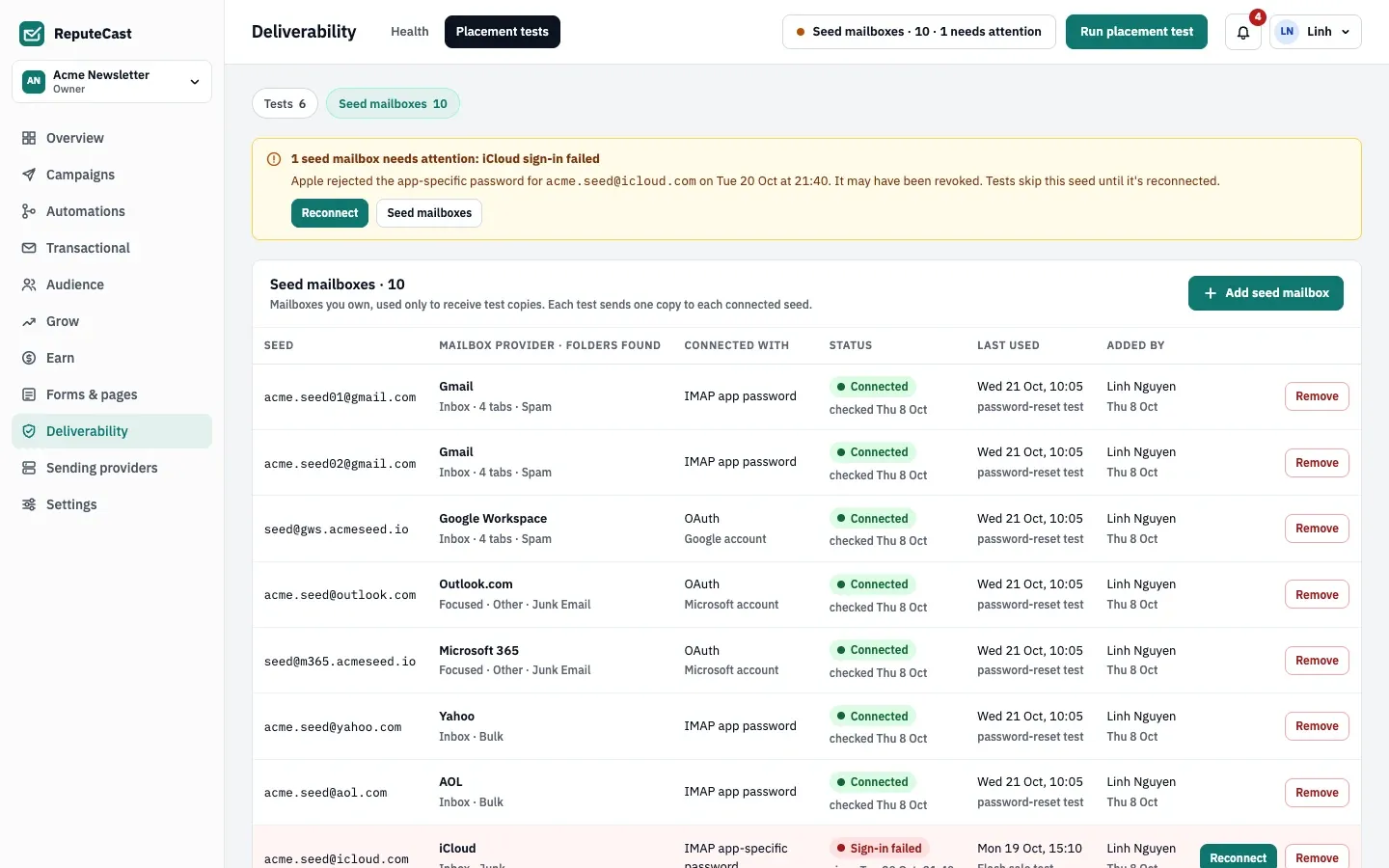
Open Deliverability, then Placement tests and select Seed mailboxes.
-
Select Add seed mailbox and pick the mailbox provider.
-
Under Connect with, choose IMAP app password or OAuth where the provider offers both.
- App password: enter the address and the password, then select Check and add. ReputeCast signs in and lists the folders it found, such as the inbox, the tabs and the spam folder.
- OAuth: sign in to the seed mailbox at Google or Microsoft and allow ReputeCast to read and change its mail. Finish within 10 minutes; the browser then returns to ReputeCast and the seed is added.
-
Add a seed at each mailbox provider your readers use. A test can send to up to 100 seeds.
Run a placement test
Section titled “Run a placement test”-
Select Run placement test. You can also start a test from Review & send, from the composer’s Send test menu or from the warm-up planner.
-
Pick what to test: a campaign, a campaign template, a digest’s next issue or a transactional template. Choose the version when the email has A/B variants, language versions or conditional content.
-
Choose how the copies go out:
- With The route as configured, each seed gets the sending provider the route would pick for it.
- With One provider, you test one sending provider on its own.
- With Compare providers, each seed gets one copy per provider, 2 minutes apart, alternating which provider goes first. You can compare up to 6 providers.
-
Pick the sender and the seeds (all connected seeds, or some). The dialog shows the number of copies, their cost and, for a provider that is warming up, how many of today’s warm-up cap they use.
-
Select Start test.
Copies are real sends with the same headers and link tracking as the campaign. Their opens and clicks are never counted, they never appear in reports or contact timelines, and bounces or complaints from a seed never suppress it. A test never changes a send or its Send Readiness verdict.
Read the result
Section titled “Read the result”Results fill in live. ReputeCast keeps looking for each copy for 15 minutes after the last copy is handed to its sending provider; a copy still missing then shows as Not arrived, and one that turns up within the hour updates the result. Select Stop waiting to end the wait early.
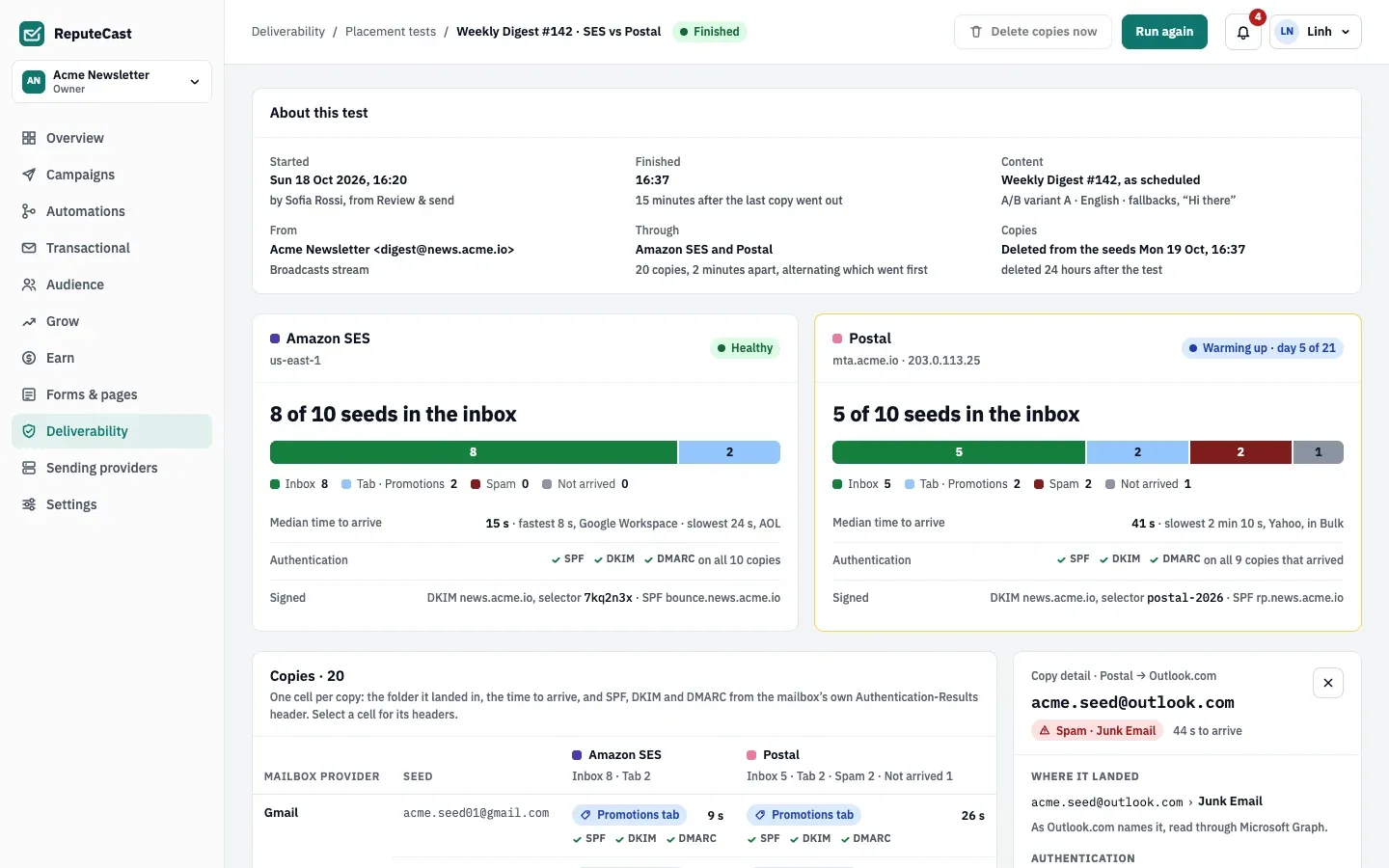
- The headline counts seeds, for example “8 of 10 seeds in the inbox”, never a percentage: a handful of seeds is a sample, not your audience.
- Each cell shows where the copy landed in the provider’s own words (Inbox, a tab, the spam folder), the time it took to arrive, and the SPF, DKIM and DMARC results the receiving server wrote into the copy’s headers. Open a copy to read its headers and the sending provider’s events.
- Copies in the seeds are deleted 24 hours after each test by default. Change that under
Deletion settings (24 hours after each test, when the test finishes, or never; needs
placement:manage), or remove one test’s copies with Delete copies now.
| Setting | Default | How to change |
|---|---|---|
| Wait for results | 15 minutes after the last copy is handed to its provider | Stop waiting ends it early |
| Late copies still counted | Up to 60 minutes after hand-off | Fixed |
| Seed copies deleted | 24 hours after each test | Placement tests › Seeds › deletion setting; 24 hours after, when the test finishes, or never (needs placement:manage) |
| Gap between providers' copies when comparing providers | 2 minutes | Fixed |
| Seeds and providers per test | Up to 100 seeds and 6 providers | Fixed |
| Time to finish a Google or Microsoft seed sign-in | 10 minutes | Fixed |
Check that it worked
Section titled “Check that it worked”- The test’s status is Finished and every seed has a result.
- Each seed on Seed mailboxes shows Connected and when it was last used.
Troubleshooting
Section titled “Troubleshooting”- A seed shows Sign-in failed. The mailbox provider rejected the app password, often because it was revoked or the account’s password changed. Tests skip the seed until you select Reconnect and paste a new app password.
- A seed shows Sign-in expired. The mailbox provider ended ReputeCast’s OAuth access. A gmail.com seed connected through an app in Testing status expires every 7 days; reconnect it with an app password.
- OAuth says the Google or Microsoft sign-in isn’t set up. The instance’s sign-in app has no client ID and secret yet. An instance admin adds them in Instance admin, then Authentication; until then, connect Gmail and Google Workspace seeds with an app password.
- Outlook.com refuses the app password. Expected: connect Outlook.com and Microsoft 365 seeds with OAuth.
- The test can’t start. The dialog lists why: no connected seed, no verified sender for the stream on a picked provider, a provider that is down, or a warm-up cap that the copies would exceed.
- Copies land in spam at one mailbox provider. Check the authentication results in the copy’s headers, then SPF, DKIM and DMARC and blocklist listings for the sending domain.